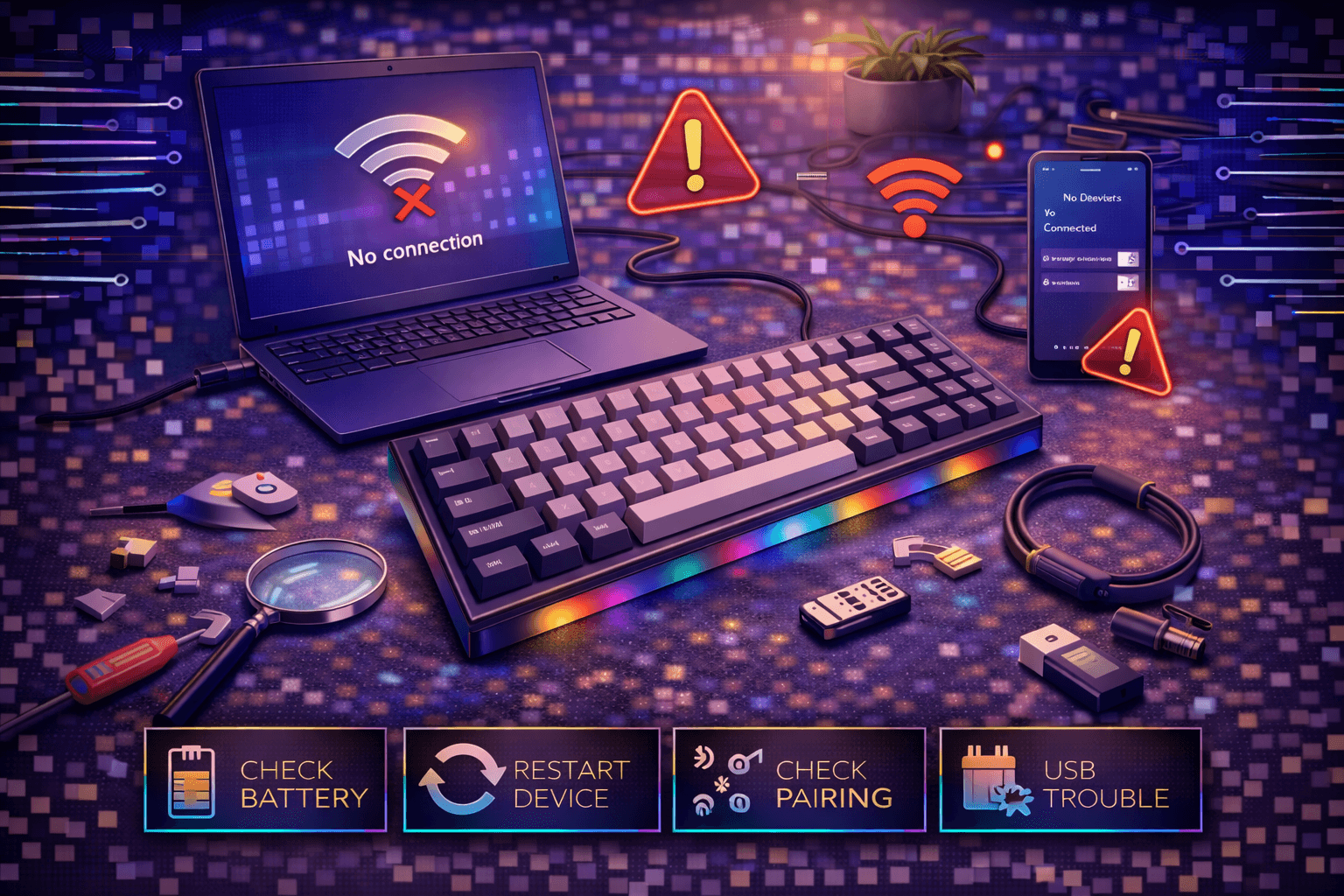
Wireless keyboard connection failures disrupt productivity through intermittent disconnections, pairing failures, input lag, and unresponsive connections. Understanding wireless connection problems—whether Bluetooth pairing issues, 2.4GHz dongle failures, battery problems, interference, or distance limitations—enables systematic troubleshooting restoring reliable wireless keyboard functionality. For wired keyboards or general detection issues unrelated to wireless, see our keyboard not working troubleshooting guide.
Connection issues manifest various ways: keyboard won't pair initially, randomly disconnects during use, extreme input lag making typing impossible, one-way communication (lights work but typing doesn't register), or complete unresponsiveness despite power indicators showing keyboard active.
This comprehensive guide covers wireless keyboard connection troubleshooting for both Bluetooth and 2.4GHz wireless, provides step-by-step pairing procedures for Windows/Mac/Linux, addresses disconnection problems, explains interference sources and solutions, covers battery and power issues, and helps achieve stable reliable wireless keyboard connections.
Whether keyboard refuses to pair, keeps disconnecting randomly, experiences lag, or connection drops intermittently, this guide provides systematic solutions restoring functionality.
Note: This guide contains affiliate links. If you purchase through our links, we may earn a commission at no extra cost to you. This helps support our in-depth testing and content creation.
Understanding Wireless Connection Types
Bluetooth Wireless
How it works: Standard Bluetooth protocol. Computer's built-in Bluetooth module connects directly to keyboard wirelessly using standard frequency-hopping spread spectrum (FHSS).
Advantages:
- No USB dongle needed (uses computer's built-in Bluetooth)
- Multi-device pairing (connect same keyboard to 3+ devices)
- Universal standard (works with phones, tablets, computers)
- Longer battery life typically (less power transmission)
Disadvantages:
- Slightly higher latency (~10-15ms typical)
- More prone to interference from other 2.4GHz devices
- Pairing process can be finicky requiring manual steps
- Compatibility varies by Bluetooth version (5.0 best)
Connection range: ~30 feet (10 meters) line-of-sight. Walls and obstacles reduce significantly.
Bluetooth versions:
- Bluetooth 5.0: Best performance, longest range
- Bluetooth 4.2: Good, widely supported
- Bluetooth 4.0 or earlier: May have compatibility issues
2.4GHz Wireless (Proprietary Dongles)
How it works: USB dongle creates dedicated wireless connection using proprietary protocol specific to manufacturer. Direct connection between keyboard and dongle.
Advantages:
- Lower latency (~2-5ms typical)
- More stable connection generally
- Plug-and-play (pre-paired from factory, usually)
- Less susceptible to Bluetooth interference
- Simpler pairing (no software typically)
Disadvantages:
- Requires USB port for dongle
- Dongle can be lost (no replacement possible easily)
- Single device only (can't use with phone/tablet)
- Shorter battery life typically (higher power transmission)
Connection range: ~30 feet (10 meters) typical, some up to 50 feet with good conditions.
Identifying which type your keyboard uses:
Check manual or look for: Bluetooth logo = Bluetooth. USB dongle = 2.4GHz. Some keyboards support both (Tri-mode: Bluetooth + 2.4GHz + Wired).
Bluetooth Pairing: Step-by-Step Solutions
Bluetooth Keyboard Won't Pair Initially
Step 1: Verify keyboard in pairing mode
Most Bluetooth keyboards require entering pairing mode manually. Without this, computer can't detect keyboard.
Common pairing entry methods:
- Hold Fn + Bluetooth button for 3-5 seconds
- Hold dedicated pairing button (varies by model)
- Toggle power switch to pairing position
- Press specific key combination (check manual)
Indicators keyboard in pairing mode:
- Bluetooth LED blinking rapidly (fastest indicator)
- Specific LED pattern (multi-color flashing)
- Keyboard appears in Bluetooth device list on computer
- Manual should document exact indicator
Troubleshooting pairing mode:
- Replace batteries (weak batteries prevent pairing mode)
- Ensure power switch is ON
- Try different pairing method if multiple exist
- Consult manual for specific keyboard procedure
Step 2: Make computer discoverable/visible
Computer must enable Bluetooth and search for devices for pairing to work.
Windows 10/11 pairing:
- Settings → Bluetooth & devices
- Toggle Bluetooth ON (if off)
- Click "Add device" → Bluetooth
- Computer searches for nearby Bluetooth devices
- Keyboard should appear in list when in pairing mode
Mac pairing:
- System Settings → Bluetooth
- Toggle Bluetooth ON
- Keyboard appears in device list when in pairing mode
- Click keyboard name to pair
Linux (Ubuntu/Debian) pairing:
- Settings → Bluetooth
- Toggle Bluetooth ON
- Keyboard appears when in pairing mode
- Click to connect/pair
Step 3: Remove old failed pairings
Previous unsuccessful pairing attempts create "ghost" devices blocking new connections. Clear old entries before retrying.
Windows:
- Settings → Bluetooth & devices → View more devices
- Find keyboard in list (may show as "Unknown Device")
- Click three dots → Remove device
- Retry pairing fresh
Mac:
- System Settings → Bluetooth
- Find keyboard in list (may show as disconnected)
- Click X button next to keyboard → Remove
- Retry pairing
Linux:
- Settings → Bluetooth → Paired Devices
- Find and remove keyboard
- Retry pairing
Step 4: Clear keyboard's paired device list
Some keyboards store multiple device pairings in memory. Clearing erases all pairings enabling fresh start.
Clear method varies by manufacturer:
- Hold Fn + 1 + Backspace (common method—hold 5 seconds)
- Specific key combination documented in manual
- Power cycle keyboard after clearing (turn off/on)
- LED may show different pattern after successful clear
Check manual for exact keyboard procedure. Different models vary significantly.
Step 5: Update Bluetooth drivers (Windows)
Outdated drivers prevent pairing or cause stability issues. Update ensures compatibility.
Windows driver update:
- Device Manager (search "Device Manager" in Start menu)
- Expand "Bluetooth" section
- Right-click Bluetooth adapter (Intel Wireless, Realtek, etc.)
- Select "Update driver"
- Choose "Search automatically for updated driver software"
- Windows downloads and installs latest version
- Restart computer if prompted
Mac: Bluetooth drivers update via macOS updates. Check for system updates in System Settings.
Linux: Bluetooth stack usually current. Update system packages if needed:
sudo apt update && sudo apt upgrade
Step 6: Reset Bluetooth module
Restarting Bluetooth service clears stuck connections and temporary glitches.
Windows Bluetooth reset:
- Open Services (search "services.msc" in Start menu)
- Find "Bluetooth Support Service"
- Right-click → Restart
- Service restarts, clearing stuck states
- Retry pairing
Mac Bluetooth reset:
- Hold Shift + Option, click Bluetooth menu bar icon
- Select "Reset the Bluetooth module"
- Confirm reset
- Wait 30 seconds before retrying pairing
Linux Bluetooth reset:
sudo systemctl restart bluetooth
Step 7: Check Bluetooth version compatibility
Older Bluetooth versions (2.1 or earlier) have compatibility issues with newer keyboards. Check versions matching.
Find computer Bluetooth version:
- Windows: Device Manager → Bluetooth → Properties → Details → Bluetooth version
- Mac: System Information → Hardware → Bluetooth
Find keyboard Bluetooth version: Check manual or manufacturer specs.
Compatibility: Bluetooth 5.0 works with any version. Bluetooth 4.0+ generally compatible. Older Bluetooth 2.1 may have issues.
Step 8: Try USB Bluetooth adapter (if built-in Bluetooth failing)
Some computers have faulty built-in Bluetooth. External USB adapter tests if issue is hardware.
If using USB Bluetooth adapter:
- Try different USB ports (USB 2.0 preferred over USB 3.0)
- USB 3.0 ports sometimes interfere with Bluetooth—try USB 2.0
- Use USB extension cable positioning adapter away from other USB ports
Common Bluetooth pairing error messages:
"Can't connect to device": Keyboard not in pairing mode or out of range. Re-enter pairing mode, move closer to computer.
"Driver error" or "Bluetooth not found": Update drivers. Restart Bluetooth service. Restart computer.
"Authentication failed": Clear previous pairings on both devices. Fresh pairing attempt.
"Device timeout": Keyboard timeout from pairing mode. Re-enter pairing mode, try again within 30 seconds.
Random Disconnection Problems
Battery Issues (Most Common Cause)
Weak/dying batteries cause 80%+ of random disconnection problems. Replace first.
Symptoms of battery problems:
- Keyboard occasionally unresponsive
- Random disconnections lasting 1-2 seconds before reconnecting
- Intermittent lag or missed keystrokes
- Connection drops during typing
Solutions:
- Replace batteries immediately (even if showing "good")
- Use quality alkaline or rechargeable NiMH batteries
- Cheap batteries fail prematurely—invest in quality
- Check battery orientation (+ and - aligned correctly)
- Clean battery contacts with cloth if corroded
For rechargeable keyboards:
- Charge fully using provided cable
- Try different charging cable if current not working
- Use high-amperage charger (5V 2A minimum)
- Never fully deplete—charge at 20-30% remaining
Interference Sources
Multiple wireless devices on 2.4GHz frequency band cause interference degrading Bluetooth connection.
Common interference sources:
- WiFi routers (2.4GHz band especially problematic)
- Wireless mice (2.4GHz)
- Microwave ovens (emit 2.4GHz when operating)
- Cordless phones (older 2.4GHz models)
- Bluetooth headphones/speakers nearby
- USB 3.0 devices (emit RF interference)
- Metal objects (walls, filing cabinets reflect signals)
Solutions:
- Move keyboard away from WiFi router (10+ feet)
- Change WiFi to 5GHz band if router supports (less interference)
- Turn off unused Bluetooth devices
- Avoid microwave during critical work
- Move keyboard and computer closer together
- Remove metal obstacles between keyboard and computer
- Position dongle away from USB 3.0 ports using extension cable
Distance and Obstacles
Bluetooth range limited by design. Exceeding range degrades connection.
Maximum effective range: ~30 feet (10 meters) line-of-sight. Walls, furniture reduce significantly.
Solutions:
- Move keyboard closer to computer (within 10-15 feet)
- Remove obstacles between keyboard and computer
- Position for direct line-of-sight if possible
- Use USB extension cable positioning computer closer
Power Saving Settings
Windows power management can disable Bluetooth adapter saving power but breaking connections.
Fix for Windows:
- Device Manager → Bluetooth section
- Right-click Bluetooth adapter
- Properties → Power Management tab
- Uncheck "Allow the computer to turn off this device to save power"
- Click OK
- Restart computer
This prevents Windows from disabling Bluetooth during idle, ensuring stable connections.
USB Port Issues (2.4GHz Dongles)
Loose connection or failing USB port causes intermittent wireless failures.
Solutions:
- Ensure dongle fully inserted into USB port
- Try different USB port (current may be failing)
- Try USB 2.0 port instead of USB 3.0 (USB 3.0 causes interference sometimes)
- Use USB extension cable (positions dongle away from other USB devices)
- Avoid USB hubs—connect directly to computer
Driver and Firmware Issues
Outdated drivers or firmware create stability problems requiring updates.
Update firmware:
- Visit keyboard manufacturer website
- Search support page for firmware updates
- Download latest firmware
- Follow manufacturer update instructions
- Restart keyboard after update
Update drivers:
- Windows: Device Manager → Keyboard → Update driver
- Mac: Check for macOS updates
- Linux: Update system packages
Input Lag and Slow Response
Interference-Induced Lag
Interference degrades signal quality causing latency before disconnection.
Identify interference: Move keyboard and computer to different location. Lag disappears? Interference in original location.
Solutions: Address interference sources (WiFi router, microwaves, other wireless devices). See interference section above.
Distance-Induced Lag
Operating at maximum range increases latency as signal weakens.
Solution: Move keyboard closer to computer. Within 10-15 feet optimal.
Computer Performance Lag
High CPU usage on computer creates perceived keyboard lag (actually system lag, not keyboard).
Check: Open Task Manager (Windows) or Activity Monitor (Mac). High CPU usage? Close unnecessary programs.
Solution: Close background applications consuming CPU.
Low Battery Voltage
Batteries near end of life deliver insufficient voltage causing performance degradation before complete failure.
Solution: Replace batteries despite keyboard showing "good" battery indicator.
Polling Rate Configuration
Some wireless keyboards allow polling rate adjustment. Lower rates save battery but increase latency.
Check: Keyboard software/settings for polling rate option. Increase if available (higher = lower latency).
2.4GHz Dongle-Specific Troubleshooting
Dongle Not Recognized by Computer
Try different USB port: Current port may have failed. Test all available ports.
Inspect dongle: Check for bent pins or physical damage. Damaged dongles must be replaced.
Test on different computer: Works on other computer? Original computer USB issue. Doesn't work anywhere? Dongle failed.
Driver installation: Some dongles require drivers. Check manufacturer website for drivers if plug-and-play fails.
Keyboard and Dongle Not Synced
Pre-paired from factory but connection lost requires re-syncing.
Re-sync procedure varies by manufacturer:
Logitech Unifying devices:
- Download Logitech Unifying Software
- Open software, follow pairing wizard
- Press Connect button on device when prompted
- Software pairs device with dongle
Other brands:
- Look for sync button on dongle and keyboard
- Press both simultaneously (typically 3-5 seconds)
- Watch LED indicators showing sync status
- Consult manual for specific procedure
Lost or Defective Dongle
Logitech Unifying compatibility: Any Logitech Unifying receiver works with any Logitech Unifying device. Purchase replacement receiver (~$15-20) and pair using software.
Other brands: Usually must purchase identical replacement dongle from manufacturer. Generic dongles won't work due to proprietary protocols. Some brands allow dongle purchases, others require buying new keyboard.
Dongle Interference with USB 3.0
USB 3.0 ports emit RF interference affecting 2.4GHz wireless.
Solution: Use USB extension cable positioning dongle far from USB 3.0 ports (back ports better than front). Or try USB 2.0 port if available.
This single change resolves majority of 2.4GHz keyboard issues.
Battery and Power Management
Battery Life Expectations
Without RGB backlighting:
- Quality keyboard: 3-6 months per battery set
- Budget keyboard: 1-3 months
With RGB backlighting:
- Typical: 2-4 weeks per battery set
- Heavy RGB use: 1-2 weeks
Rechargeable keyboards:
- Per charge: 1-4 weeks depending on features
- High-end (Logitech MX Keys): Up to 5 months
- Gaming keyboards : 2-4 weeks with RGB on
Extends battery life:
- Turn off RGB backlighting (biggest drain)
- Enable power saving mode
- Use quality batteries (alkaline or NiMH rechargeable)
- Don't store with dead batteries (corrosion risk)
Charging Issues (Rechargeable Keyboards)
Not charging: Try different cable, different USB port, different power adapter (confirm 5V 2A minimum).
Slow charging: Use higher amperage charger. Standard USB charger (500mA) charges slowly. 2A charger charges 4x faster.
Battery degradation: After years of use, rechargeable batteries hold less charge. Usually not user-replaceable. May require professional battery replacement.
Prevention and Best Practices
Maintaining Reliable Wireless Connections
Check firmware quarterly: Manufacturer website for updates improving stability.
Use quality batteries: Worth premium cost—cheap batteries cause problems.
Position optimally: Within 10-15 feet of computer, line-of-sight preferred.
Minimize interference: WiFi 5GHz, move from router, single Bluetooth device active.
Keep dongle safe: Store in designated location, label if multiple devices.
USB extension for dongles: Single biggest improvement for 2.4GHz reliability—positions dongle away from interference.
Backup wired connection: Keep USB cable if keyboard supports wired mode. Emergency backup when wireless fails.
Troubleshooting Checklist
- ✓ Replace batteries (most common fix)
- ✓ Check keyboard in pairing mode
- ✓ Clear old pairings (both device and computer)
- ✓ Disable power-saving on Bluetooth adapter
- ✓ Update drivers/firmware
- ✓ Restart Bluetooth service
- ✓ Test in different location (interference check)
- ✓ Use USB extension for dongle (2.4GHz)
- ✓ Try external Bluetooth adapter
- ✓ Contact manufacturer support
FAQ
Q: Why does my wireless keyboard keep disconnecting?
A: Most common: dead/dying batteries. Replace immediately. Other causes: interference (move away from WiFi router), distance (move closer), power-saving settings enabled, outdated drivers. Follow checklist above. See disconnection section for full troubleshooting.
Q: My Bluetooth keyboard won't pair, how do I fix it?
A: Ensure keyboard in pairing mode (LED flashing rapidly). Remove old pairings from both computer and keyboard. Update Bluetooth drivers. Try resetting Bluetooth service. See Bluetooth pairing section above for complete procedure.
Q: Wireless keyboard has input lag making typing slow?
A: Usually interference or dying batteries. Replace batteries first. Move away from WiFi router, microwave, other wireless devices. Move closer to computer. Check computer CPU usage. See input lag section above.
Q: I lost my wireless keyboard dongle, what do I do?
A: Logitech Unifying: Buy replacement receiver (~$15), pair using Unifying Software. Other brands: Contact manufacturer for replacement dongle availability. Generic dongles won't work. Some brands sell replacement dongles separately, others require new keyboard purchase. See dongle section above.
Q: How long should wireless keyboard batteries last?
A: Without RGB: 3-6 months. With RGB: 2-4 weeks. Rechargeable: 1-4 weeks per charge. Quality batteries last longer than cheap ones. Turn off RGB for maximum battery life. See battery section above.
Conclusion
Wireless keyboard connection issues stem from battery problems (most common), interference, distance limitations, pairing failures, driver issues, or hardware faults. Systematic troubleshooting starting with battery replacement, interference assessment, proper pairing procedures, and driver updates resolves 95%+ of wireless keyboard problems.
Bluetooth keyboards require careful pairing following manufacturer procedures. 2.4GHz dongle keyboards generally more stable but vulnerable to dongle loss or failure. Understanding connection type (Bluetooth vs 2.4GHz) guides appropriate troubleshooting.
Maintaining reliable wireless connections requires quality batteries, firmware updates, interference minimization, optimal positioning within range, and regular maintenance. Prevention through proper setup and battery management ensures stable wireless keyboard performance. If you're still shopping for a wireless keyboard, our best wireless gaming keyboards guide covers the most reliable options, and our wireless vs wired comparison breaks down when wireless is worth it.