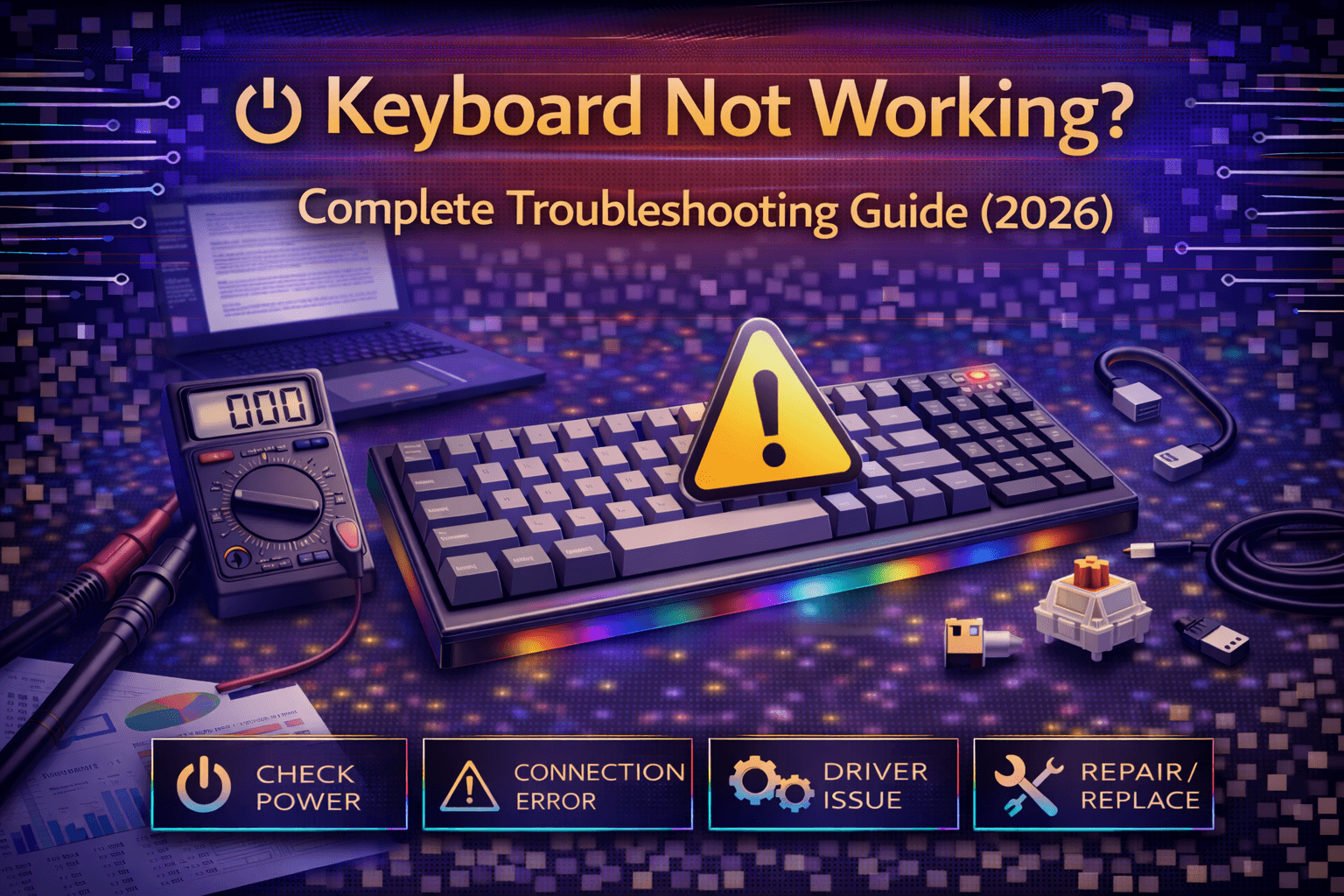
Keyboard failures frustrate users through sudden unresponsiveness disrupting work, gaming, and daily computer use. Understanding why keyboards stop working and systematic troubleshooting approaches restore functionality quickly, whether simple connection issues, driver conflicts, or hardware failures requiring replacement.
Keyboard problems manifest in various ways: completely unresponsive keyboards showing no signs of life, partially working keyboards with dead keys or intermittent functionality, wireless keyboards losing connection randomly, software conflicts preventing recognition, or physical damage from spills and drops. Each issue requires different troubleshooting approaches based on specific symptoms.
This comprehensive troubleshooting guide covers common keyboard failure causes, provides systematic step-by-step fixes from simple to advanced, addresses both mechanical and membrane keyboards, discusses wireless-specific issues, explains software and driver problems, and helps determine when keyboards require professional repair versus replacement.
Whether keyboard suddenly stopped working, some keys unresponsive, wireless connection failing, or computer not recognizing keyboard, this guide provides solutions systematically restoring normal functionality.
Note: This guide contains affiliate links. If you purchase through our links, we may earn a commission at no extra cost to you. This helps support our in-depth testing and content creation.
Quick Diagnosis
Identifying Keyboard Failure Type
Understanding exactly how your keyboard failed helps focus troubleshooting efforts efficiently.
Completely unresponsive (no lights, no response):
- Connection issue (cable, wireless)
- Power problem (wireless battery)
- Hardware failure (PCB, controller)
- Driver/software conflict
Partially working (some keys dead, intermittent):
- Specific key failures (switch/contact damage)
- Firmware corruption
- Physical damage (spill, impact)
- Connection intermittency
Lights on but not typing:
- Driver issue
- Wrong input selected
- Software conflict
- Firmware problem
Wireless-specific issues:
- Battery dead
- Bluetooth/dongle connection lost
- Interference
- Pairing problem
Quick Diagnostic Checklist
Before deep troubleshooting, verify these basic items:
- ✓ Cable firmly connected (wired keyboards)
- ✓ USB port working (try different port)
- ✓ Battery charged (wireless keyboards)
- ✓ Keyboard power switch ON (wireless)
- ✓ Computer recognizes keyboard (Device Manager/System Preferences)
- ✓ Tried different computer (isolate keyboard vs computer issue)
- ✓ Cleaned under keys (debris blocking)
If all above checked and keyboard still not working, proceed to detailed troubleshooting below.
Wired Keyboard Troubleshooting
Step 1: Check Physical Connection
Unplug and replug firmly: Ensure USB connector fully seated into port. Partial connection causes failures. You should hear/feel click when properly connected.
Try different USB port: Original port may have failed internally. Try all available USB ports. Test both USB 2.0 and 3.0 ports if available.
Inspect cable for damage: Examine entire cable length for kinks, cuts, exposed wires, bent connectors, damaged insulation. Cable damage common failure point especially near connectors where stress occurs.
Detachable cable keyboards: If keyboard uses detachable cable, try different cable if available. Cable failure more common than keyboard failure. Test with known-working cable from different keyboard.
USB hub issues: If using USB hub, connect keyboard directly to computer without hub. USB hubs sometimes cause power/compatibility problems, especially unpowered hubs with multiple devices.
Step 2: Test on Different Computer
Critical diagnostic step: Testing keyboard on different computer determines if problem is keyboard hardware or original computer settings/ports.
Keyboard works on different computer: Problem is original computer (drivers, ports, settings). Proceed to software troubleshooting below.
Keyboard doesn't work anywhere: Problem is keyboard hardware failure. Proceed to hardware troubleshooting section.
Step 3: Check Device Recognition
Windows, Mac, and Linux must recognize keyboard as input device for proper operation.
Windows - Device Manager:
- Right-click Start menu → Device Manager
- Expand "Keyboards" section
- Look for keyboard entry with correct name
- Yellow exclamation mark indicates driver problem
- "Unknown device" indicates recognition failure
Mac - System Information:
- Apple menu → About This Mac → System Report
- Click USB section
- Keyboard should appear in connected devices list
- If missing, connection or hardware problem
Linux - lsusb command:
lsusb
Keyboard should appear in USB device list. If missing, hardware connection problem.
Step 4: Update/Reinstall Drivers
Outdated or corrupted drivers commonly cause keyboard failures.
Windows driver update:
- Device Manager → Keyboards
- Right-click keyboard → Update driver
- Select "Search automatically for drivers"
- If fails, try "Uninstall device" then reconnect keyboard
- Windows reinstalls drivers automatically
Windows driver reinstall (if update fails):
- Device Manager → Keyboards
- Right-click keyboard → Uninstall device
- Physically disconnect keyboard
- Restart computer
- Reconnect keyboard
- Windows automatically detects and installs drivers
Mac driver reset:
Drivers usually automatic on Mac. If issues occur:
- Shut down computer
- Remove battery (laptops)
- Unplug power cable
- Wait 30 seconds
- Reconnect power and battery
- Restart Mac
Linux driver reset:
sudo modprobe -r usbhid
sudo modprobe usbhid
Step 5: Check for Software Conflicts
Keyboard software and other programs sometimes conflict.
Uninstall keyboard software: Razer Synapse, Corsair iCUE, Logitech G Hub can interfere. Try uninstalling completely and test keyboard.
Check antivirus/security: Sometimes antivirus software blocks keyboard drivers. Temporarily disable antivirus and test.
Recent Windows updates: Windows updates occasionally cause keyboard driver issues. Check Windows Update history—uninstall recent problematic updates.
Step 6: Test in Safe Mode
Safe Mode loads only essential drivers, isolating software conflicts.
Windows Safe Mode:
- Restart computer
- Press F8 repeatedly during startup (Windows 7/8) or different method for Windows 10/11
- Select Safe Mode with Networking
- If keyboard works in Safe Mode, software conflict in normal Windows
Mac Recovery Mode:
- Restart Mac holding Command+R
- If keyboard works in Recovery Mode, software issue in normal macOS
Linux Safe Boot:
Boot into single-user mode. If keyboard works, software conflict in normal system.
If keyboard works in Safe Mode: Problematic software causing issue. Uninstall recently added programs/drivers.
If keyboard doesn't work in Safe Mode: Hardware issue or core driver problem. Proceed to hardware checks.
Step 7: BIOS/UEFI Test
Testing keyboard in BIOS determines if issue is hardware or operating system level.
- Restart computer
- Enter BIOS/UEFI during startup (usually DEL, F2, or F12—check your computer's startup screen)
- Try using keyboard in BIOS menu
If keyboard works in BIOS but not operating system: Confirms OS-level software problem.
If keyboard doesn't work in BIOS: Hardware failure likely (connection, PCB, controller).
Step 8: Hardware-Level Checks
Spill damage: If keyboard experienced liquid spill, PCB damage likely.
- Disassemble keyboard carefully
- Clean with isopropyl alcohol 90%+ concentration
- Dry completely (24 hours)
- Reassemble and test
- Professional repair may be needed for extensive damage
Physical damage: Drops, impacts can break PCB traces, components.
- Visually inspect PCB for cracks
- Check connector pins for damage
- Look for broken components
Bent connector pins: Gently straighten pins with fine tweezers if possible.
Corroded connectors: Clean with contact cleaner or isopropyl alcohol.
Wireless Keyboard Troubleshooting
Step 1: Battery/Power Check
Most common wireless keyboard problem: Dead or dying batteries.
Replace/recharge batteries immediately:
- Most common cause of sudden wireless keyboard failure
- Even "full" batteries can fail suddenly
- Replace with high-quality alkaline or lithium batteries
- Rechargeable keyboards: fully charge and test
Battery orientation: Ensure batteries inserted correctly with + and - properly aligned. Reversed batteries prevent operation.
Power switch: Verify keyboard power switch ON. Easy to accidentally toggle off.
Charging cables: For rechargeable keyboards, try different USB charging cable. Cable may be defective.
Battery indicator lights: Check for LED indicators showing battery status. Red/flashing lights often indicate low battery.
Step 2: Bluetooth Pairing Issues
Re-pair keyboard:
- Remove keyboard from Bluetooth devices list (Forget device)
- Turn keyboard off and on
- Enter pairing mode (varies by keyboard, usually hold Fn+specific key or dedicated pairing button)
- Search for keyboard in Bluetooth settings
- Select and pair when keyboard appears
Clear all pairings: Some keyboards store multiple pairings. Clear all pairings from Bluetooth settings, then pair fresh.
Bluetooth interference: Other devices (wireless mice, phones, routers, baby monitors) operate same 2.4GHz frequency. Turn off nearby Bluetooth devices temporarily and test.
Distance: Ensure keyboard within Bluetooth range (typically 30 feet/10 meters). Walls, metal objects reduce effective range.
Try forgetting device and re-pairing: Sometimes fresh pairing resolves connection issues.
Step 3: Wireless Dongle Issues (2.4GHz)
Replug dongle: Remove and reinsert USB dongle into computer. Try different USB port.
Dongle positioning: Some dongles work better in front USB ports versus rear. Try all available ports. USB extenders can improve signal.
Re-sync keyboard and dongle: Most wireless keyboards have sync button. Press on both dongle (top) and keyboard (usually bottom) to re-establish connection.
Interference: 2.4GHz crowded frequency. Routers, cordless phones, baby monitors cause interference. Change WiFi channel (in router settings), move keyboard away from router.
Replace dongle if available: Dongle may have failed. Order replacement dongle from manufacturer if available.
Step 4: Multi-Device Switching
Wrong device selected: Multi-device keyboards can connect to 3+ devices. Ensure correct device selected. Usually dedicated buttons (1, 2, 3) or key combination.
Disconnect from one device: If connected to multiple devices, keyboard may prioritize different device. Disconnect from other devices in Bluetooth settings.
Step 5: Firmware Updates
Some wireless keyboards require firmware updates for reliability and bug fixes.
Check manufacturer website for:
- Firmware update tools
- Latest firmware versions
- Update instructions
- Known issues/fixes
Update process varies by manufacturer. Follow instructions carefully.
Specific Key Failures
Single Key Not Working
Clean under keycap: Remove keycap using keycap puller or carefully with fingers. Debris/dust blocking switch common cause.
- Clean with compressed air
- Use soft brush for stubborn debris
- Reinstall keycap and test
Switch failure (mechanical keyboards):
Hot-swap keyboards: Remove failed switch, replace with new switch. Simple fix, no soldering required.
Soldered keyboards: Requires desoldering broken switch, soldering new switch. Needs soldering skills and tools.
Membrane keyboards: Individual key repair difficult. Usually replace entire keyboard.
Contact cleaning: Contact cleaner spray (electronics-safe) can restore functionality. Spray inside switch (mechanical) or under membrane (membrane keyboards).
Multiple Keys in Row/Column Not Working
Matrix failure: Keyboards use key matrix. Entire row or column failure indicates PCB trace damage or controller issue.
Diagnosis: If specific pattern of keys fail (all keys in straight line horizontally or vertically), matrix failure likely.
Fix: Difficult for non-experts. Requires PCB repair skills, possibly trace repair. Usually replace keyboard more practical than repair.
Random Keys Not Working
Firmware corruption: Reflash keyboard firmware if supported (QMK/VIA keyboards).
- Check manufacturer website for firmware tools
- Download latest firmware
- Follow flashing instructions
Loose PCB connection: Disassemble keyboard, reseat PCB connections. Hot-swap sockets sometimes become loose.
Water damage: Even after drying, residue causes random failures. Clean thoroughly with isopropyl alcohol 90%+, dry completely.
Sticky or Repeating Keys
Debris: Most common cause. Clean under keycap thoroughly with compressed air.
Switch damage: Mechanical switch spring or stem damaged. Hot-swap: replace switch. Soldered: requires soldering.
Software repeat rate: Keyboard repeat rate set too fast in settings.
Windows: Control Panel → Keyboard → Repeat rate slider
Mac: System Preferences → Keyboard → Key Repeat slider
When to Replace vs Repair
Replace Keyboard If:
Budget keyboard (<$50): Repair costs exceed replacement cost. Not economical.
Extensive water damage: Unless high-end keyboard, replacement cheaper than professional cleaning.
PCB damage: Broken traces, fried controller chips require expert repair. Usually prohibitively expensive.
Multiple component failures: When many things wrong, replacement more practical.
Warranty expired, repair expensive: Professional repair can be costly and may approach the cost of a new keyboard.
Multiple failed keys: Suggests widespread failure. Replacement better value.
Attempt Repair If:
Premium keyboard ($150+): Worth repair investment. Leopold, Keychron Q, custom keyboards merit repair.
Simple fixes: Switch replacement (hot-swap), cable replacement, basic cleaning all DIY-able.
Warranty coverage: Always use warranty if available. Free repairs/replacement.
Sentimental value: Custom built keyboards, gifts, special editions worth repairing.
Single key failure: If only one key broken, replacement switch (hot-swap) is a minimal cost.
DIY skills: If comfortable soldering, electronics work, many repairs feasible.
Repair Cost vs Replacement Decision
Professional keyboard repair: mid-range to premium cost
Quality replacement keyboard: mid-range to premium
Budget replacement: affordable, entry-level
Hot-swap switch replacement: minimal cost per switch
Decision framework:
- Repair cost >50% replacement cost? → Replace
- One simple fix (battery, cable, switch)? → Repair
- Premium keyboard you love? → Repair if feasible
- Budget keyboard with multiple issues? → Replace
Prevention Tips
Preventing Future Keyboard Failures
Cable care:
- Avoid sharp bends near connectors
- Don't yank cables violently
- Use keyboard cable organizers
- Avoid stress on USB connections
Spill protection:
- Keep drinks away from keyboard
- Consider keyboard covers for high-risk environments
- Coffee/beverage spills number one cause of failures
Regular cleaning:
- Clean keyboard monthly
- Prevents debris buildup causing failures
- Use compressed air, soft brushes
- Extend keyboard lifespan significantly
Proper transport:
- Use keyboard cases for travel
- Protect from impacts, pressure during transport
- Detachable cables less likely to damage than integrated
Quality keyboards:
- Better keyboards more reliable
- Premium switches, construction last longer
- Investment pays dividends through longevity
Surge protection:
- Use surge protector for all electronics
- Power surges damage USB controllers
- Inexpensive insurance against damage
Software maintenance:
- Keep drivers updated
- Avoid sketchy keyboard software
- Remove unused keyboard software
Battery maintenance (wireless):
- Don't leave dead batteries in keyboard (corrosion)
- Use quality batteries (alkaline/lithium)
- Check battery level regularly
Firmware updates:
- Keep keyboard firmware current
- Bug fixes, reliability improvements
- Check manufacturer website periodically
Gentle use:
- Avoid excessive force, rage typing
- Don't slam keys repeatedly
- Extends keyboard lifespan significantly
FAQ
Q: Why did my keyboard suddenly stop working?
A: Common causes include loose cable connection, driver conflict, dead battery (wireless), software conflict, or hardware failure. Try: reconnect cable firmly, try different USB port, replace batteries (wireless), restart computer. See troubleshooting steps above.
Q: How do I fix a keyboard that types wrong characters?
A: Wrong keyboard layout selected. Windows: Settings → Time & Language → Language. Mac: System Preferences → Keyboard → Input Sources. Ensure correct language/layout selected. For other causes including stuck modifier keys, dead key sequences, and software interference, see our keyboard typing wrong characters fix guide.
Q: My wireless keyboard keeps disconnecting, how do I fix it?
A: Replace batteries, re-pair Bluetooth, check for interference, update firmware, try different USB port (dongle), reduce distance. See wireless troubleshooting section above.
Q: Some keys on my keyboard don't work, can I fix them?
A: Depends on cause. Clean under keycaps first. Hot-swap keyboards: replace switches. Soldered keyboards: requires soldering skills. Membrane keyboards: difficult individual repair. See specific key failures section above.
Q: Is it worth repairing an expensive keyboard?
A: Usually yes for $150+ keyboards. Simple repairs (switches, cables) DIY-able. Professional repair is worthwhile for premium keyboards. Budget keyboards (<$50) usually replace. See repair vs replace section above.
Conclusion
Keyboard failures result from various causes—connection issues, driver conflicts, hardware failures, battery problems—but systematic troubleshooting restores functionality in most cases. Start with simple fixes (reconnect cable, new batteries, different USB port) before advanced troubleshooting (driver reinstallation, hardware repair).
Testing keyboard on different computer determines if problem is keyboard or computer. Device Manager/System Information shows recognition issues. Wireless keyboards require battery checks and re-pairing.
Premium keyboards ($150+) merit repair attempts. Budget keyboards often more economical to replace than repair. Simple repairs (hot-swap switches, cables) DIY-able. Complex repairs (PCB damage, controller failures) require professional help.
Prevention through proper care, regular cleaning, and quality keyboards reduces failures — our step-by-step deep clean guide walks through the full procedure when maintenance has been neglected. When failures occur, this systematic troubleshooting approach resolves most keyboard issues restoring normal functionality quickly.