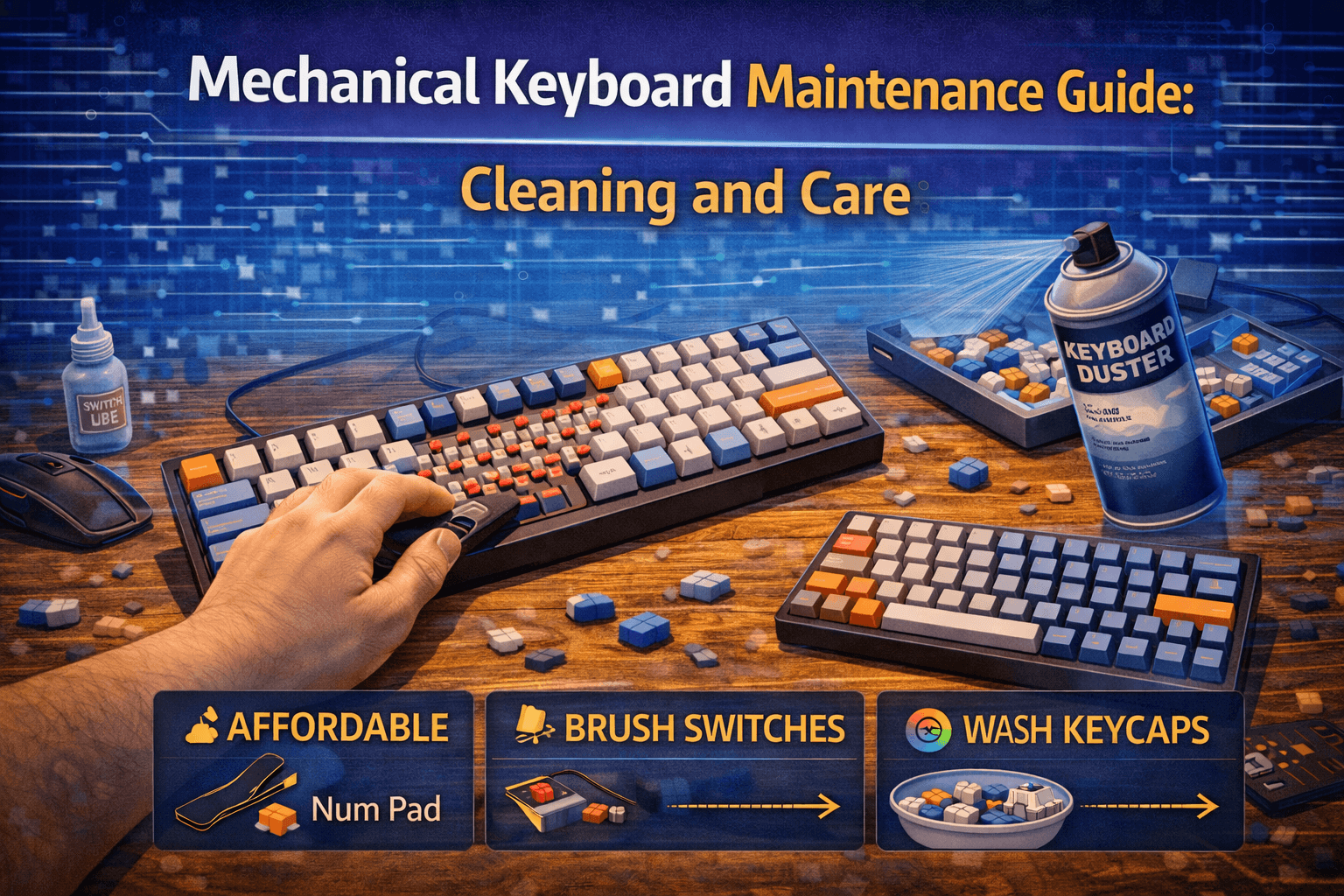
Let’s not sugarcoat it: your keyboard is gross. Right now, between those keycaps, there’s a mix of dead skin cells, hair, food crumbs, dust, and probably some stuff you’d rather not identify. If you’ve got pets, add fur to that list. If you eat at your desk — and come on, we all do — it’s worse than you think.
The good news? Mechanical keyboards are built to be taken apart and cleaned. That’s one of their best features over membrane boards, where everything is sealed shut and you’re basically stuck with whatever ecosystem develops underneath. Mechanical boards let you pop off every keycap, get at the switches, and actually deal with the mess.
And this isn’t just a hygiene thing. Debris inside switches makes them feel scratchy and inconsistent. Gunk on stabilizers makes your spacebar rattle. Dust buildup affects key travel. A lot of problems people blame on “cheap switches” or “bad quality” are literally just dirt. Clean your keyboard properly and it’ll feel the way it did when you unboxed it.
This guide covers everything — the 30-second daily habits, the full deep clean every few months, what to do when you inevitably spill coffee on the thing, and how to maintain switches and stabilizers long-term.
Note: This guide contains affiliate links. Purchases through these links support the site at no extra cost to you.
Daily and Weekly Habits (The Stuff That Actually Prevents Problems)
Most people skip straight to “how do I deep clean my keyboard” when the real answer is: stop letting it get that bad in the first place. A tiny amount of daily maintenance eliminates 80% of the gross factor and means your deep cleans are way less painful.
End of day — 30 seconds. Grab a microfiber cloth and wipe down the keycap tops. That’s it. You’re removing the finger oils that build up throughout the day and eventually create that shiny, greasy layer that makes keycaps look (and feel) disgusting after a few months. Microfiber works better than paper towels because it traps oils instead of smearing them around, and it doesn’t leave lint everywhere. Keep one at your desk. Don’t dampen it unless something is actually sticky — dry microfiber handles daily oil just fine, and the less moisture near your switches, the better.
Once a week — 2 minutes. Flip your keyboard upside down over a trash can and shake it. The amount of stuff that falls out will horrify you the first time. After shaking, hit it with a few short bursts of compressed air between the keycaps. Two things to remember: hold the can upright (tilting it sprays propellant liquid), and angle the nozzle rather than pointing straight down. Blasting air directly downward pushes debris deeper into switches instead of out. Hold the can 4-6 inches away and spray at an angle across the rows.
Focus on the keys you use most — spacebar, WASD if you game, the Enter/Backspace area. These accumulate the most debris because they get the most action and have the biggest gaps around them. Some people prefer a small handheld keyboard vacuum over compressed air, which works well but costs more.
Habits that save you work later. You’re probably not going to stop eating at your desk. I’m not either. But keeping drinks in containers with lids, brushing your hands off before typing after eating something crumbly, and washing your hands before long sessions makes a noticeable difference over weeks and months. If you have a shedding pet, drape a dust cover or even just a clean towel over the keyboard when you’re not using it. Our keyboard accessories guide covers dust covers, deskmats, and cable management options in more depth. Pet hair wraps around switch stems and gets into places that are genuinely annoying to clean out.
Deep Cleaning: The Full Walkthrough
For the full step-by-step walkthrough, see our dedicated how to deep clean your keyboard guide. Here is the overview — this is the every-3-to-6-months job. It takes maybe 30 minutes of active work (plus drying time), and the first time you do it you’ll wonder why you waited so long. After the first time, it becomes routine.
Taking the Keycaps Off
Rule number one: use a keycap puller. Not your fingers, not a screwdriver, not a butter knife. A wire keycap puller costs five bucks, lasts forever, and won’t scratch or crack anything. Wire pullers are better than plastic ones — the thin wire wraps under the keycap and lifts evenly, while plastic pullers with their squared-off edges can scratch softer ABS keycaps.
Before you pull a single cap: take a photo of your layout. I know it seems unnecessary. You will absolutely forget where at least two keys go, especially if your keyboard has a non-standard layout. The photo takes three seconds and saves you from Googling your own keyboard layout later.
Work systematically — top row to bottom, dropping keycaps into a bowl as you go. For regular keys, slide the wire puller under opposite sides and pull straight up. Clean pop, done.
Larger keys — spacebar, shift, enter, backspace — need more care. They have stabilizer wires underneath that hook into the PCB. Pull gently, wiggle slightly if needed, but don’t yank. If it’s resisting, you’re probably pulling at an angle. Straighten up and try again. Bending a stabilizer wire is annoying to fix and completely avoidable if you’re patient.
Cleaning the Keycaps
Fill a bowl with lukewarm water (not hot — hot water warps plastic) and a small squirt of mild dish soap. Drop all the keycaps in and let them soak for about 30 minutes. This loosens everything — the oils, the grime, whatever mystery substance was living under your Q key.
After soaking, swish them around to dislodge debris, dump them into a colander, and rinse under clean water until the soap is completely gone. Leftover soap makes keycaps feel sticky, which defeats the entire purpose. Lay them out on a towel and let them air dry completely — usually 2-3 hours.
A few things that sound helpful but aren’t: don’t put keycaps in the dishwasher. The heat warps them and the detergent is too aggressive. Don’t use a hair dryer to speed up drying — the concentrated heat can warp caps just like the dishwasher. Patience. Let them air dry. Go do something else for a couple hours.
Cleaning the Board Itself
With the keycaps off, you can finally see the horror show underneath. It’s always worse than expected.
Start with compressed air to blast out the loose stuff — and there will be a lot of it. Then go in with a soft brush — a small paintbrush or a dedicated keyboard cleaning brush — to sweep out what the air missed. Work methodically from one end to the other so you’re not just pushing debris around.
For the plate and case surfaces between switches, dampen a microfiber cloth with a little water or isopropyl alcohol and wipe everything down. Pay attention to the areas between switches where grime accumulates most — the spaces around frequently used keys tend to be the worst.
Important: you’re cleaning around the switches, not inside them. Don’t get liquid into the switch housings. If you need to get into tight spots around the switches, cotton swabs work well but change them frequently — they leave lint behind if you use the same one too long. For isopropyl alcohol, 70-90% concentration is the sweet spot. 70% works fine for general cleaning but takes a bit longer to evaporate because of the higher water content. 90% evaporates quickly, making it better for areas near electronics where you want minimal moisture exposure time. Either way, apply it to the cloth or swab, not directly to the keyboard — you want controlled moisture application, not a puddle sitting on your PCB.
If you’ve got sticky residue from an old spill that won’t come off with water alone, isopropyl alcohol handles it. Dampen the cloth, apply pressure over the sticky area, let the alcohol dissolve the residue for a few seconds, and wipe clean. For particularly stubborn spots, let an alcohol-dampened cotton swab sit on the residue for 30 seconds before wiping.
Putting It All Back Together
Once keycaps are completely dry — not “mostly dry,” completely dry — reinstallation is just the reverse of removal. Reference your photo and work row by row. Press each keycap straight down onto its switch stem until it clicks. Don’t angle it, don’t force it. If it’s not going on smoothly, you’re probably misaligned.
Larger stabilized keys need a bit more attention. Hook the stabilizer wire back in first, align the cap over the stem, then press down firmly. These need more force than regular keys because you’re seating both the switch stem and the stabilizer clips simultaneously, but “more force” doesn’t mean hammering it — just firm, even pressure.
After everything’s back on, open a text editor and press every single key. Verify they all register. If one doesn’t, pull the cap back off and check that it’s fully seated on the stem. Takes 30 seconds and catches problems before they annoy you mid-sentence tomorrow.
Spill Damage Control
You spilled something. Don’t panic, but do move fast. What you do in the next 60 seconds determines whether your keyboard survives.
Immediately: unplug the USB cable. Don’t shut down your computer gracefully — just yank the cable. If it’s wireless, power it off. Electricity and liquid together kill electronics. Every second counts.
Flip it upside down and shake. Let gravity pull the liquid back out the way it came in instead of letting it soak deeper. Your desk is going to get wet. That’s fine. The desk will dry.
What you spilled matters. Water is the best-case scenario — it doesn’t leave residue. Soda, energy drinks, coffee with sugar, juice — anything with sugar or acid is worse because it leaves sticky residue even after drying. That residue corrodes contacts and gums up switches over time. Beer and wine fall somewhere in between.
Remove all keycaps immediately and shake out more liquid. Blot — don’t wipe — with paper towels or a cloth. Wiping can push liquid into areas it hasn’t reached yet.
Here’s the counterintuitive move that actually works for sugary spills: rinse the board with isopropyl alcohol. Yes, applying more liquid to fix a liquid problem. Isopropyl alcohol displaces water, dissolves sugar residue, and evaporates much faster. If you have 90%+ concentration available, even better.
Then wait. This is the hard part. Prop the keyboard upside down somewhere warm with decent airflow. A fan pointing at it helps. Do not plug it in for at least 48 hours, ideally 72. The visible moisture will be gone in a few hours, but internal components trap moisture longer. Powering it on too early can cause shorts that kill the board permanently. Throwing some silica gel packets around the keyboard helps absorb lingering moisture from the air.
Signs your keyboard might be dead after a spill: keys that don’t respond after thorough drying, phantom inputs (keys triggering without being pressed), LEDs behaving erratically, or the USB connection not being recognized at all. Sometimes a board seems fine initially but develops issues days or weeks later as corrosion progresses internally. If you spilled something corrosive or the keyboard was fully submerged, the odds drop significantly.
For sugary spills specifically, even if the keyboard seems to work after drying, you may notice switches feeling sticky or gritty weeks later as the sugar residue hardens and starts affecting the switch mechanisms. The isopropyl alcohol rinse mentioned above is important specifically because it dissolves that sugar before it has a chance to crystallize inside your switches.
If the spill was minor — a few drops, caught quickly — you’re almost certainly fine with just keycap removal, blotting, and 24-48 hours of drying. If it was a full glass knocked over with liquid pooling on the board, plan for a more extensive recovery and be prepared for the possibility that some switches or the PCB might be damaged.
One advantage of hot-swappable keyboards here: if only a few switches died from the spill, you can replace just those switches instead of the entire board. A $5 set of replacement switches versus a $100+ new keyboard. Another reason hot-swap is worth the small price premium even if customization isn’t your primary motivation.
Switch and Stabilizer Maintenance
This is separate from general cleaning. Switches and stabilizers have their own maintenance needs, and most of it comes down to lubrication and debris removal.
When Switches Feel Wrong
Most switches run fine for years with nothing beyond keeping dust out. But if individual switches start feeling scratchy, gritty, or inconsistent, something’s going on.
First culprit: debris inside the switch. Compressed air pointed at the problem switch might fix it. If not, and you have a hot-swap keyboard, the easiest move is just swapping in a fresh switch. Keep a small stash of spares for exactly this situation — it takes 30 seconds.
Second culprit: lack of lubrication. Factory switches often ship with minimal or no lube. Over time, any existing lube can wear off. Adding proper lube transforms how switches feel — it’s one of the most impactful mods in the hobby. Our complete switch lubing guide covers the process in detail, but the short version is: you open the switch housing with a switch opener, apply a thin layer of lubricant to the contact surfaces, and reassemble. It’s fiddly but not complicated, and the difference in feel is immediately noticeable.
Third option: the switch is dying. Switches are rated for tens of millions of keystrokes, but heavily used keys (spacebar, E, A) can wear out faster. If a switch is inconsistent — registers sometimes, doesn’t register other times — and lubing doesn’t help, it’s probably done. On a hot-swap board, pull it and replace. On a soldered board… this is where you either learn to solder or accept the fate.
Fixing Rattly Stabilizers
That hollow, plasticky rattling noise from your spacebar? That’s stabilizer rattle, and it’s the most common complaint about keyboard sound. It happens when the stabilizer wire hits the housing walls and when plastic parts slide against each other without enough lubrication.
The fix: dielectric grease on the contact points. Apply it where the wire meets the housing and where plastic parts rub together. Less is more — too much makes keys feel mushy and sluggish. Start with a tiny amount, test the key, and add more only if the rattle persists.
How you access the stabilizers depends on your keyboard. Some boards let you reach them just by removing the keycap. Others require removing the switch too. Worst case, you need to open the case. Check your specific model before diving in.
Two popular stabilizer mods worth knowing about:
The Band-Aid Mod — cut small pieces of fabric band-aid and stick them on the PCB under the stabilizer mounting points, right where the stabilizer housings contact the board when bottoming out. Add a thin layer of dielectric grease on top of the band-aid material. This dampens the impact sound when you bottom out keys with stabilizers — that sharp, plasticky clack that’s distinct from the switch sound itself. Takes about five minutes per stabilizer and makes a noticeable difference, especially on spacebars. The mod is easy to reverse too — just peel off the band-aid pieces if you don’t like the result.
The Holee Mod — more involved, but more effective at eliminating rattle at the source. You cut thin strips of fabric tape (medical tape or electrical tape both work) and apply them inside the stabilizer stems where they contact the wire. This takes up the slack between the wire and the housing, which is where most rattle originates. Requires full stabilizer disassembly — you need to remove the stab housings from the PCB, open them up, apply the tape to the stems, then reassemble everything. It’s a 15-20 minute project per stabilizer, but the results are noticeably superior to the Band-Aid mod alone. Many enthusiasts combine both mods — Holee mod inside the stems plus Band-Aid mod on the PCB — for the best possible stabilizer sound and feel.
For either mod, the most important thing is being methodical. Label which stabilizer came from which key position (spacebar stabilizers are wider than the others), keep track of which parts go where, and test each stabilized key immediately after reassembly to make sure everything moves freely and registers properly.
Long-Term Care: Making Your Keyboard Last Years
Beyond cleaning, a few habits extend your keyboard’s lifespan significantly.
Sun damage is real. UV light yellows white and light-colored plastics and fades printed keycap legends over time. If your desk gets direct sunlight, either move the keyboard out of the beam or use a dust cover when you’re not typing. This is especially noticeable on white or light gray keycap sets — after a few months of direct sun exposure, you’ll see a visible color difference between exposed and unexposed caps.
Temperature matters. Don’t leave your keyboard in a hot car or store it somewhere that gets very cold. Room temperature is fine. Sudden temperature swings — bringing a keyboard from a cold garage into a warm house — can cause condensation inside the case, which is moisture you absolutely don’t want near your PCB and switches.
Cables fail before keyboards do. For wired boards, the USB connection point where the cable meets the keyboard is the most common failure point. Don’t wrap cables too tight when storing or transporting, don’t yank them at angles, and avoid putting stress on the connector when the keyboard is in use. Coiled cables look great but are more fragile than straight cables — handle them gently. If your keyboard has a detachable cable, disconnect it at both ends occasionally and reconnect to clean the contacts. A quick wipe of the USB pins with a dry cloth removes oxidation that can cause intermittent connection issues. These connection problems often masquerade as keyboard malfunctions — random disconnects, unrecognized device errors — when the actual keyboard is perfectly fine.
Switches wear out eventually, but slowly. They’re rated for tens of millions of keystrokes, but heavily used keys (spacebar, E, A, S) hit that threshold faster than you’d expect if you type all day. Signs of a dying switch: inconsistent registration, key works sometimes but not others, or a noticeably different feel compared to neighboring keys. On a hot-swap board, replacement is a 30-second job. Keep a few spare switches around.
Keycaps wear out too. Especially thin ABS keycaps — they develop shine from finger oils and heavy use. Once the legends start fading or the texture goes smooth and glossy, it’s time for a replacement set. Good PBT keycaps resist shine dramatically better than ABS and start around €30 for a full set. For more on the differences between keycap shapes, check our keycap profiles guide. It’s more of an aesthetics issue than a functional one, but worn keycaps can feel slippery and unpleasant under your fingers — and replacing them is one of the cheapest ways to make your keyboard feel new again.
Keep firmware updated if your keyboard has programmable software. Manufacturers push bug fixes and performance improvements occasionally. Check every few months — it takes two minutes and can resolve weird behavior you might have attributed to hardware issues.
Wireless boards: remove the batteries for long-term storage. Battery leaks can corrode internal contacts and destroy a board. If you’re not using it for a month or more, pull the batteries or fully discharge them before storing.
Your Cleaning Toolkit
You don’t need much. Here’s what’s actually useful:
Essential:
- Wire keycap puller (~$5) — don’t cheap out on a plastic one
- Compressed air — buy in multipacks, you’ll go through them
- Microfiber cloths — real microfiber, not just any soft cloth
- Mild dish soap — for keycap soaking
- Bowl large enough for all your keycaps
Useful:
- Isopropyl alcohol 70-90% — for sticky residue and deeper cleaning
- Keyboard cleaning brush or a small soft paintbrush
- Cotton swabs — for tight spots, though they leave some lint
- Silica gel packets — for drying after spills
For switch/stabilizer work:
- Switch puller — if you have a hot-swap board
- Switch opener (~$10-20) — only if you’re lubing or cleaning inside switches
- Dielectric grease — for stabilizer rattle
- Switch lube — see our lubing guide for specific recommendations
Mistakes That Make Things Worse
Quick list of what not to do, because well-intentioned cleaning goes wrong more often than you’d think:
Household cleaners with ammonia or bleach — these damage keycap plastic and corrode electronics. Water, dish soap, and isopropyl alcohol handle 99% of keyboard cleaning. Nothing else is needed.
Soaking the whole keyboard — you can soak keycaps. You cannot soak the board itself. Don’t put your keyboard in the sink. Don’t put it in the dishwasher. Don’t run it under a faucet. The videos of people doing this and it working are survivorship bias.
Forcing keycaps off — if it’s not coming off easily, you’re using wrong technique. Use a proper puller. Pull straight up. If it still resists, wiggle gently. Never pry.
“Mostly dry” is not dry enough — after any wet cleaning, everything needs to be fully dry before reassembly. Trapped moisture causes corrosion. Keycaps need 2-3 hours. Spill-damaged keyboards need 48-72 hours. These aren’t suggestions.
Over-lubing — more lube does not mean smoother. Too much makes switches feel mushy and attracts dust, making things worse long-term. Start with less than you think you need. You can always add more.
Paper towels and tissues — they leave lint and fibers everywhere. Use microfiber cloths or dish towels. Not tissues. Not toilet paper. Not napkins.
FAQ
How often should I deep clean?
Every 3-6 months for most people. If you eat at your desk a lot or have shedding pets, lean toward every 3 months. If your workspace is clean and you do the weekly maintenance, you can push to 6. Signs you’re overdue: visible gunk between keys, sticky feeling, or switches that feel scratchier than they used to.
Can I use alcohol wipes on keycaps?
Yes, for the keycap surfaces and the case. Just make sure they’re damp, not dripping, and keep them away from switch internals. Electronics-grade alcohol wipes are safer than random household wipes. A microfiber cloth with isopropyl alcohol gives you better control over moisture though.
Water got inside my switches — now what?
Remove keycaps, flip the board upside down, let it drain and dry for a minimum of 48 hours (72 is better). Don’t power it on. If you have a hot-swap board, you can pull the affected switches out to help them dry faster and pop in dry replacements.
My switches feel scratchy after cleaning. Why?
Two possibilities: debris is still inside (try more compressed air), or you accidentally wiped off what little factory lube they had. If compressed air doesn’t help, the switches need lubing. Our lubing guide walks through the process.
How do I stop keycaps from getting shiny?
Short answer: switch to PBT keycaps. ABS keycaps will develop shine from finger oils no matter what you do — it’s a property of the material. Regular cleaning slows it down but doesn’t prevent it. PBT resists shine dramatically better. It’s the real fix if the slick feeling bothers you.
Is it worth cleaning a cheap keyboard, or should I just buy a new one?
If it’s a $20 membrane board, maybe not. If it’s a $50+ mechanical keyboard, absolutely. A proper cleaning can make a keyboard feel brand new, and even budget mechanical boards are built to last years with basic maintenance. The 30 minutes of cleaning is almost always worth it versus spending another $50-100.
Wrapping Up
Keyboard maintenance is one of those things that sounds like a chore until you build it into your routine. The daily wipe-down takes 30 seconds. The weekly shake-and-blast takes 2 minutes. The deep clean takes 30 minutes every few months. That’s it.
Most keyboard “problems” — scratchy switches, mushy stabilizers, inconsistent key feel — are just dirt. Clean the keyboard properly and they disappear. A mechanical keyboard that’s well maintained will feel great in year three, year five, even year ten. The minimal time investment in basic cleaning pays off dramatically in both keyboard lifespan and daily typing experience.
Your keyboard is a tool you touch for hours every day. Keep it clean. It’s not complicated, it doesn’t take long, and the difference in feel and hygiene is immediately noticeable.
For related guides, check out how to lube switches for the next level of keyboard improvement, or explore hot-swappable keyboards if you want easier maintenance and switch replacement going forward.
If cleaning doesn't solve the problem, your switch might be faulty — see our mechanical switch not working diagnosis guide. Getting wrong characters after cleaning? Check our keyboard typing wrong characters fix guide.