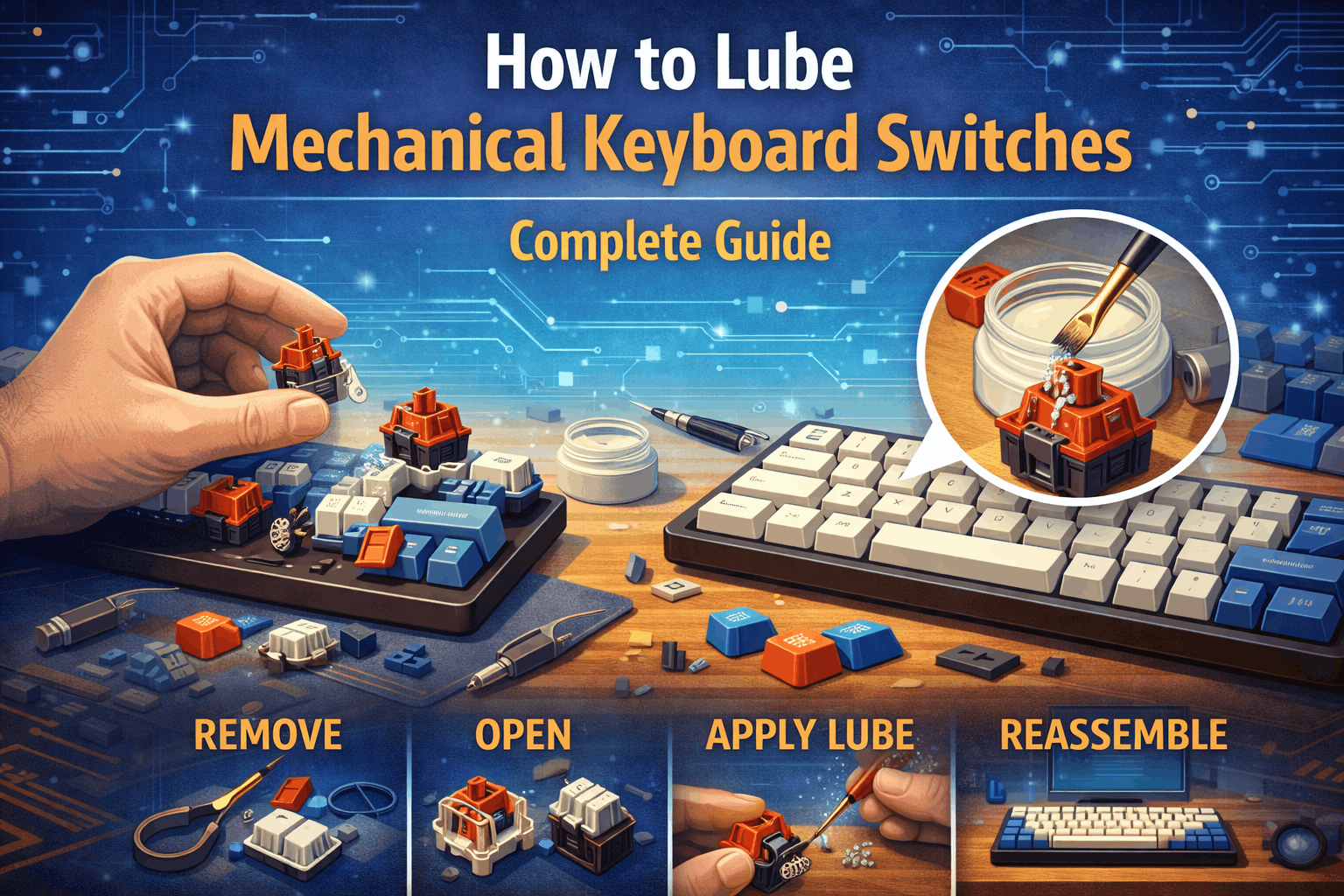
Introduction
Stock switches feel scratchy. Lubed switches feel like butter. The difference is night and day.
This isn't hyperbole. If you've never lubricated mechanical keyboard switches, you're missing one of the most transformative upgrades available. Switching from dry to properly lubed switches is comparable to upgrading from budget switches to premium ones—except it costs $20 instead of $200.
The science is simple: lubrication reduces friction between plastic components. When a switch stem slides through the housing thousands of times per day, friction creates scratchy, inconsistent feel and unwanted noise. Adding the right lubricant—in the right amount, in the right places—eliminates that friction and transforms typing.
But here's the catch: switch lubrication is intimidating. You're disassembling precision mechanisms. There's real risk of over-lubing and ruining the feel. Many beginners don't know which lube to use, where to apply it, or how much is "enough."
This guide removes the mystery. Step-by-step instructions, realistic time expectations, common mistakes, and exactly what you need to buy—everything required to lube switches like an experienced enthusiast.
Note: This guide contains affiliate links. If you purchase through our links, we may earn a commission at no extra cost to you. This helps support our testing and content creation.
Quick Overview
Switch lubing eliminates scratch, smooths keypresses, deepens sound, and removes spring ping. Expect to spend 2-4 hours on your first 87-key keyboard, dropping to 1-2 hours once experienced. The total cost runs $15-30 for lube and tools, all completely reusable for multiple keyboards. This modification works best for linear switches (where you'll see the biggest improvement), hot-swap keyboards (easy disassembly), and enthusiasts wanting premium feel. Never lube clicky switches—it ruins the click mechanism completely.
Why Lube Your Keyboard Switches?
Understanding why you're lubing makes the process less tedious and helps you understand what you're hearing and feeling afterward.
Smoothness Improvement
Stock switches have a plastic stem sliding through a plastic housing. Multiple friction points create resistance, producing what enthusiasts describe as "scratchy" or "gritty" feel. You'll notice resistance on both keypress and release, making typing feel less fluid than it could be.
Lubed switches eliminate friction at those contact points. The keypress becomes fluid and effortless, described as "buttery" or "silk-smooth" by those who've experienced it. The stem glides through the housing with minimal resistance, transforming the entire typing experience.
The real-world impact shows up immediately. Typing feels more responsive. Gaming feels more precise. Repetitive tasks become less fatiguing because you're applying less finger force per keypress. The improvement is most dramatic on Cherry MX switches and budget switches, while being least noticeable on pre-lubed factory switches that already received some treatment. This is especially true when comparing Cherry MX vs Gateron switches, which differ significantly in stock smoothness and factory tolerances.
Sound Improvement
Lubrication fundamentally changes how switches sound. Stock switches produce a higher frequency sharp "clack" in the 400-700 Hz range, with audible plastic-on-plastic friction and spring "pinging" sounds on release. The overall sound gets described as thin, bright, and plasticky.
Lubed switches drop to a lower frequency deep "thock" in the 300-500 Hz range. The friction sound disappears entirely. Spring ping vanishes. The overall sound becomes deeper and more satisfying to hear. That said, sound improvement depends heavily on other factors like housing material, switch type, and mounting style. Lubrication is just one component of the total acoustic picture.
Consistency
Unlubed switches feel inconsistent from key to key. The spring might feel slightly different unit-to-unit. One switch might feel smoother than another straight from the factory. Lubrication normalizes all switches so they feel identical across your entire keyboard. This consistency matters more than most people realize until they experience it.
Longevity
Friction causes wear on plastic components. Over years of heavy use, switch stems can develop wear patterns that affect feel and performance. Lubrication reduces this wear, theoretically extending switch lifespan. Most people upgrade keyboards before switches wear out anyway, but the protection is there regardless.
Which Switches Benefit Most?
Cherry MX linear switches, especially Reds, see huge benefits from lubing. Budget switches from Outemu, RK, and similar manufacturers transform completely. Gateron Yellow switches improve dramatically. Any switch that feels scratchy stock will benefit enormously.
Tactile switches see moderate benefit, though you need careful lubing technique to preserve the tactile bump. Pre-lubed Gateron standard switches improve somewhat. Premium boutique switches that are already smooth show minimal improvement because they're already near-optimal from the factory.
Some switches should never be lubed. Clicky switches like Blues and Box Whites get destroyed by lubrication—the lube dampens the click mechanism, turning them into silent, mushy messes. Optical switches use a different mechanism and can't be opened easily anyway. If you lube clicky switches, you've permanently ruined them. There's no recovering from that mistake.
What You'll Need (Complete Supply List)
Essential: The Lube
Krytox GPL 205g0 remains the most popular choice. This thick viscosity works perfectly for linear switches, with the "g0" designation meaning Grade 0 for proper consistency. One 5mL container lasts 200+ switches and costs $10-12. You can find it at Divinikey, Ringerkeys, and Amazon.
Tribosys 3203 offers a tactile alternative. It's thinner than Krytox 205g0, making it better for tactile switches because it preserves the tactile bump more effectively. One 5mL container lasts 150+ switches and costs $8-10, available from Divinikey, 415Keys, and Amazon.
The comparison is straightforward: use 205g0 for linear switches where smoothness is the priority, use 3203 for tactile switches to preserve the bump. Both technically work for either switch type, but you'll need to adjust your application technique accordingly.
Never use generic machine oil, WD-40, or petroleum-based lubricants. These attract dust, damage plastic over time, or dry out completely. Only use proper switch lube designed specifically for keyboards.
Essential: Switch Opener ($5-8)
You need a small plastic tool for opening MX switches without damaging them. Two styles exist: Cherry-style openers for Cherry and most brands, and Kailh-style openers for Box-switch variants. Budget option: buy both styles for about $8 total since you'll eventually need them for different switch types.
This tool is essential because opening switches without a proper opener risks bending pins, cracking housings, or destroying stems. Don't attempt it without the right tool.
Essential: Brush ($2-5)
Get a fine paintbrush for applying lube. You want size 00 or 000 (very fine) with synthetic bristles preferred. Find these in the art supplies section of any craft store, or order from keyboard specialty retailers. Buy a cheap brush and dedicate it to keyboard work only—don't reuse it for painting afterward.
Optional but Recommended: Stem Holder ($5-10)
A small tool holds the switch stem while you lube, freeing both hands. This prevents fingerprints on lubed surfaces and speeds up your workflow significantly. Budget alternative: use tweezers or just hold stems with your fingers, which works but runs slower.
Optional: Small Lube Container ($3-5)
A small dish to hold lube while working (instead of working directly from the lube jar) speeds up dipping and prevents contamination of your main supply. Budget alternative: use any small dish you have around the house.
Total Cost: $15-30
All tools are reusable forever. You can lube multiple keyboards with one purchase, making this an incredibly cost-effective upgrade path.
Workspace Setup
Before you start, prepare your space properly. Set up a clean, well-lit desk—lamps help enormously since small parts are hard to see in dim lighting. Organize containers for parts, separating housing tops, housing bottoms, stems, and springs. Block out 2-4 hours of uninterrupted time and put your phone on silent or move it away entirely.
For organization, use small containers or even bottle caps. Label everything if you're lubing multiple switch types to avoid mixing them. Work in batches of 10 switches—this keeps things manageable and organized without overwhelming you.
Approach this with the right mindset: it's meditative work, not a race. You'll be faster on your second keyboard. First time through, accept that 3-4 hours is normal and expected.
Step-by-Step Lubing Process
Phase 1: Preparation (15-20 minutes)
Step 1: Remove Switches from Keyboard
For hot-swap keyboards, this process is straightforward. Use a switch puller to pull each switch straight up, being careful not to bend the metal pins. Set switches aside carefully to avoid pin damage. If you want to learn more about hot-swap technology, check our hot-swappable keyboards guide.
For soldered keyboards, you're facing a much harder challenge. This requires desoldering, which is advanced work not covered in this guide. Honestly, it's easier to just buy pre-lubed switches or accept the stock feel. If you must unsolder, YouTube has tutorials, but understand this is professional-level work requiring specialized equipment.
Step 2: Open All Switches
Using your switch opener, insert the flat edge into the seam between top and bottom housing. Gently pry—don't force anything, as plastic cracks easily. The top housing will separate from the bottom. Remove the spring and place it in a dedicated container. Remove the stem and place it in another container. Bottom housings go in their own separate container.
Organization is critical here. If you mix stems from different switches, you'll regret it later when trying to reassemble everything properly.
Step 3: Visual Inspection
Before lubing anything, check for issues. Look for broken stems and set them aside. Check for bent pins that need straightening. Examine housings for cracks—they might still work with extra care during reassembly. If you find switches with missing springs, stop and replace that entire switch rather than trying to salvage it. If a switch is failing in other ways — chattering, dead, or intermittent — our mechanical switch not working diagnosis guide walks through the triage steps.
Phase 2: Lubing Bottom Housing (30-45 minutes for 87 switches)
This is where you get the biggest feel improvement from your lubing work.
Step 4: Identify the Rails
The bottom housing contains two vertical rails where the stem slides during every keypress. These are called the east rail (right side) and west rail (left side), and they represent the primary friction points in any switch.
Look at the bottom housing with the stem channel facing up. You'll see two raised plastic ridges—those are the rails. The stem contacts these surfaces during every single keypress, which is where most friction occurs in an unlubed switch.
Step 5: Apply Lube to Rails
The technique here is critical to success. Dip your brush lightly into the lube—use less than you think you need. Remove excess by wiping the brush edge against your lube container. Apply a thin coat to one rail with 2-3 light strokes, then repeat on the other rail. Visual check: you should see a thin sheen, not pooling or excess lube sitting there.
The most common mistake at this stage is using too much lube. You want a barely-visible coat. If it looks wet, you've over-lubed and need to wipe some away. For each housing, this process takes about 20 seconds once you develop a rhythm.
Phase 3: Lubing Stems (45-60 minutes for 87 switches)
Stem lubing is where precision matters most in the entire process.
Step 6: Understand Stem Anatomy
The switch stem has four outer walls where friction occurs during travel. At the bottom, four "legs" serve as contact points with the spring. On tactile switches specifically, two tactile legs create the bump feeling that defines the switch character.
Step 7: Lube the Four Outer Walls
Hold the stem with your stem holder or tweezers. Apply lube to all four vertical sides, focusing on the walls since these slide against the housing during every keypress. Use very light strokes—2-3 coats per stem maximum.
For tactile switches, this next part is critical: avoid lubing the tactile legs completely. Those little bump-creating features need to remain dry because lubing them reduces or eliminates tactile feedback. If you must lube any legs, lube only the non-tactile ones at the front and back.
Visual guideline: you want a thin sheen only, with no dripping and no excess pooling anywhere on the stem.
Step 8: Lube the Bottom Pole
At the very bottom of the stem sits a cylindrical pole that rests on the spring. Apply a very light coat here—it's important for overall smoothness. Don't over-lube this area though, as excess lube here causes a sluggish feel when pressing keys.
Phase 4: Lubing Springs (20-30 minutes for 87 switches)
You have two methods available: bag lubing (fast) or individual lubing (precise).
Spring Lubing Method 1: Bag Lubing (Faster)
You'll need a quart-size ziplock bag and Krytox 105 or 205g0 (thin oil is preferred for springs). Put all 87 springs in the ziplock bag, add 3-4 drops of lube, then seal the bag while leaving a small air pocket. Shake vigorously for 2-3 minutes until springs are evenly coated. Lay them on a paper towel to drain any excess, then use tweezers to retrieve individual springs.
This method takes about 5 minutes total and provides very even coating. The downside is less control over application and potential messiness.
Spring Lubing Method 2: Individual Lubing (Slower, Precise)
Hold each spring with tweezers, dip your brush in lube, then coat the spring while stretching it slightly. Focus on the spring ends where most friction occurs. Place each spring on a paper towel after coating, then repeat for all springs.
This method gives you precise application and less waste, but costs you 20+ minutes of work time.
For your first time, bag lubing saves 25+ minutes with minimal downsides. Once you're experienced, individual lubing makes sense if you prefer maximum precision and control.
Phase 5: Reassembly (30-40 minutes for 87 switches)
Now you reverse the entire process to rebuild functional switches.
Step 9: Reassemble Each Switch
Order matters during reassembly. First, place the spring in the bottom housing—springs always go in first. Next, place the stem on top of the spring, making sure the stem is oriented correctly since it usually goes a specific direction. Place the top housing on the stem, then press firmly until you hear an audible snap indicating proper connection.
Quality check each switch before moving on. Press the stem—it should feel smooth without scratchiness. Listen for spring ping (which suggests possible over-lubing). The stem shouldn't feel mushy (another sign of too much lube). The return should be snappy, not sluggish or delayed.
Don't skip this testing step. Catching mistakes now beats discovering problems after installing all 87 switches in your keyboard.
Step 10: Install Back in Keyboard
For hot-swap keyboards, align the switch pins with the socket, then press firmly downward until fully seated. You'll hear and feel a click when properly installed. Test each key immediately after installation.
Work in batches of 10 switches: install 10, test those 10, then move to the next 10. This approach catches any issues early rather than discovering problems after installing everything.
Step 11: Break-In Period
New lubed switches might feel slightly stiff initially. This is completely normal and expected. Type for 15-20 minutes, using multiple keys heavily. The lube will settle and the feel improves noticeably. Full smoothness typically gets achieved within 1-2 days of normal use.
Don't panic if day 1 feels slightly different than day 3. This break-in period is normal and happens with all hand-lubed switches.
How Much Lube to Use (The Golden Rule)
Less is more. You will under-lube before you over-lube, and under-lubing is always better than the alternative.
Visual Guidelines
Too little lube leaves the switch feeling scratchy with no noticeable improvement. Spring ping remains audible. The solution is simple: reopen the switch and add more lube to the friction points.
Just right lube creates a buttery smooth keystroke with no scratchiness. You'll feel slight resistance but the movement stays fluid throughout. Sound becomes deeper with less metallic ping — our keyboard sound test guide explains how to evaluate these acoustic differences. Keys return snappily without delay.
Too much lube creates a sluggish, mushy feel. Keys don't spring back quickly, typing feels heavy and slow, and you get that dreaded "membrane keyboard" feel that ruins the entire mechanical keyboard experience. The solution requires reopening switches and wiping away excess with a clean cloth.
Testing Approach
Smart first-timers use this strategy: lube 5 switches with light application, lube another 5 switches with moderate application, then test both batches side-by-side. Identify your preference based on real testing, then apply that technique to the remaining switches. This approach prevents lubing all 87 switches incorrectly based on guesswork.
By Switch Type
Linear switches can handle 205g0 (the thicker lube) and tolerate more lube overall since smoothness is the priority. Aim for an obvious smooth feel throughout the keypress.
Tactile switches need 3203 (thinner lube) with light application being critical. Too much lube kills the tactile bump completely, ruining the entire character of the switch. A conservative approach is strongly recommended.
Common Mistakes (And How to Fix Them)
Mistake 1: Using Too Much Lube
Keys feel mushy, sluggish, and heavy when over-lubed. Fix this by reopening switches and wiping away excess with a clean brush or cloth. Prevent it by starting light and remembering that less is always more.
Mistake 2: Lubing Clicky Switches
This destroys the click mechanism completely, turning the switch silent and mushy. There's no solution—the switch is ruined and you need to buy replacements. Prevention is simple: never lube clicky switches under any circumstances.
Mistake 3: Inconsistent Application
Some switches feel smooth while others remain scratchy when application varies too much. Fix this by opening all switches again and normalizing the lube application. Prevent it by working in batches, testing as you go, and documenting what works.
Mistake 4: Over-Lubing Tactile Legs
The tactile bump disappears completely when you lube the tactile legs. Reopen the switches and wipe the tactile legs clean. Prevent this by avoiding tactile legs entirely, or using 3203 with a very light touch if you must apply any lube near them.
Mistake 5: Mixing Up Switch Parts
Stems from different switches get mixed and reassembled incorrectly, causing inconsistent feel. Good organization prevents this entirely. Use labeled containers and work in batches of 10 switches to maintain order.
Mistake 6: Bending Switch Pins During Installation
Switches won't install properly or pins crack when bent during installation. Remove carefully and straighten gently with tweezers if this happens. Prevent it by aligning carefully before pressing down and never forcing switches into sockets.
Mistake 7: Using Wrong Lube Type
Grease-based lube attracts dust, and wrong viscosity causes feel issues. Buy proper switch lube (Krytox 205g0 or Tribosys 3203) from reputable keyboard retailers only. Don't experiment with random lubricants from hardware stores.
Mistake 8: Over-Expectations on Day 1
Day 1 lubed switches might feel slightly stiff, causing unnecessary panic. Give it 24-48 hours for lube to settle properly. Understanding that the break-in period is normal prevents this worry entirely.
Lube Alternatives (If You Don't Want to Hand-Lube)
Pre-Lubed Switches (Just Buy Them)
If hand-lubing sounds too time-consuming, just buy pre-lubed switches instead. Gateron Oil Kings run about $0.60 per switch and come factory-lubed for linear smoothness. Durock Linears cost around $0.70 per switch with premium factory-lube application. Gateron Ink Series switches go for approximately $0.80 per switch and arrive factory-lubed at premium quality levels.
The advantages are obvious: no time investment required, consistent factory application, and immediately usable switches. The disadvantages include higher cost compared to unlubed switches plus hand-lube, limited switch selection (mostly linear options), and results that aren't quite as good as optimal hand-lubing.
ROI calculation: hand-lubing costs $20 in lube plus 3 hours of your time (roughly $50 total value). Pre-lubed switches cost about $0.40 more per switch, adding $35 for an 87-key keyboard. If you value time over money, pre-lubed is acceptable. If you value cost savings and customization, hand-lubing wins clearly.
Switch Films (Complementary, Not Replacement)
Switch films are thin plastic strips placed between housing layers. They reduce housing wobble and improve sound for about $5 per keyboard. Installation is easy—just place them between housing layers during reassembly.
Important clarification: this is complementary to lubing, not a replacement. Films improve sound, lube improves feel. They solve different problems and work best together.
Time Investment: Is It Worth It?
For an 87-key keyboard, expect these realistic timeframes: preparation and opening switches takes 20 minutes, lubing housings takes 45 minutes, lubing stems takes 60 minutes, lubing springs with the bag method takes 15 minutes, and reassembly plus installation takes 40 minutes. First-time total: 3 to 3.5 hours. Once experienced after 3+ keyboards, you'll complete the entire process in 1.5 to 2 hours.
Is It Worth Your Time?
This upgrade is worth it if you have a hot-swap keyboard (easy to open), you value smooth typing feel highly, you enjoy hands-on projects, you're building a custom keyboard anyway, or stock switches feel scratchy to you.
Skip this upgrade if you have a soldered keyboard (requires desoldering, which is much harder), you're satisfied with stock switches, you have limited free time, you'd rather spend $20-40 extra on pre-lubed switches, or you somehow have 87+ different keyboards needing lubing.
Cost-Benefit Analysis
The time investment runs 3 hours first time through. Lube costs $20 and is reusable for multiple keyboards. The result gives you $150+ keyboard feel from an $80 keyboard. Cost per keyboard drops to $20 for your first board, then just $2-5 for subsequent keyboards since you already own the tools and lube.
The math is compelling: lubing turns an $80 keyboard into something that feels like a $130-150 keyboard for just $20. That's exceptional value for the enthusiast willing to invest the time.
FAQ: Common Questions
Can I lube switches without opening the keyboard?
Not properly. Some people try spray-on lube, which we don't recommend due to messiness and inconsistent results. For proper results, you must remove switches and open them individually. Hot-swap keyboards make this process much easier than soldered boards.
How long does lubed switch feel last?
Years. Properly lubed switches maintain smoothness for 5-10+ years of normal use. Lube doesn't evaporate significantly or wear off in reasonable timeframes. However, if you type 8+ hours per day with heavy-handed technique for 10 years straight, very minor wear might eventually occur.
Should I lube switches immediately or let them break in first?
Lube immediately. Natural break-in provides maybe 5-10% smoothness improvement over many weeks of use. Hand-lubing provides 80-90% improvement in a single afternoon. Don't wait. Break-in takes weeks; lubing takes hours and delivers far better results.
Can I use Vaseline, WD-40, or coconut oil?
Absolutely not. Use only proper keyboard switch lube like Krytox, Tribosys, or equivalent from reputable keyboard retailers. Wrong lube can damage plastic over time, attract dust and debris, or provide inconsistent results that make typing worse instead of better.
Will lubing void my keyboard warranty?
It depends on the manufacturer. Hot-swap keyboards with removable switches usually stay fine since there's no evidence of modification. Soldered boards requiring desoldering might void warranty depending on the terms. Check your manufacturer's specific policy before proceeding with any modifications.
Can I lube Cherry MX switches specifically? What about other brands?
Yes. Cherry MX, Gateron, Kailh, and most MX-compatible switches all benefit from lubing. Read about Cherry vs Gateron to understand the differences between brands. All benefit from proper lubing, though they start with different stock smoothness levels.
Conclusion: Make Your Keyboard Great
Switch lubing is the most cost-effective keyboard upgrade available. Twenty dollars and 3 hours of work transforms typing feel dramatically compared to any other modification you might consider.
This isn't for everyone. If you're satisfied with stock switches, don't bother with this process. But if you've ever felt a properly lubed keyboard and noticed the difference, you understand why enthusiasts prioritize this upgrade above almost everything else.
The process seems intimidating the first time through. I promise you it's not as hard as it looks. Follow this guide carefully, work methodically, accept that mistakes will happen, and by switch 20 you'll have developed a rhythm that makes the remaining 67 switches straightforward.
Key takeaways: less is more when applying lube (under-lube rather than over-lube every time). Never lube clicky switches (this destroys them permanently with no recovery possible). Work in batches of 10 switches to stay organized. Test as you go to catch mistakes early rather than after lubing all 87 switches. Embrace imperfection since your first attempts won't be perfect, and that's completely fine. Hot-swap keyboards make lubing dramatically easier than soldered boards.
The best keyboard is one you enjoy using every single day. If hand-lubing helps achieve that goal for just $20 in supplies, the investment becomes obvious.
Start with 10 switches. Master the technique through practice. Then finish the keyboard with confidence.
By day 2, your keyboard will feel premium.
Ready for more mods? Check out our keyboard sound test guide to evaluate what lubing changed, our best linear switches for the smoothest options to lube, or our keyboard switches guide if you are still deciding which switch type to try.