Introduction
Building a custom mechanical keyboard from individual components—case, switches, keycaps, PCB, stabilizers—represents the deepest level of keyboard customization and personalization. Instead of accepting manufacturer decisions about switches, layouts, and materials, you choose every aspect independently, creating a keyboard optimized exactly for your preferences, aesthetics, and use case.
Custom builds appeal to enthusiasts who've tried several keyboards and developed strong preferences about specific switches, construction methods, or aesthetics. They provide access to unique combinations unavailable in pre-built keyboards—specific switch and keycap pairings, exotic case materials, specialized layouts, and sound signatures that match your exact preferences.
The benefits are clear: complete control over every component, ability to create unique keyboards matching your exact vision, superior quality when components are chosen well, and deep personal satisfaction from building something yourself. The process teaches you intimately how keyboards work, connects you with enthusiast communities, and creates keyboards perfectly tailored to your needs.
The challenges are equally clear: extensive research required to understand components and compatibility, significant time investment in planning, sourcing, and assembly, higher costs than comparable pre-built keyboards (typically $250-500 for quality builds), risk of compatibility issues or poor component choices, and no warranty or support on assembled products.
Custom keyboard building isn't for everyone. Beginners uncertain about preferences should start with quality pre-built keyboards, learn what they like, then consider customs later. People wanting keyboards that work immediately without research or assembly are better served by pre-builts. Custom builds reward patience, research, and genuine interest in the hobby aspects of keyboards.
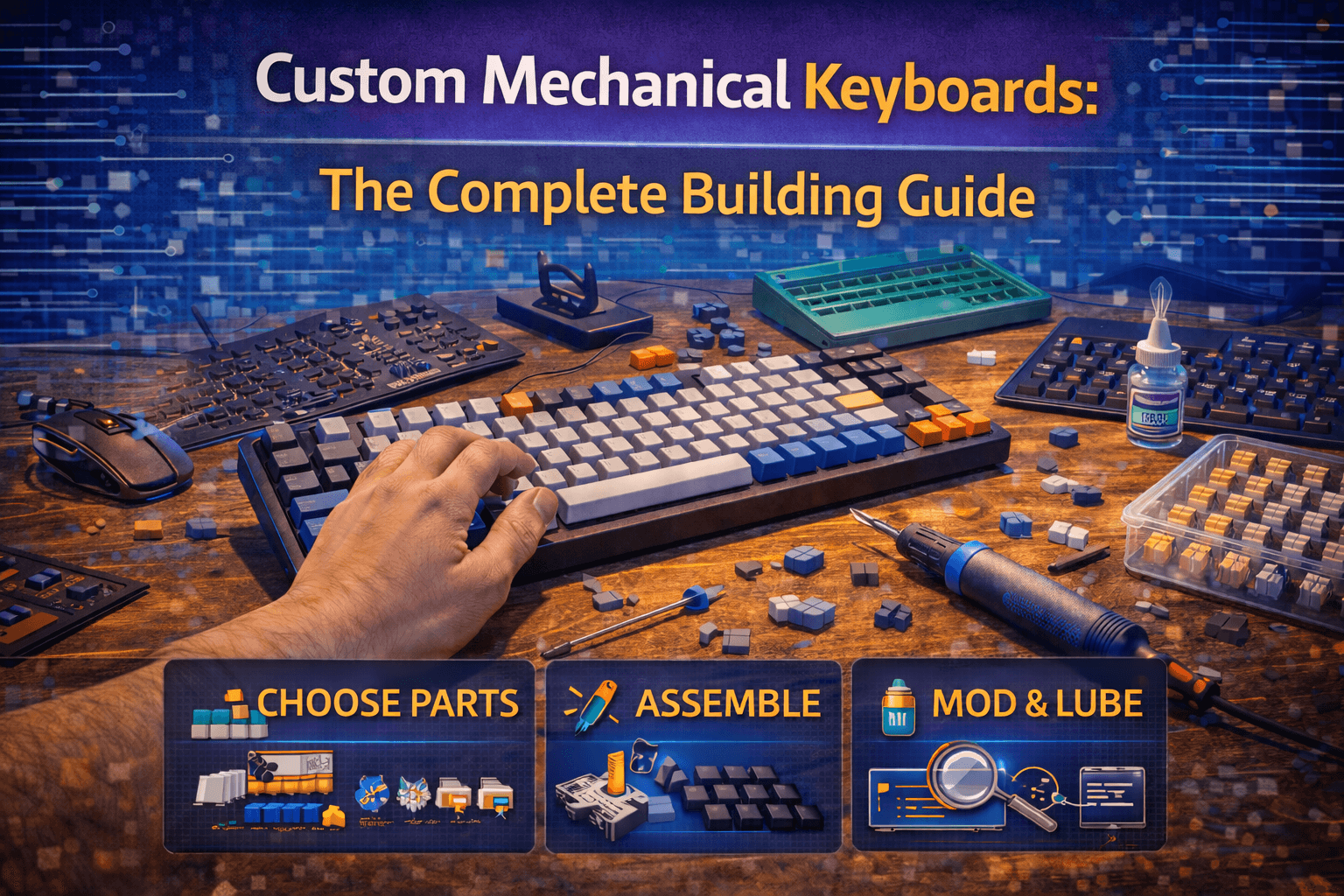
This comprehensive guide covers every step of building custom keyboards: understanding components and their functions, checking compatibility across components, budgeting realistically for quality builds, selecting each component based on preferences, assembling keyboards step-by-step, tuning and modding for optimal performance, troubleshooting common issues, and deciding if custom building makes sense for you.
Note: This guide contains affiliate links. If you purchase through our links, we may earn a commission at no extra cost to you. This helps support our in-depth testing and content creation.
Why Build Custom vs Buying Pre-Built
Understanding what custom builds offer versus pre-built keyboards helps you decide if building is a worthwhile investment.
Complete Component Control
Custom builds provide complete component control. Every aspect of your keyboard is your choice—switch type, switch weight, case material, case color, plate material, keycap profile, keycap material, mounting style, PCB layout. This enables combinations impossible to find pre-built. Want specific tactile switches in a gasket-mount aluminum case with SA profile keycaps and brass plate? Build custom. This specific combination probably doesn't exist pre-built, but it's straightforward to assemble from parts.
Optimization for Your Preferences
Custom builds optimize for your exact preferences rather than manufacturer compromises. If you know you want 62g tactile switches, specific mounting style, and particular acoustic signature, you can build exactly that rather than accepting the closest pre-built alternative. This personalization is where custom builds shine—they're made by you, for you.
Unique Aesthetics
Custom builds create unique aesthetics. Color schemes, case designs, keycap combinations—everything coordinates exactly as you envision. The keyboard becomes personal expression rather than mass-produced tool. This uniqueness appeals deeply to enthusiasts who view keyboards as creative outlets.
The Building Process
The building process itself is rewarding. Building keyboards teaches mechanical knowledge, develops assembly skills, and connects you with enthusiast communities. The process is rewarding beyond the final product for people who enjoy hands-on hobbies. Many builders report that they enjoy the research and assembly as much as using the finished keyboard.
Quality Potential
Custom builds can exceed most pre-built keyboards in quality. When you choose premium components throughout—quality case, good PCB, lubed switches, tuned stabilizers—custom builds exceed most pre-built keyboards in refinement and quality. You're not constrained by manufacturer cost optimization.
Pre-Built Counterbalances
Pre-built keyboards offer important counterbalances. Pre-built keyboards arrive ready to use with no research, assembly, or waiting for parts. Professional assembly and testing mean no compatibility issues or assembly mistakes. Quality pre-built keyboards include warranties and customer support that custom builds lack. Pre-built keyboards are known quantities with reviews and community feedback reducing risk. Perhaps most importantly, equivalent quality pre-built keyboards often cost less than custom builds because manufacturers achieve economies of scale that individual builders can't match.
Decision Framework
The decision framework is straightforward:
Build custom if: you've tried multiple keyboards and know exactly what you want, you enjoy research and assembly processes, you have patience for sourcing and building, you want specific component combinations unavailable pre-built, and your budget allows $250-500+ investment.
Buy pre-built if: you're new to mechanical keyboards, you want a keyboard now without research, you value warranty and support, you're uncertain about preferences, or your budget is under $200.
The honest assessment: custom builds are hobby projects as much as functional tools. If you enjoy the process and customization for its own sake, they're deeply satisfying. If you just want an excellent keyboard, quality pre-built options ($150-250) serve most people perfectly without custom building complexity. See our mechanical keyboard buying guide for pre-built recommendations.
Understanding Keyboard Components
Before building, understand what each component does and how it affects the keyboard. Each piece plays a crucial role in the final result.
The Case
The case is the outer shell housing all components. It determines keyboard appearance, weight, acoustics, and overall feel.
Case materials:
- Aluminum: most common for customs, offering excellent balance of weight and sound
- Plastic: budget option
- Brass or copper: premium and very heavy
- Wood: aesthetic choice
Mounting styles:
- Tray mount: budget, case screws directly to PCB
- Top mount: good, PCB mounts to case top
- Gasket mount: premium, uses gaskets for isolation creating superior typing feel
Case design affects sound and typing feel significantly. Gasket-mount aluminum cases create premium typing experience with sophisticated sound signature. The case is where personal aesthetics shine—color, finish, design all express your preferences.
The PCB
The PCB (Printed Circuit Board) is the brain of your keyboard. It contains circuitry connecting switches to your computer and often includes a microcontroller for firmware programming.
Key specifications:
- Layout: 60%, 65%, 75%, TKL, etc.
- Hot-swap vs soldered: hot-swap lets you change switches without soldering, soldered requires permanent switch installation
- Programmability: QMK/VIA support is essential for custom builds
- Switch compatibility: MX-style is the standard
- LED support: for RGB or underglow
Critical compatibility consideration: PCB must physically fit inside your case, match your desired layout, support your desired mounting style, and match your switch type. This is where many builder mistakes occur—a "60% case" might not fit all 60% PCBs because different manufacturers use different mounting standards.
The Plate
The plate sits between switches and PCB, holding switches in position. It affects typing feel and sound considerably.
Plate materials:
- Aluminum: neutral, standard choice
- Brass: heavier with deeper sound
- Polycarbonate/PC: flexible with softer feel
- FR4: between aluminum and PC
- Carbon fiber: stiff with unique acoustics
The plate must match your PCB layout exactly—switch positions and stabilizer cutouts must align perfectly. Plate choice subtly affects typing feel. Stiffer plates feel more rigid and direct, while flexible plates feel softer and more forgiving. Aluminum plates provide neutral characteristics letting other components shine.
Switches
Switches are the mechanical heart—they actuate when you press keys and return when you release. See our keyboard switches guide for complete details.
Switch types:
- Linear: smooth, no bump
- Tactile: bump at actuation
- Clicky: bump plus audible click
Full keyboard builds require 61-104 switches depending on layout. Buy extras—10-20 additional switches—for mistakes or future repairs.
Most custom builders lube switches for smoothness and refined sound. This is common practice that dramatically improves feel and sound quality. Budget time for this labor-intensive process. See our switch lubing guide for detailed instructions.
Stabilizers
Stabilizers sit under large keys (spacebar, shifts, enters, backspace) preventing wobbling during off-center presses. Quality stabilizers are crucial—they make enormous difference in typing feel.
Stabilizer types:
- Screw-in: preferred, screw into PCB, more stable
- Plate-mount: clip into plate, less stable
Premium stabilizers cost $15-30 for a full set but dramatically improve experience. Stabilizers require lubing and tuning for optimal feel—this critical step separates mediocre and excellent builds. See our stabilizers guide for tuning instructions.
Keycaps
Keycaps are the plastic pieces your fingers touch. They affect aesthetics, sound, and typing feel.
Material choices:
- PBT: textured, durable, premium feel
- ABS: smooth, develops shine, cheaper or premium doubleshot
Keycap profile: Cherry, OEM, SA, MT3, etc.—different heights and shapes affecting typing feel.
Legend methods:
- Doubleshot: two-color molding, never fades
- Dye-sublimation: dye infused, durable
- Laser etching: acceptable short-term
Purchase full sets matching your layout. Ensure compatibility with your keyboard size and layout—keycap compatibility is surprisingly complex, especially for non-standard layouts. See our keycaps guide for detailed information.
Optional Components
Optional components add refinement:
- Foam and dampening materials: case foam, plate foam, PE foam tune the sound
- Gaskets: provide the isolation effect in gasket-mount builds
- LEDs: enable custom RGB implementations
- Batteries and controllers: for wireless builds (advanced)
Compatibility Checking (Critical)
Compatibility errors waste money and create frustration. Systematically verify compatibility before purchasing anything.
Case and PCB Compatibility
Case and PCB compatibility is the most critical check — our keyboard cases guide covers materials and types in depth. The PCB must physically fit inside the case and mounting points must align perfectly.
Verify compatibility by:
- Checking the case product page for supported PCBs
- Checking PCB specs for compatible cases
- Confirming mounting style matches (tray mount case needs tray mount PCB, gasket case needs gasket PCB)
- Verifying screw hole positions align
Critical warning: different manufacturers use different mounting standards. A "60% case" might not fit all 60% PCBs. Always verify specific compatibility rather than assuming sizes match.
PCB and Plate Compatibility
PCB and plate compatibility is equally crucial. The plate must match PCB layout exactly—switch positions and stabilizer cutouts must align perfectly.
Verify this by:
- Checking whether PCB and plate are sold together (safest option)
- Verifying they're designed for the same layout when buying separately
- Checking stabilizer positions match exactly
Layout variations exist even within sizes—60% keyboards come in multiple layout variants. Ensure exact match rather than assuming all 60% layouts are identical.
PCB and Switch Compatibility
PCB and switch compatibility requires attention. Most custom builds use MX-style switches which work with standard PCBs. Verify your PCB supports your switch type. Decide early whether you want hot-swap (switches press in) or soldered (each switch requires soldering) PCBs.
Hot-swap is strongly recommended for first builds, eliminating soldering and allowing switch experimentation. See our hot-swap keyboards guide for more on hot-swap benefits.
Stabilizer Compatibility
Stabilizers must match mounting style and positions on your PCB/plate:
- Check whether your PCB supports screw-in or plate-mount stabilizers (or both)
- Verify stabilizer positions match your layout (different layouts have stabilizers in different positions)
- Confirm you're buying correct size stabilizers for your keys (2u, 6.25u, 7u spacebars have different stabilizer requirements)
Keycap Compatibility
Keycaps must match your keyboard layout. Not all keycap sets support all layouts. Standard layouts (60% ANSI, TKL ANSI) are supported by most sets, but non-standard layouts require compatibility kits or specific sets. Bottom row compatibility often causes problems—verify spacebar sizes and modifier widths match your keyboard exactly.
Common issues:
- Non-standard bottom rows where some keyboards use different sized modifiers
- ISO vs ANSI layouts (different enter key shapes)
- Specialty layouts needing specific compatibility
Compatibility Checklist
Create this checklist before purchasing:
- Case fits PCB (mounting holes align, size matches)
- Plate matches PCB layout exactly
- PCB supports your switch type
- Hot-swap or soldered matches preference
- Stabilizers match PCB mounting style (screw-in vs plate-mount)
- Stabilizer sizes match layout
- Keycap set supports your layout completely
- All components in stock or available simultaneously
Avoid these mistakes:
- Don't assume all 60% cases fit all 60% PCBs
- Don't buy plate without verifying PCB match
- Don't order keycaps before confirming layout support
- Don't order components from different vendors and hope they arrive together—verify everything before purchasing
Budget Planning for Custom Builds
Realistic budget planning prevents overspending and ensures quality results.
Component Costs
Understanding component costs helps you plan appropriately:
Cases:
- Budget aluminum: $80-120
- Quality aluminum: $150-200
- Premium/exotic: $200-300+
PCBs: $40-100 depending on features
- Standard: $40-60
- Hot-swap: $60-80
- Premium/wireless: $80-100+
Plates: $20-60
- Aluminum: $20-30
- Specialty materials: $40-60
Switches: cost based on quantity and quality
- Budget: $0.30-0.40 per switch
- Mid-tier: $0.50-0.70
- Premium: $0.80-1.20
- Quantity needed: 70-110 switches depending on layout
Stabilizers: $15-35 for quality screw-in sets (invest here—don't cheap out)
Keycaps: vary dramatically
- Budget PBT: $40-60
- Quality PBT/ABS: $80-120
- Premium GMK/ePBT: $120-180
Supplies and tools: $30-60
- Lubricants: $15-25
- Tools (switch openers, brushes): $15-20
- Accessories: $10-15
Budget Tiers
Minimum Viable Build ($250-300):
- Budget aluminum case ($100)
- Standard hot-swap PCB ($60)
- Aluminum plate ($25)
- Budget switches ($30)
- Quality stabilizers ($20)
- Budget keycaps ($50)
- Basic supplies ($30)
This creates functional custom keyboard better than budget pre-builts.
Quality Build ($350-450):
- Quality aluminum case ($180)
- Premium PCB ($80)
- Brass or specialty plate ($50)
- Mid-tier switches with lubing ($50)
- Premium stabilizers ($30)
- Quality keycaps ($90)
- Supplies ($40)
This tier produces excellent keyboards competing with premium pre-builts.
Premium Build ($500-700):
- Premium case ($250)
- Premium PCB with wireless ($100)
- Specialty plate ($60)
- Premium switches with lubing ($80)
- Premium stabilizers ($35)
- Premium keycaps ($150)
- Complete supplies ($60)
This creates exceptional keyboards matching or exceeding any pre-built.
Hidden Costs
Hidden costs require budgeting awareness:
- Shipping: from different vendors adds $30-60 total typical cost
- Mistakes: budget for potential mistakes—extra switches and replacement parts cost $30-50
- Future upgrades: once you start building, you'll want to try different switches and keycaps
- Tools: if you don't have tools like soldering iron (needed for soldered builds), budget $40-80
- Troubleshooting: multimeter costs $20
Budget Advice
Realistic budget advice:
- First custom build should cost $350-450 ensuring quality without excessive investment — see our beginner guide to building your first custom keyboard for a step-by-step walkthrough designed for newcomers
- Experienced builders can invest $500-700 for refined, exactly-optimized keyboards
- Budget-restricted builders should consider quality pre-built instead—$250 custom builds don't significantly exceed quality pre-built keyboards at the same price
Where to save vs invest:
- Invest in: case (affects typing feel significantly), PCB (foundation of build), stabilizers (good ones crucial for feel), switches if you'll lube them (worth premium switches)
- Save on: plate (aluminum works fine), keycaps initially (upgrade later), supplies (start basic)
Selecting Components (Detailed)
Choosing each component based on preferences and goals creates cohesive builds.
Choosing Your Case
Start by deciding: size/layout, mounting style preference, material and weight, aesthetic style, and budget.
Recommendations:
- Budget: Tofu60/65 cases ($80-100)—excellent value aluminum
- Quality: Bakeneko cases ($130-150)—gasket mount with great acoustics
- Premium: Mode cases ($200-250)—exceptional quality and refinement
Look for gasket-mount if budget allows—it dramatically improves typing feel.
Choosing Your PCB
Decide: layout matching your case, hot-swap vs soldered preference, programmability (QMK/VIA support is essential), extra features like RGB or wireless.
Recommended options:
- Hot-swap standards: DZ60RGB, KBD67 Lite
- Premium: Bakeneko PCBs, Mode PCBs
- Wireless (advanced): Nice!Nano-based builds
Strongly recommend hot-swap for first builds—it eliminates soldering and allows switch experimentation. Ensure PCB supports QMK/VIA programmability—this is huge benefit of customs. See our keyboard firmware guide for programmability details.
Choosing Your Plate
Consider: material affecting feel and sound, layout compatibility with PCB.
Recommendations:
- Aluminum: neutral option working with everything
- Brass: if you want deeper, heavier sound
- Polycarbonate: if you want softer, more flexible feel
Most first builds should use aluminum. Experiment with other materials in future builds.
Choosing Your Switches
Switches are the most personal decision—they dramatically affect typing experience.
Process:
- Decide linear vs tactile vs clicky based on preference
- Choose weight (45-50g light, 55-65g medium, 67g+ heavy)
- Select specific switch meeting criteria
- Buy quantity matching your layout plus 10-20 extras
Linear recommendations:
- Budget: Gateron Yellow ($0.30)
- Quality: Cherry MX Black/Red ($0.50)
- Premium: Gateron Ink Black or Alpaca ($0.80-1.00)
Tactile recommendations:
- Budget: Gateron Brown ($0.30)
- Quality: Cherry MX Brown ($0.50)
- Premium: Boba U4T or Holy Panda ($0.80-1.20)
Clicky recommendations:
- Budget: Gateron Blue ($0.30)
- Quality: Cherry MX Blue ($0.50)
- Premium: Kailh Box White/Jade ($0.40-0.60)
Plan to lube switches—this dramatically improves any switch regardless of price. Consider buying pre-lubed switches ($0.80-1.20 each) to skip the labor-intensive lubing process if time is limited.
Choosing Your Stabilizers
Don't cheap out on stabilizers. Quality stabilizers transform typing experience on large keys.
Recommendations:
- Best value: Durock V2 screw-in ($20-25)
- Premium: TX stabilizers ($30-35)
- Alternatives: C³Equalz screw-in ($22-28)
Buy screw-in over plate-mount when PCB supports them—the stability improvement is worth it. You'll need to lube and tune stabilizers—this is non-negotiable for good results.
Choosing Your Keycaps
Consider: profile preference (try different profiles if possible), material (PBT for durability, quality ABS for vibrant colors), legend quality (doubleshot or dye-sub), color scheme matching your build, layout compatibility.
Recommendations:
- Budget: Akko keycaps ($40-60)—surprisingly good quality
- Quality: ePBT sets ($90-130)—excellent PBT quality
- Premium: GMK sets ($130-180)—highest quality ABS doubleshot
Ensure your keycap set supports your layout—standard layouts are safe, non-standard layouts need verification. Profile affects typing feel noticeably—Cherry profile is popular enthusiast choice, OEM is familiar from stock keyboards, SA is tall and sculptured. Try different profiles over time.
Component Synergy
Consider component synergy as you choose parts:
- Heavy case + brass plate + tactile switches = very solid, substantial feel
- Light case + PC plate + linear switches = lighter, faster typing experience
- Gasket mount + lubed linears + quality stabilizers = smooth, refined typing
Think about overall character you want to create, not just individual components.
Assembly Process (Step-by-Step)
Detailed assembly instructions ensure successful builds.
Preparation
Before you start, prepare your workspace: clean, well-lit area, non-static surface, organize all components and tools, verify you have everything needed.
Tools needed:
- Phillips screwdriver
- Tweezers
- Switch opener (if lubing)
- Keycap puller
Time expectations:
- Basic assembly: 2-3 hours
- With switch lubing: 5-8 hours total
- With stabilizer tuning: add 1 hour
Don't rush—mistakes happen when rushing.
Step 1: Stabilizer Installation and Tuning
Do this first and do it well. This is the most important step.
- Disassemble stabilizers completely
- Lube stabilizer wires with dielectric grease at contact points (generous amount)
- Lube stabilizer stems with Krytox 205g0 (thin, even layer)
- Apply bandaid mod or Holee mod if desired (reduces rattle)
- Assemble stabilizers carefully
- Install stabilizers in PCB (screw-in) or plate (plate-mount)
- Test movement ensuring smooth operation with no rattle or tick
This step is crucial for final keyboard feel. Spend time getting it right. Poor stabilizer installation ruins even expensive builds.
Step 2: Switch Lubing (Optional but Recommended)
Takes 4-6 hours if doing it yourself.
- Open switches with switch opener
- Disassemble into components (top housing, stem, spring, bottom housing)
- Lube bottom housing rails (thin layer of 205g0)
- Lube stem sides and stem pole if linear (avoid tactile bump if tactile switch)
- Lube spring (bag lube or individual)
- Reassemble switches carefully
- Test feeling smooth (not mushy)
- Repeat for all switches
This takes hours but dramatically improves any switch. Alternative: buy pre-lubed switches ($0.80-1.20 each) to skip this step. See our switch lubing guide for detailed instructions.
Step 3: Test PCB
Test PCB before assembly to ensure it works.
- Plug PCB into computer via USB
- Use tweezers to short switch pins (simulating key press)
- Test every switch position using keyboard tester software
- Verify all positions register
Finding dead PCBs now saves hours of assembly on non-functional boards.
Step 4: Install Switches into Plate
Takes 30-45 minutes.
- Place plate on flat surface
- Insert switches into plate corners first (provides stability)
- Ensure switches fully click into plate
- Install remaining switches row by row
- Verify all switches seated completely and aligned straight
For hot-swap PCBs: install switches into plate, then carefully press plate+switches assembly onto PCB hot-swap sockets.
For soldered PCBs: install switches into plate, align with PCB, solder each switch (requires soldering skills).
Step 5: Install Switch/Plate Assembly into Case
Takes 15-30 minutes.
- Carefully lower switch assembly (with PCB) into case
- For gasket mount: place gaskets then lower assembly onto gaskets
- For tray/top mount: align with mounting points
- Install screws gradually—don't fully tighten one before starting others
- Tighten screws evenly in cross pattern (prevents uneven pressure)
Don't over-tighten—snug is sufficient.
Step 6: Test All Keys
Before proceeding:
- Plug keyboard into computer
- Use keyboard tester or typing test
- Press every key verifying registration
- Test stabilized keys especially ensuring no sticking
- Troubleshoot any keys not working before continuing
Step 7: Install Keycaps
Takes 15-20 minutes.
- Start with stabilized keys (spacebar, shifts, enters)
- Press keycaps straight down onto switches until fully seated
- Install remaining keys row by row
- Verify all keycaps aligned properly and level
- Test typing ensuring all keys press smoothly
Step 8: Final Testing and Break-In
Takes 30-60 minutes.
- Type extensively on new keyboard
- Listen for rattle, tick, or unwanted sounds
- Feel for sticky or scratchy keys
- Test all functions, shortcuts, and layers
- Verify programmability works (if applicable)
- Make notes of any issues to address
Troubleshooting common issues:
- Keys not registering? Check switch seating, verify PCB connections, reseat affected switches
- Stabilizer rattle? May need more lube or better tuning
- Scratchy switches? Needs lubing or better lubing
- Case resonance? Add case foam dampening
Tuning and Modding for Optimal Results
Post-assembly modifications improve sound and feel.
Sound Dampening Mods
Case foam: placed between PCB and case bottom reduces hollow case resonance. Use EVA, neoprene, or sorbothane foam cut to fit case shape.
Plate foam: installed between plate and PCB dampens switch noise at source. Use thin foam (1-2mm) to avoid interference.
PE foam mod (tempest mod): places thin PE plastic sheet between switches and PCB, creating unique "marble" or "cream" sound signature. This controversial mod has passionate supporters and detractors.
Tape mod: applies 2-4 layers of masking tape to PCB back, adding slight depth and "pop" to sound. Easy modification to test.
See our keyboard sound guide for more on acoustic modding.
Stabilizer Re-Tuning
If stabilizers still have issues after initial assembly, remove affected keycaps and re-lube. Sometimes stabilizers need multiple tuning attempts to perfect. The Holee mod—using bandage material around stabilizer stems—effectively reduces rattle if lubing alone isn't sufficient.
Switch Break-In
New switches, even lubed ones, may feel slightly rough initially. Typing for a week or two breaks them in as lube distributes and components settle. Some switches improve noticeably with use.
Firmware Customization
Program your keyboard using QMK/VIA, creating layers, remapping keys, implementing macros. This is where programmable keyboards shine. Start simple with basic remapping and single layer, then add complexity gradually as you learn firmware capabilities. See our keyboard firmware guide for detailed instructions.
Iterative Improvement
You'll identify small improvements over time: adding or removing foam, re-lubing specific switches, tuning stabilizers further, adjusting typing angle, trying different keycaps. This iterative refinement transforms good builds into excellent ones.
Where to Buy Parts
Knowing where to source components affects availability, pricing, and support.
Major Custom Keyboard Vendors
KBDfans: huge selection, reasonable prices, ships from China (long shipping times to US/EU). Great for cases, PCBs, and complete kits.
Divinikey: US-based, fast shipping, good selection, helpful support, premium pricing.
CannonKeys: manufactures quality components, excellent support, limited stock.
Keychron: cases, PCBs, switches, keycaps from single source. Good quality, reasonable prices.
NovelKeys: switches specialty, some keyboards. US-based, good community reputation.
Drop.com: group buys and in-stock items. Mixed reputation on shipping times.
Switches
Available from specialized vendors: NovelKeys, Divinikey, CannonKeys, Mechanical Keyboards Inc. Or direct from manufacturers (Gateron, Kailh, Cherry have direct sales or authorized resellers).
Keycaps
Available from Drop.com (wide selection including GMK sets), Novelkeys, manufacturer direct (ePBT, GMK through group buys), and Aliexpress (budget options, long shipping).
Stabilizers
Available from most keyboard vendors. Buy from reputable sources—fake stabilizers exist and perform poorly.
Group Buys vs In-Stock
Group buys: require waiting 6-18 months typical for manufacturing after collecting orders. Access to limited designs, but risk delays or cancellations.
In-stock: immediate purchase and shipping. Limited selection, higher prices.
Recommendation: start with in-stock parts. Group buys are for patient enthusiasts.
Common Mistakes to Avoid
Learning from others' mistakes saves money and frustration.
Buying incompatible components is the most common and most expensive mistake. Thoroughly verify compatibility before purchasing. When uncertain, ask community—this small step prevents expensive errors.
Skipping switch lubing leaves keyboards scratchy and piny sounding. Lubing dramatically improves any switch. Budget time for it or buy pre-lubed switches.
Cheap stabilizers ruin expensive builds. Spend $20-30 on quality stabilizers rather than $8 on garbage. This is non-negotiable for good typing feel.
Rushing assembly causes mistakes—bent pins, damaged sockets, stripped screws. Take your time. Assembly is straightforward when unhurried.
Insufficient research leads to poor component choices. Read reviews, ask questions, watch build videos before purchasing.
Overspending on first build risks wasting money on preferences you haven't discovered. Build quality $350-450 first keyboard, then pursue more ambitious builds.
Expecting perfection sets unrealistic standards. First builds have learning curves and won't be perfect. Accept this and view it as learning experience.
Ignoring soldering skill requirements: if choosing soldered PCB without soldering experience, you'll struggle. Start with hot-swap PCBs, learn soldering separately.
Forgetting extra switches: buy 10-20 extra switches beyond your layout requirement for mistakes or trying different switches in specific positions.
Poor tool investment: quality switch opener, precision brushes, and good tweezers make the process much easier. Don't cheap out on tools.
Is Custom Building Right for You?
Honest assessment helps you decide if building is worthwhile.
Build Custom If:
- You've tried multiple keyboards and know your preferences
- You enjoy research and hands-on projects
- You have patience for assembly and tuning
- You want specific combination unavailable pre-built
- Your budget supports $300-500+ investment
- You value personalization and customization
- You're part of or want to join enthusiast community
Buy Pre-Built If:
- You're new to mechanical keyboards
- You want keyboard immediately
- You're uncertain about preferences
- You value warranty and support
- You don't enjoy assembly projects
- Your budget is under $250
- You want known quality without risk
Try This First
Before committing to custom build, try hot-swap pre-built keyboard like Keychron Q series or GMMK Pro. These provide customization through switch swapping without full custom building complexity. If you enjoy this experimentation, custom building is likely good fit.
Frequently Asked Questions
How much does it cost to build a custom keyboard?
Cost ranges from $250-700 depending on component quality. Minimum viable: $250-300. Quality build: $350-450. Premium: $500-700. Budget additional $50-100 for shipping and extras. Comparable quality pre-built keyboards often cost $150-200 less, so custom building is premium hobby choice, not cost-saving option.
Is building a custom keyboard hard?
Not hard mechanically, but requires research and patience. Assembly itself is straightforward—any person with basic tool skills can do it. The challenge is researching compatibility and choosing appropriate components. Allow 6-10 hours total including lubing. Follow guides carefully and ask communities when uncertain. Mistakes happen but are usually recoverable.
Should I lube switches and stabilizers?
Yes to both. Lubing dramatically improves feel and sound quality. Budget 4-6 hours for switch lubing, 1 hour for stabilizers. It's tedious but makes enormous difference in final result. See our switch lubing guide for detailed instructions.
Hot-swap or soldered PCB for first build?
Hot-swap. Eliminates soldering requirement, allows switch experimentation, enables easy switch replacement. The only reason to choose soldered for first build is if your specific desired PCB isn't available in hot-swap. Otherwise, hot-swap removes barriers and increases flexibility.
Where should I buy parts?
For US: Divinikey, CannonKeys, NovelKeys for fast shipping. KBDfans for broader selection (ships from China). For EU: CandyKeys, MyKeyboard. Buy from established vendors with good reputation. Avoid unknown sellers until you're experienced. Community forums help identify reputable vendors.
How do I know if parts are compatible?
Check product pages for compatibility lists, ask community (Reddit r/MechanicalKeyboards, GeekHack, Discord servers), verify mounting styles match, confirm layouts align exactly. When uncertain, don't buy until verified. Compatibility mistakes are expensive and frustrating.
Can I build custom keyboard cheaper than buying pre-built?
No. Comparable quality pre-built keyboards cost less than custom builds. You're paying for customization, unique components, and hobby satisfaction rather than saving money. Budget customs ($250) don't exceed quality pre-builts at the same price. Custom building is premium hobby choice.
What tools do I need?
Essential: Phillips screwdriver, tweezers, switch opener (if lubing), keycap puller. Optional but helpful: precision brushes for lubing, soldering iron if soldering, multimeter for troubleshooting. Basic tool kit costs $30-50. Good tools make process much easier.
How long does building take?
Basic assembly: 2-3 hours. With switch lubing: 5-8 hours. With stabilizer tuning: add 1 hour. First build takes longer—allow full day. Subsequent builds go faster. Don't rush—mistakes happen when hurrying and proper tuning requires patience.
Should I build 60%, 65%, or TKL for first custom?
Build layout matching your actual needs and preferences. 65% is popular for customs—compact but retains arrows. 60% if you're comfortable with layers. TKL if you want traditional layout. Don't build size because it's trendy—build what you'll actually use daily. See our keyboard layouts guide for size comparisons.
Conclusion
Building custom mechanical keyboards transforms keyboards from commodity products into personalized tools optimized exactly for your preferences. The process provides complete control over components, access to unique combinations, superior quality when done well, and deep satisfaction from creating something yourself.
Custom building isn't for everyone. It requires research investment, comfort with assembly, patience for tuning, and budgets of $300-500+ for quality results. Beginners uncertain about preferences, people wanting keyboards immediately, or those on tight budgets are better served by quality pre-built keyboards in the $150-200 range.
But for enthusiasts who've developed strong preferences, enjoy hands-on projects, and want keyboards perfectly tailored to their needs, custom building is deeply rewarding. The process teaches mechanical knowledge, develops practical skills, connects you with passionate communities, and creates keyboards that genuinely feel like yours rather than manufacturer products.
The path to successful custom builds starts with thorough research—understanding components, verifying compatibility, choosing quality parts within budget. Assembly itself is straightforward when following guides and taking your time. Post-assembly tuning—lubing switches, tuning stabilizers, sound modding—creates refinement that separates good customs from great ones.
Your first custom build won't be perfect. You'll discover preferences you didn't know you had, make small mistakes, and identify improvements for future builds. This learning process is part of the hobby. Accept it, learn from it, and apply knowledge to future projects.
Start with hot-swap build around $350-450 if you're committed to custom building. This provides quality result without excessive investment while maintaining flexibility to experiment with switches. As you gain experience and confidence, you can pursue more ambitious builds with exotic materials, specialized layouts, or specific acoustic targets.
The mechanical keyboard community welcomes builders at all levels. Don't hesitate to ask questions, share progress, and learn from others' experiences. The collective knowledge helps everyone create better keyboards and enjoy the process more thoroughly. Your first build is beginning of journey into keyboard customization and optimization.
Ready to start building? Try our keyboard configurator to pick compatible components, then check our switch lubing guide for the most important tuning step, or see our stabilizers guide for stabilizer tuning instructions.