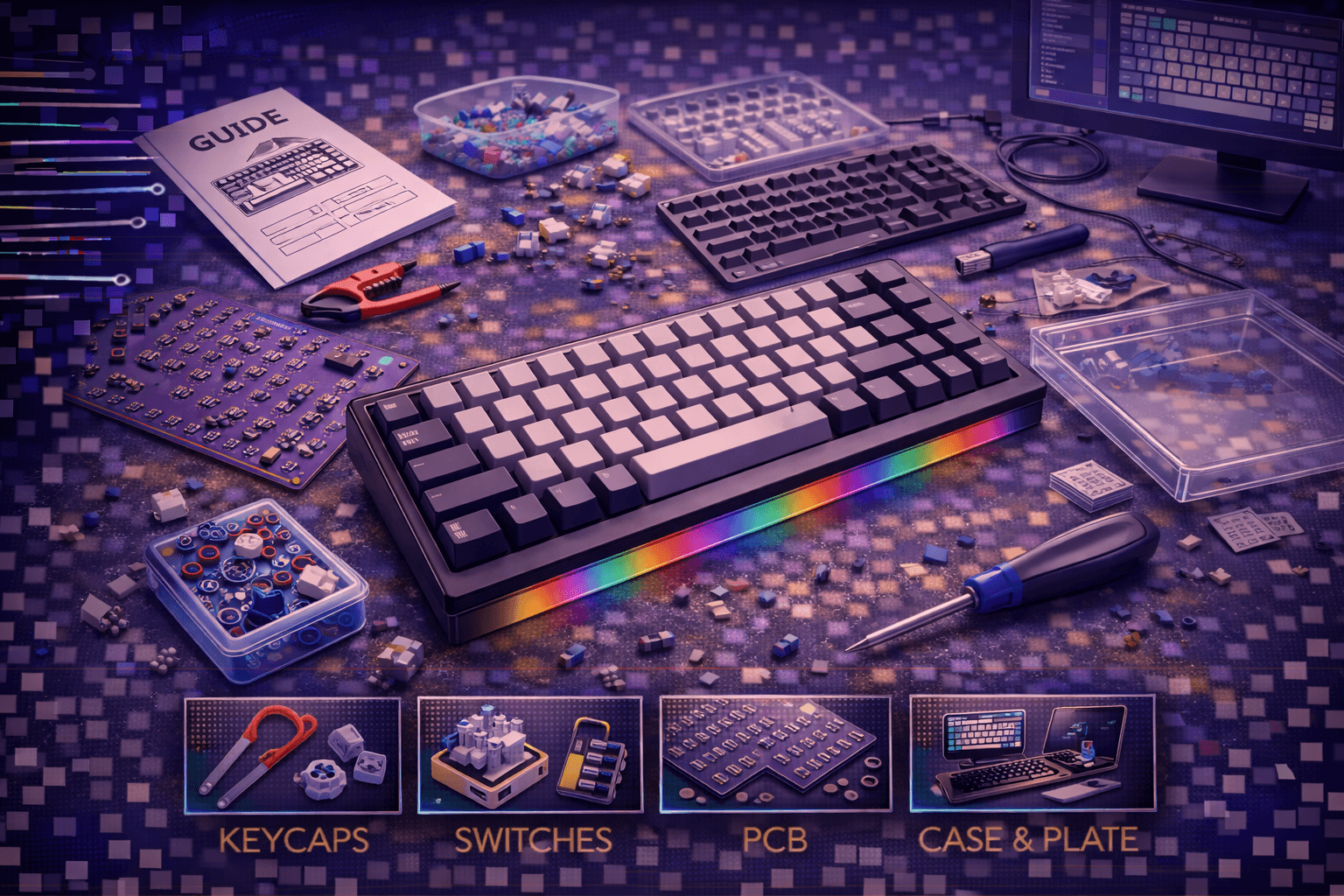
Building custom mechanical keyboard transforms typing experience through personalized component selection creating keyboard perfectly matched to individual preferences, workflow, and aesthetic vision. Understanding custom build process—from selecting compatible components to final assembly and testing—empowers enthusiasts to create superior keyboards impossible to purchase pre-built while developing deep mechanical keyboard knowledge.
Custom keyboard building offers multiple compelling benefits: complete control over every component (switches, keycaps, case, plate), superior quality through premium part selection, exact layout and size matching needs, learning experience developing technical skills, cost optimization choosing budget or premium components strategically, and satisfaction of using personally-crafted tool daily.
This comprehensive guide provides complete roadmap for first custom keyboard build: planning and budgeting establishing realistic project scope, component selection ensuring compatibility, tools and materials preparation, step-by-step assembly process, testing and troubleshooting procedures, and common beginner mistakes to avoid.
Whether seeking ultimate typing experience, exploring technical hobby, or creating unique desk centerpiece, understanding custom keyboard building fundamentals enables successful first build establishing foundation for future projects and deeper mechanical keyboard enthusiasm.
Note: This guide contains affiliate links. If you purchase through our links, we may earn a commission at no extra cost to you. This helps support our testing and content creation.
Planning Your First Custom Build
Budget Planning and Expectations
Entry-Level Custom Keyboard ($$$):
- Hot-swap kit (Keychron V series, GMMK Compact, KBD67 Lite)
- Budget mechanical switches
- Budget keycaps
- Basic assembly tools
- Result: Significantly better typing experience than pre-built at identical price point
Mid-Range Custom Build ($$$):
- Quality aluminum case or barebones keyboard kit
- Premium mechanical switches
- Quality PBT keycaps ($)
- Proper assembly tools ($)
- Optional lubing supplies
- Result: Enthusiast-grade typing experience matching professional keyboards
High-End Custom Build ($400-700+):
- Premium CNC-machined aluminum case
- Top-tier specialty switches
- Premium artisan keycaps
- Complete professional tool set ($)
- Advanced modifications and accessories
- Result: Ultimate personalized keyboard representing significant investment
First Build Recommendation: Budget $200-300 range. Provides genuine quality improvement over budget keyboards without excessive investment before understanding personal preferences and priorities.
Cost Breakdown Example ($250 Mid-Range Build):
- Kit (case, PCB, plate)
- 87 switches
- Keycap set
- Tools and accessories
Choosing Your Keyboard Layout
Layout Size Considerations:
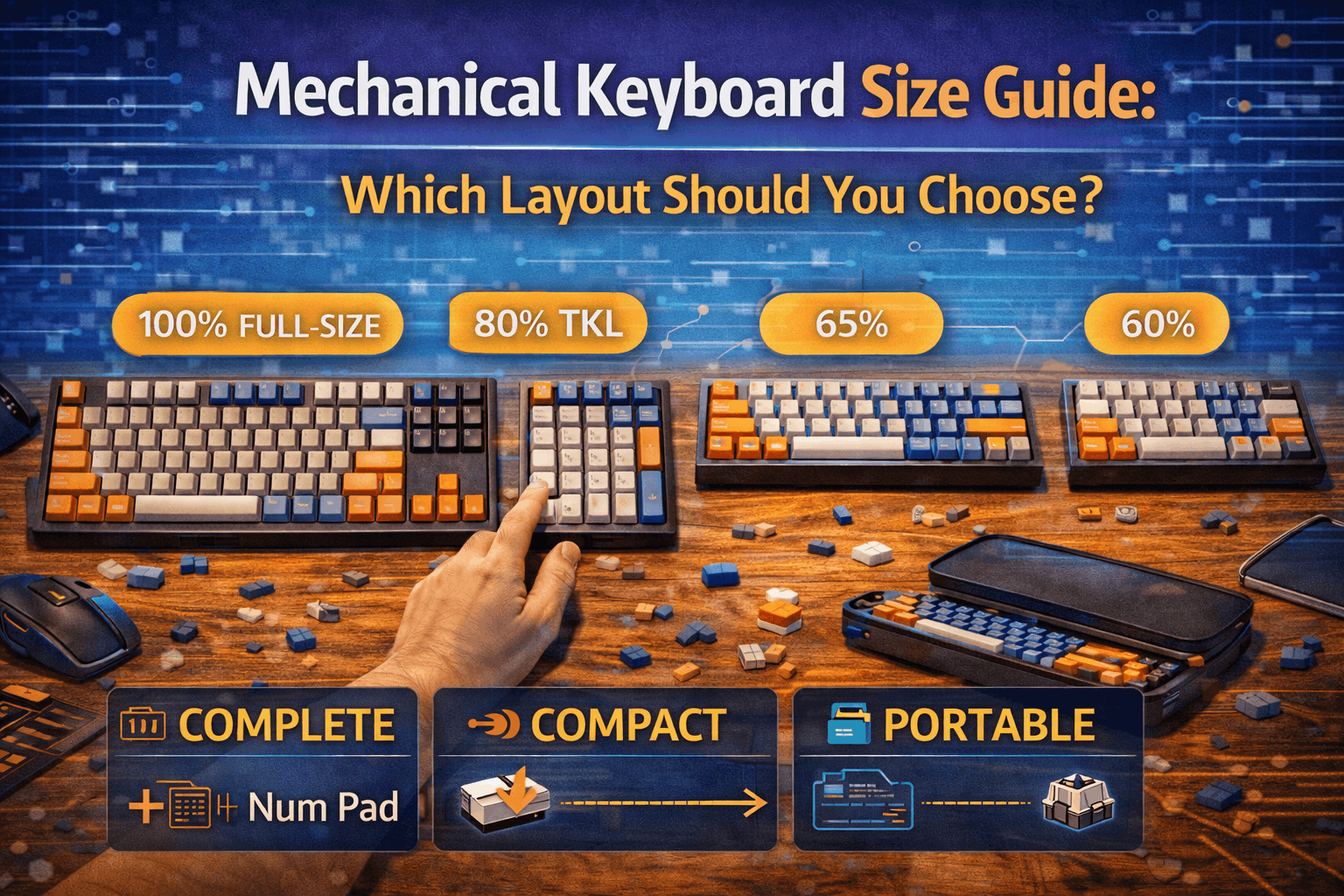
60% Layout (61 keys):
- Ultra-compact minimal design
- No dedicated function row (F1-F12)
- No dedicated arrow keys
- Requires extensive layer usage for full functionality
- Best for: Portability priority, minimalist aesthetic, experienced users
- Learning curve: Moderate to steep
- First build: Not recommended for beginners
65% Layout (68 keys):
- Compact with dedicated arrow keys
- Still quite portable
- Familiar to many users
- Sweet spot layout for many enthusiasts
- Best for: Balance between size and functionality
- Learning curve: Minimal
- First build: Excellent choice
75% Layout (84 keys):
- Compact with dedicated function row
- Most functionality in compact package
- Popular enthusiast choice
- Very versatile
- Best for: Balanced functionality and portability
- Learning curve: Minimal
- First build: Highly recommended
TKL (Tenkeyless - 87 keys):
- Traditional layout without numpad
- Familiar layout for most users
- Balanced size and functionality
- Extensive hot-swap options available
- Best for: Comfortable transition from standard keyboards
- Learning curve: None (very familiar)
- First build: Excellent recommendation
Full-Size (104+ keys):
- All keys including numpad
- Largest footprint
- Best if numpad essential for workflow
- Fewer custom options available
- Best for: Users requiring numpad functionality
- Learning curve: None
- First build: Only if numpad necessary
First Build Layout Recommendation: 75% or TKL layout provides ideal balance. Familiar enough for comfortable transition, compact enough for improvement over standard keyboards, functional enough for complete work without heavy layer usage. See our keyboard size guide for detailed comparisons.
Hot-Swap vs Soldered Decision
Hot-Swap PCBs (STRONGLY recommended for first build):
Advantages:
- No soldering required (zero technical barrier)
- Beginner-friendly installation (mechanical insertion only)
- Easy switch testing and changes (pull out, plug in new)
- Mistakes completely reversible (just remove failed switch)
- Flexibility to change switches anytime
- Slightly higher PCB cost but worth it
Disadvantages:
- Slightly more expensive than soldered
- Socket wear potential (minimal with quality sockets)
- Slight thickness increase (sockets add ~2mm)
Reality: Hot-swap eliminates learning curve making custom builds accessible to complete beginners.
Soldered PCBs (Not recommended for first build unless experienced):
Advantages:
- Lower PCB cost
- Extremely reliable long-term (solder joints very durable)
- Slimmer case profile possible
Disadvantages:
- Requires soldering skills (significant learning curve)
- Desoldering mistakes costly and tedious
- Mistakes difficult to fix (labor-intensive rework)
- Permanent switch commitment (changing switches difficult)
- Higher barrier to entry for beginners
Reality: Not ideal for first build unless already experienced solderer.
First Build Verdict: Hot-swap unless you already have soldering experience and confidence. Flexibility invaluable when discovering preferences.
Design Aesthetic Planning
Color Coordination Strategy:
Before purchasing any components, plan overall aesthetic:
Component colors to coordinate:
- Case color (white, black, silver, colorful)
- Keycap colors (matching or complementary)
- Cable color (if custom cables desired)
- Overall desk setup aesthetic
Popular Aesthetic Combinations:
Classic Professional: Black case + white or beige keycaps. Timeless professional appearance.
Sleek Modern: Silver aluminum case + black keycaps. Premium aesthetic.
Pop of Color: Neutral case (black/silver/white) + colorful keycaps. Keycaps become focal point.
Monochrome: Black case + black keycaps. Stealthy minimalist appearance.
Custom Artistic: Matching case and keycap colors for cohesive vision. Requires confidence in color choices.
Planning aesthetic before purchasing: Much harder to change mind and repurchase components after commitment.
Critical Compatibility Verification
Before purchasing ANY components, verify compatibility:
Case-PCB Compatibility:
- PCB must physically fit inside case
- Mounting points must align
- USB connector position must work
Plate-PCB Compatibility:
- Plate switches must align with PCB socket positions
- Plate layout must match PCB layout
- Stabilizer cutouts must work with PCB design
Keycap-Layout Compatibility:
- Keycap set must cover your chosen layout
- Verify all necessary key sizes present
- Bottom row sizes critical (spacebar, shifts, modifiers)
- Right shift size verification (1u vs 1.75u varies by layout)
Stabilizer Compatibility:
- Plate-mount stabilizers clip into plate
- PCB-mount (screw-in) stabilizers screw into PCB
- Your kit must support one or the other (verify!)
Recommendation for first build: Purchase complete kit (case + PCB + plate + stabilizers included). Eliminates compatibility concerns. Most kits from reputable vendors pre-tested for compatibility.
Component Selection
Selecting Your Kit/Case/PCB
Complete kits ideal for first build—include case, PCB, plate, stabilizers.
Popular first-build kits (2026 recommendations):
Budget-Friendly Options:
Keychron V series ($$):
- Hot-swap design
- QMK/VIA firmware support
- Multiple sizes (V2 TKL, V4 75%, etc.)
- Excellent build quality
- Great value for price
- Stable release (proven design)
KBD67 Lite ($$):
- Excellent 65% option
- Gasket-mount (premium feel)
- Polycarbonate case (clear showcase)
- Popular enthusiast kit
- Proven reliable design
GMMK Pro ($$$):
- Hot-swap aluminum case
- Excellent typing feel
- Modular design
- Multiple sizes available
- Premium budget option
Mid-Range Options:
Keychron Q series ($$$):
- CNC aluminum case (premium feel)
- Gasket mount (excellent typing experience)
- Multiple layout options (75%, TKL, 65%)
- QMK/VIA support
- Best value for premium build
Zoom65 ($$$):
- Compact 65% design
- Gasket mount
- Aluminum case
- Popular group buy design
- Excellent community support
Mode Sonnet ($$$):
- Premium 75% keyboard
- Excellent build quality
- Gasket mount with refinement
- Refined design and aesthetics
Component Verification:
Before purchasing, confirm kit includes:
- Case
- PCB circuit board
- Metal plate (or PCB plate)
- Stabilizers (usually included)
- USB cable
Note: "Barebones" kits typically exclude switches and keycaps (expected and saves cost).
Choosing Your First Mechanical Switches
First build switch selection strategy:
Critical priority: Test switches before purchasing. Typing on switches before buying prevents expensive mistakes learning preferences.
Where to test switches:
- Mechanical keyboard meetups and events
- Specialty keyboard shops with switch testers
- Micro Center and electronics retailers (some have display units)
- Purchase switch tester pack (10-20 switches sample)
Popular beginner switch recommendations:
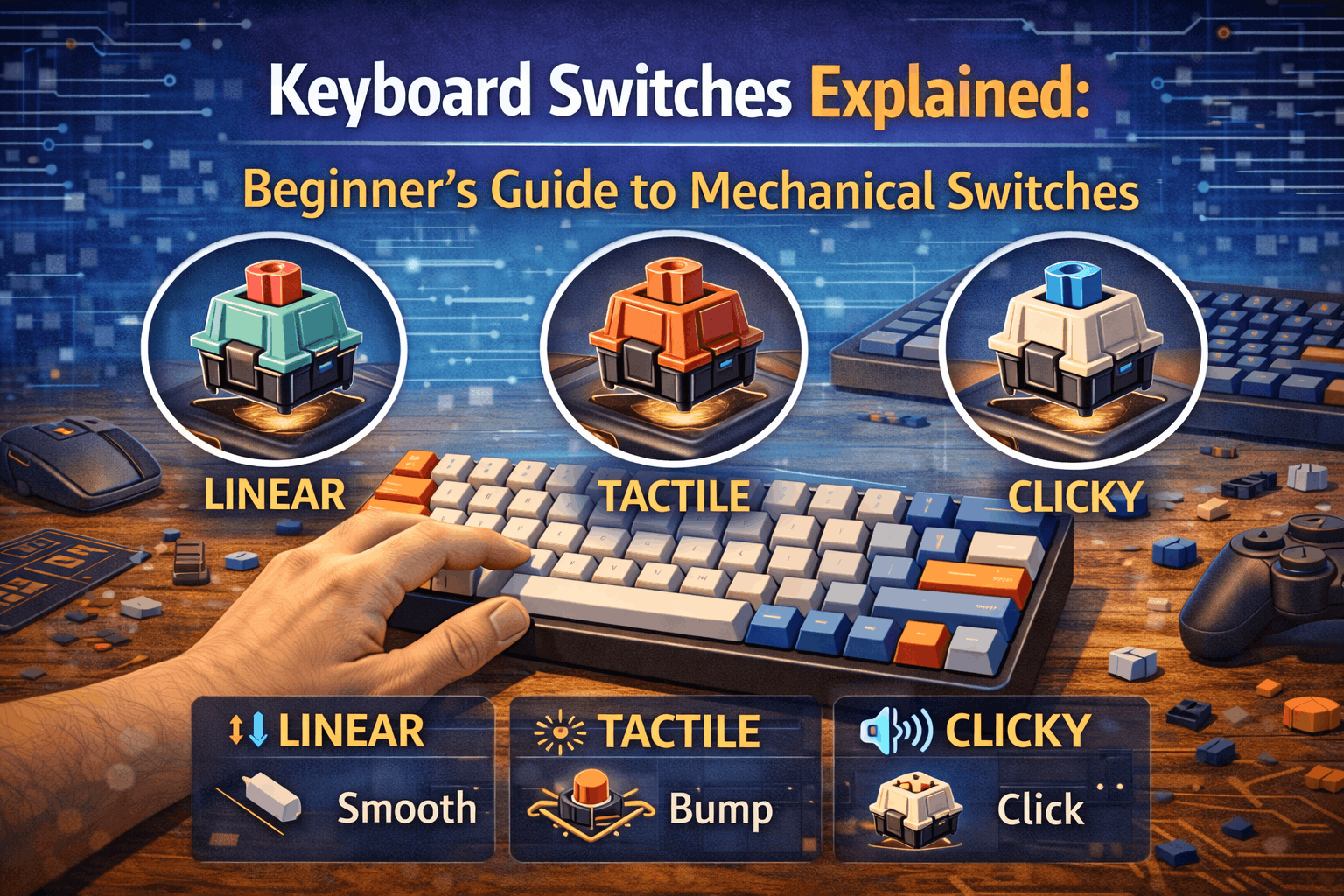
Linear Switches (Smooth, no tactile bump):
- Budget-friendly smooth
- Excellent value proposition
- Reliable consistent quality
- No scratching or issues
- Perfect budget option
Cherry MX Red:
- Classic reliable linear
- Familiar feel for most people
- Safe choice for first build
- Widely available
- Proven design
Gateron Ink Black:
- Premium smooth linear
- Deep satisfying sound
- Ultra-smooth operation
- More expensive but excellent
- Best smooth for budget
Tactile Switches (Bump during press):
Gateron Brown:
- Gentle tactile bump
- Beginner-friendly feedback
- Reliable performance
- Budget option
- Subtle tactile character
Durock T1:
- Strong pronounced tactile bump
- Thocky satisfying sound
- Excellent build quality
- Popular enthusiast choice
- Worth the premium
- Sharp clear tactile
- Enthusiast favorite
- Excellent sound
- Slightly pricier
- Very satisfying feel
Silent Switches (Quiet operation):
Cherry MX Silent Red:
- Quiet reliable linear
- Muted bottom-out sound
- Office-friendly
- Quality proven design
Boba U4 Silent:
- Best silent tactile option
- Quiet with tactile feedback
- Professional environments perfect
Switch Quantity Needed:
- 60% layout: 61 switches
- 65% layout: 68 switches
- 75% layout: 84 switches
- TKL layout: 87 switches
- Full-size: 104+ switches
Buy 10-15 extra switches for mistakes during lubing, testing, and future replacements.
Selecting Your First Keycap Set
Keycap Profile (Height and Curve):
Cherry Profile:
- Low profile, gentle curve
- Most popular choice
- Comfortable for extended typing
- Familiar aesthetic
- Recommended for first build
OEM Profile:
- Standard profile
- Familiar from pre-built keyboards
- Tall profile with pronounced sculpt
- Good typing feel
SA Profile:
- Tall sculpted profile
- Vintage aesthetic
- Higher hand position
- Distinct typing feel
XDA/DSA Profile:
- Uniform height across rows
- Minimal sculpting
- Modern minimalist aesthetic
- Less familiar feeling
Recommendation: Cherry profile for first build. Most familiar, comfortable, and widely available.
Keycap Material:
PBT Plastic (Preferred):
- Textured surface
- Durable resistant to shine
- Legends don't fade
- Better quality feel
- Higher cost
ABS Plastic (Budget):
- Smooth surface
- Eventually shines with use
- Acceptable for first build
- Lower cost ($)
- Legends can wear off
Keycap Legend (Lettering):
Doubleshot: Two-color injection molding. Legends never fade. Premium quality.
Dye-Sublimated: Dye embedded in plastic. Very durable. Excellent quality.
Laser-Etched: Most affordable. Legends wear off eventually. Budget option.
Compatibility Verification Critical:
Before purchasing keycaps, verify:
- Keycap set covers your chosen layout
- Bottom row sizes include your spacebar size (usually 6.25u or 7u)
- Right shift size matches (1u, 1.75u, or 2u—varies by layout)
- All necessary modifier keys included
Budget Keycaps ($):
- Amazon keycap sets
- Keychron OEM sets
- Basic aesthetic sufficient
Mid-Range Keycaps ($):
- GMK clones (quality PBT)
- Specialty brand PBT sets
- Much better quality
Premium Keycaps ($$$):
- Original GMK sets
- ePBT quality sets
- Artisan keycaps
Selecting Stabilizers
Two stabilizer mounting types:
Plate-Mount Stabilizers:
- Clip directly into plate
- Easier installation
- Adequate performance
- Common in budget kits
PCB-Mount Stabilizers (Screw-In):
- Screw into PCB
- More stable mounting
- Better performance
- Preferred by enthusiasts
- Used in mid-range kits
Verify which type your kit requires before purchasing.
Popular Stabilizer Brands:
Durock V2 ($$):
- Excellent performance and smoothness
- Popular choice among enthusiasts
- Reliable consistent quality
- Widely recommended
TX Stabilizers ($):
- Premium option
- Very smooth operation
- Top-tier quality
- Worth investment
Cherry Stabilizers ($):
- OEM standard equipment
- Decent adequate performance
- Budget option
- Acceptable for first build
Stabilizer Sizes Needed (most common):
- 2u: Shift, Enter, Backspace (multiple needed)
- 6.25u or 7u: Spacebar (verify your layout)
Note: Most complete kits include stabilizers. If purchasing separately, choose a set matching your budget.
Tools and Materials Needed
Essential Tools (Must-Have)
Switch Puller ($):
- Removes switches from hot-swap sockets
- Critical for hot-swap keyboards
- Included with most quality kits
- Small inexpensive plastic tool
Keycap Puller ($):
- Removes keycaps from switches
- Wire puller design best
- Often included with keyboard kits
- Makes disassembly easy
Screwdriver Set ($):
- Phillips head primarily for case assembly
- Small precision set ideal
- Basic tool set sufficient
- Avoid over-torquing (can crack plastic)
Tweezers ($):
- Position small components during assembly
- Helpful not absolutely essential
- Small precision tweezers best
- Useful for later modifications
Highly Recommended Tools
Lube Station ($$):
- Holds switches securely during lubing
- Makes lubing process much easier
- Speeds up lube application significantly
- Not essential but valuable
Switch Opener ($):
- Opens switch housing for switch lubing
- Essential if lubing switches
- Prevents damage to switches
- Poor substitute: risking broken switches
Small Brush ($):
- Applies lube smoothly to switch components
- Size 00 sable paintbrush works perfectly
- Inexpensive essential tool
- Makes lube application precise
Isopropyl Alcohol 90%+ ($):
- Cleans components and tools
- Disinfects work area
- Removes excess lube
- General maintenance
Microfiber Cloths ($):
- Wipes components without scratching
- Cleans keycaps
- Professional appearance
Lubrication Materials (Optional but Recommended)
Switch Lubricant:
Krytox 205g0 ($$$):
- Gold standard switch lube
- Smooth buttery feel
- Long shelf life
- Most expensive option
- Best results
Tribosys 3204 ($$$):
- Thinner than Krytox 205g0
- Excellent for tactile switches
- Good alternative
- Similar cost
Stabilizer Lubricant:
Dielectric Grease (Permatex) ($$):
- Thick grease for stabilizers
- Budget excellent option
- Works perfectly
- Widely available
Krytox 205g0 ($$$):
- Premium stabilizer option
- Works for both switches and stabilizers
- Higher cost
Lubing Optional: Not necessary for first build if purchasing pre-lubed switches. Later you can lube your own switches learning the skill.
Modifications Materials (Optional)
Case Foam ($$$):
- EVA or Poron foam sheets
- Reduces keyboard hollowness
- Highly recommended modification
- Noticeable improvement
- Optional but worthwhile
Masking Tape ($):
- Standard painter's tape
- For tape mod (PCB back)
- Deepens overall sound
- Optional acoustic tuning
PE Foam Sheet ($$):
- For PE foam mod
- Between PCB and switches
- Creates poppy character
- Optional sound tuning
Proper Work Environment
Workspace preparation:
- Clean flat work surface
- Adequate bright lighting (desk lamp ideal)
- Organize all components logically
- Small containers for screws and small parts
- Prevent parts rolling away
- Take your time—rushing causes mistakes
Step-by-Step Assembly Process
Step 1: Prepare and Inspect
Preparation:
- Clean flat work surface
- Arrange lighting properly
- Organize all components and tools neatly
- Review kit instructions if included
- Lay out all parts visually
Component inspection:
- Unpack everything carefully (mind sharp edges)
- Verify all promised parts present
- Check for any visible damage during shipping
- Count switches and keycaps matching documentation
PCB functional test:
- Plug PCB into computer via USB
- Use tweezers to short each switch pad
- Confirm each position registers in keyboard tester website
- Identify any dead positions immediately
- Contact vendor if issues (test before proceeding)
Step 2: Install Stabilizers
For PCB-Mount (Screw-In) Stabilizers:
- Identify stabilizer positions (spacebar, Enter, Shift keys)
- Insert stabilizer housing through PCB holes from top
- Screw in housings from PCB bottom side
- Tighten snugly (don't overtighten—plastic cracks easily)
- Clip stabilizer wire into both housings
- Ensure wire fully seated
For Plate-Mount Stabilizers:
- Clip stabilizers into plate from bottom
- Ensure completely firmly seated
- Orientation critical (wider part typically up)
- Test stabilizer movement (should move freely)
Stabilizer Lubing (Highly Recommended):
- Disassemble each stabilizer completely
- Apply dielectric grease or Krytox lightly to wire
- Apply grease to housing contact points
- Reassemble carefully
- Test smoothness before installing
Step 3: Optional Modifications
Perform modifications before switch installation—much harder after.
Case Foam Installation:
- Measure case cavity depth and dimensions
- Cut foam sheet to case shape (slightly oversized fine)
- Place foam on case bottom
- Trim as needed around mounting points
Tape Mod (PCB Back):
- Apply 3-4 layers masking tape to PCB back (component side)
- Cover PCB thoroughly
- Cut around screw holes (don't block)
- Smooth out air bubbles and wrinkles
Skip modifications if unsure. Add later if desired.
Step 4: Install Switches
Hot-Swap Installation Process:
- Align plate with PCB (if separate components)
- Take one switch—verify pins straight (bent pins = socket damage)
- Align switch with plate hole and PCB socket
- Push switch firmly until clicks into place
- Switch should sit flush with plate surface
- Repeat for all switches
Installation strategy:
- Start with corner switches securing plate position
- Then fill remaining positions
- Work methodically avoiding mistakes
- Take breaks (prevents fatigue errors)
Critical attention:
- Bent switch pins extremely common mistake
- Inspect pins before each installation
- Don't force switches—click indicates proper seating
- Pulls without clicking = pin damage
Step 5: Complete Functional Test
Before case assembly, test every single key:
- Plug keyboard into computer
- Open keyboard tester website
- Press every key individually
- Confirm registration on tester
- Watch for dead keys (no registration)
- Watch for multiple registrations (register twice)
- Check stabilized keys work (spacebar, Enter, Shifts)
Troubleshooting failures:
- Dead key: Pull switch, inspect pins (bent?), reseat
- Multiple registration: Contact vendor (PCB issue)
Only proceed to case assembly after ALL keys test successfully.
Step 6: Assemble Case
- Place switch/PCB/plate assembly carefully into keyboard case
- Route USB cable properly preventing pinching
- Align all screw holes correctly
- Insert all case screws
- Tighten screws evenly in X-pattern (prevent warping)
- Snug is sufficient—don't reef on screws (cracks plastic)
Cable routing critical: Prevent pinching by case closure.
Step 7: Install Keycaps
- Identify keycap placement for your layout (take reference photo)
- Start with spacebar and large keys
- Press keycaps firmly onto switch stems
- Keycaps should snap into place with slight resistance
- Large keys may require multiple seating attempts
- Verify final alignment—keys should sit level
Keycap securement: Should feel secure but not glued on. Can be removed and reinstalled easily.
Step 8: Final Testing and Validation
- Plug keyboard into computer
- Test every key one final time
- Check RGB lighting if applicable
- Test stabilizers for excessive rattle (slight buzz normal)
- Verify firmware functions (if QMK/VIA programmable)
- Type some text—test typing feel
Step 9: Break-In and Enjoyment
Adjustment period: Spend time typing on your new custom keyboard.
First week observations:
- New layout might feel slightly odd
- Switches may feel slightly scratchy initially (normal)
- Typing speed may temporarily reduce (adapting to new feel)
- Sound will evolve as lube distributes
Expected changes:
- Keycaps conform slightly to switch stems
- Switches smoothen through break-in
- You adapt to new keyboard characteristics
- Overall feel and sound improve over time
Normal adjustment: 1-2 weeks before full comfort achieved. Completely normal.
Common Beginner Mistakes to Avoid
Bent Switch Pins (Most Common Mistake)
Problem: Bent switch pins prevent proper socket insertion or damage hot-swap sockets.
How it happens:
- Misaligned switch during insertion
- Forcing switch into socket
- Careless handling during testing
Prevention:
- Inspect pins before every switch installation
- Align switch carefully before pushing
- Use gentle but firm pressure—don't force
- Remove and reinstall if resistance felt
Recovery: Use tweezers carefully straightening bent pins. Requires steady hand and patience.
Incorrect Stabilizer Installation
Symptoms:
- Keys don't actuate at all
- Excessive rattle on spacebar/large keys
- Keycaps won't install on stabilized keys
Common installation errors:
- Stabilizer wire not fully seated in housings
- Screw-in stabilizers overtightened cracking housings
- Plate-mount stabilizers not clipped fully into plate
- Backwards orientation
Prevention: Follow stabilizer installation guide precisely. Test before full assembly.
Wrong Keycap Sizes for Layout
Issue: Keycaps don't fit—especially bottom row and right shift.
Consequences:
- Can't complete keyboard assembly
- Expensive keycap set unusable
- Frustrating discovery after purchase
Prevention:
- Verify keycap set compatibility with layout BEFORE purchasing
- Check right shift size (1u, 1.75u, 2u varies by layout)
- Verify bottom row configuration (6.25u vs 7u spacebar)
- Research specific layout requirements
Solution: Can sometimes find replacement keycaps for wrong sizes but expensive and frustrating.
Skipping Pre-Assembly Testing
Mistake: Fully assembling case before testing switches.
Problem: Discovering dead switch after case sealed requires disassembly.
Prevention: Test all switches in hot-swap sockets BEFORE case assembly. Takes 5 minutes. Saves hours of troubleshooting.
Over-Tightening Case Screws
Damage caused:
- Cracked plastic case
- Cracked stabilizer housings
- Over-compressed gasket mounts
- Warped case corners
Prevention: Snug screws firmly but don't apply excessive force. Plastic components fragile. Hand-tight plus quarter-turn sufficient.
Philosophy: Component engineered to work with normal tightness. Force isn't necessary.
Incompatible Component Purchases
Mistake: Buying case, PCB, plate separately without compatibility research.
Failure modes:
- PCB doesn't fit case (size mismatch)
- Plate doesn't align with PCB
- Stabilizer type mismatch
- Keycap layout mismatch
Prevention for first build: Purchase complete kit from vendor. Eliminates compatibility concerns. If buying separately, extensively research compatibility BEFORE purchasing.
Compatibility research:
- Read vendor specifications carefully
- Check community reviews (Reddit, Discord)
- Verify mounting points and dimensions
- Ask in keyboard communities if unsure
Insufficient Planning
Mistake: Impulse purchasing components without complete build plan.
Consequences:
- Missing components (discover mid-assembly)
- Incompatible parts (unusable)
- Budget overrun (spent more than planned)
- Wrong aesthetic (disappointed after assembly)
Prevention: Complete planning before purchasing ANYTHING:
- Decide layout and size
- Choose case and PCB (verify compatibility)
- Choose switches and keycaps (verify compatibility)
- Choose stabilizers (verify type)
- Budget entire build
- Only then purchase
Unrealistic Budget Expectations
Common mistake: "I'll build custom keyboard for $100."
Reality: Quality custom build typically $200-400 minimum.
Actual cost reality:
- Quality kit
- 87 switches
- Keycap set
- Tools
- Lubricant (optional)
Prevention: Budget realistically from start. Include ALL components plus cushion for miscalculations or upgrades.
Firmware and Programming Basics
QMK and VIA Overview
Most modern enthusiast keyboards support QMK firmware with VIA configurator.
VIA (Recommended for First Build):
What is VIA:
- Graphical configurator for QMK keyboards
- User-friendly real-time key remapping
- Requires zero technical knowledge
- Changes persist across computers
Getting started with VIA:
- Download VIA from official website
- Plug keyboard into computer
- Open VIA application
- Keyboard auto-detects (if VIA-enabled)
- Drag-drop interface for key remapping
- Changes instant and saved automatically
Advantages:
- No technical knowledge required
- Visual intuitive interface
- Instant changes (no compilation)
- Can be undone immediately
QMK (More Advanced):
What is QMK:
- Open-source keyboard firmware
- Extremely powerful customization
- Requires firmware compilation
- Steeper learning curve
QMK capabilities:
- Advanced macros
- Complex layer logic
- Custom keyboard behavior
- Community open-source development
First build recommendation: Stick with VIA. Covers 95% of customization needs with zero technical complexity. Explore QMK later when ready.
Basic VIA Customization Examples
Layer Creation:
Create Fn layer with media keys, arrows, and special functions without changing main layer.
Key Remapping:
Swap Caps Lock to Control (popular for programmers). Remap keys matching personal preference.
Media Keys:
Add volume control, play/pause, previous/next track on Fn layer.
Macro Recording:
Simple repeated sequences. Record key sequence once, play back with single key.
RGB Control:
If keyboard supports RGB, program lighting effects and colors.
Explore Later: Focus on physical build first. Firmware customization can wait. Programming doesn't affect mechanical functionality.
FAQ
Q: How much does it cost to build a custom mechanical keyboard?
A: Ranges from $150 entry-level to $700+ high-end. First build recommended $200-300 for quality without excessive investment. Includes complete kit, switches, keycaps, and basic tools. Budget includes all components. See budget planning section above.
Q: Is building a custom keyboard difficult or requires special skills?
A: Not difficult with hot-swap kit. Similar to adult LEGO assembly. Takes 2-4 hours for first build with no prior experience. No soldering required (hot-swap). No special skills needed. See assembly section above.
Q: What tools do I need to build a mechanical keyboard?
A: Minimally: switch puller, keycap puller, screwdrivers. Optional: lube station, switch opener, tweezers. Total tool cost under $50. See tools section above.
Q: Should I lube switches for my first build?
A: Optional but highly recommended. Dramatically improves feel and sound. Adds 2-3 hours to build time. Alternatively, purchase pre-lubed switches saving time. See assembly section above.
Q: Can I build a custom keyboard without any soldering experience?
A: Yes! Hot-swap kits require zero soldering. Just mechanical press-fit switch insertion. Strongly recommended for first build unless already experienced solderer. See planning section above.
Conclusion
Building first custom mechanical keyboard achieves rewarding hands-on project combining thoughtful component selection with accessible assembly creating truly personalized typing instrument. Hot-swap kits eliminate soldering requirement making custom builds entirely accessible to complete beginners. If buying pre-built feels more your speed, our best hot-swap keyboards roundup covers ready-to-use options across budgets.
Budget planning $200-300 delivers genuine quality experience without excessive investment before discovering personal preferences and priorities. Component selection emphasizes compatibility verification—case, PCB, plate, and keycaps must work together harmoniously. Testing switches before purchase through switch testers or meetups prevents costly preference mistakes.
Assembly process straightforward following systematic approach: stabilizer installation, optional modifications, switch insertion, comprehensive testing, case assembly, keycap installation. Common mistakes—bent pins, incorrect stabilizers, skipped testing—remain preventable through careful methodical work.
VIA firmware provides intuitive programming without technical complexity. First custom build establishes strong foundation for mechanical keyboard enthusiasm and future advanced projects.
Success builds confidence encouraging deeper exploration of switch modifications, premium components, and technical aspects of mechanical keyboard customization. Your first build becomes trusted typing tool used daily while opening door to fascinating rewarding hobby.