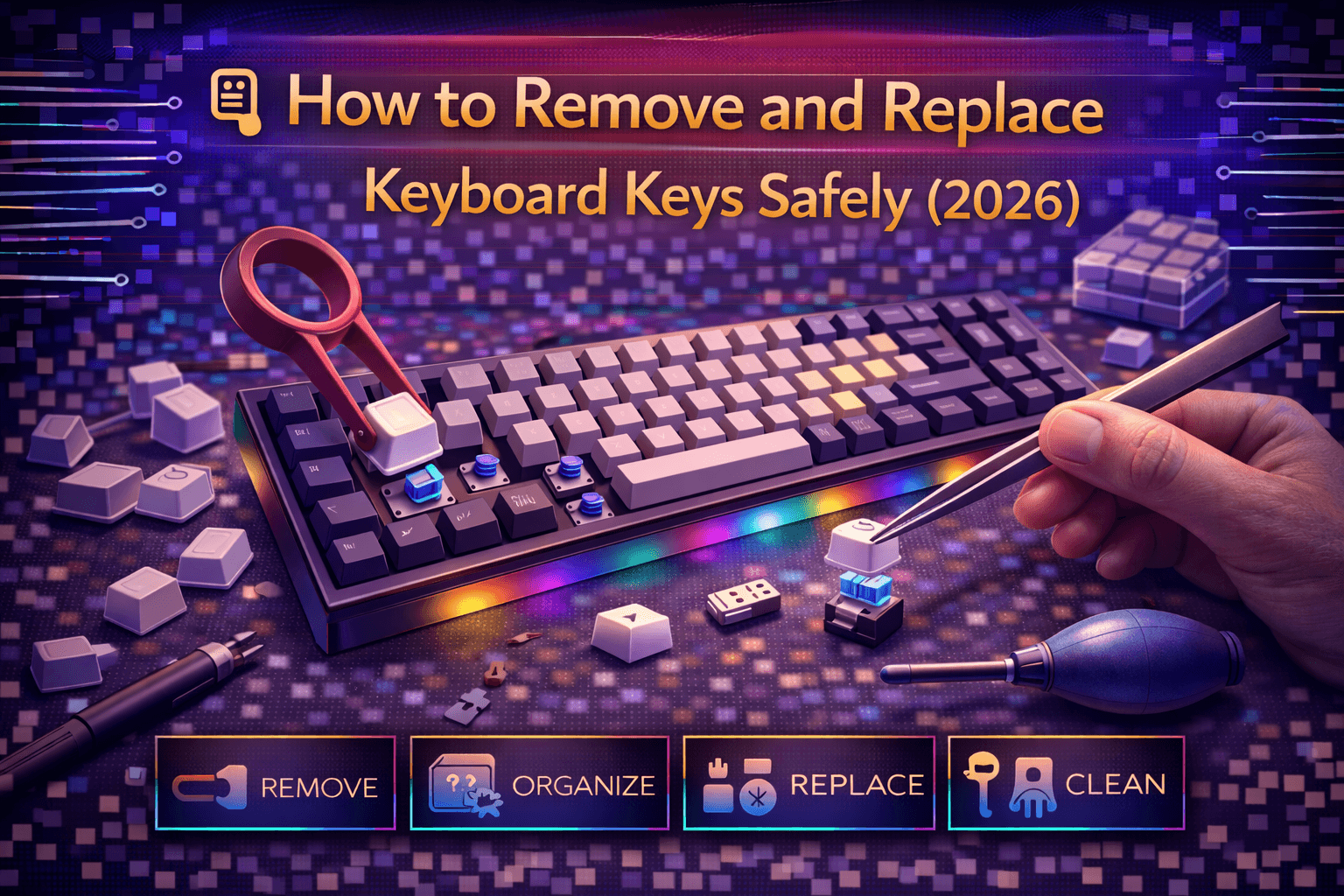
Removing and replacing keyboard keys enables deep cleaning, switch replacement, keycap customization, and repair of stuck or damaged keys. Understanding proper removal techniques prevents keycap or switch damage while accessing keyboard internals for maintenance and customization.
Key removal procedures differ significantly between keyboard types: mechanical keyboards with removable keycaps using keycap pullers, laptop keyboards with scissor switches requiring careful prying, and membrane keyboards with integrated keycaps needing gentle extraction. Each type demands specific tools and techniques avoiding damage.
This comprehensive guide covers safe keycap removal for mechanical keyboards, explains switch removal and replacement for hot-swap and soldered boards, provides laptop keyboard key removal procedures, discusses cleaning under keys, covers keycap replacement and installation, and helps troubleshoot common removal and installation problems.
Whether removing keys for cleaning, replacing broken keycaps, swapping switches, or customizing keyboard appearance, proper techniques ensure successful maintenance without damage.
Note: This guide contains affiliate links. If you purchase through our links, we may earn a commission at no extra cost to you. This helps support our in-depth testing and content creation.
Tools and Preparation
Essential Tools for Key Removal
Keycap puller (mechanical keyboards - essential):
- Wire pullers: Best type. Two metal or plastic wire loops pull keycap evenly from opposite sides. ~$5-10. Most recommended.
- Plastic ring pullers: Adequate but can scratch premium keycaps. Often included with keyboards. ~$3-5.
- Avoid: Fingernails (damage keycaps and injure fingers), screwdrivers (destroy keycaps and switches), pliers (bend and break).
Switch puller (hot-swap mechanical keyboards):
- Specialized tool with clips gripping switch housing. Required for hot-swap switch removal. ~$5-8.
- Some keyboards include switch puller.
- Don't attempt hot-swap switch removal without proper tool.
Plastic spudger or guitar pick (laptop keyboards):
- Thin flexible tool for prying laptop keys. Plastic prevents scratching delicate mechanisms. ~$3-5 for set.
- Avoid metal tools damaging scissor mechanisms.
Tweezers:
- Precision tweezers handling small components. Repositioning stabilizer wires, organizing parts. ~$5-10.
- Needle-nose tweezers ideal.
Optional but Helpful Tools
Small container: Organize removed keycaps. Prevents loss especially on larger keyboards.
Camera or smartphone: Photograph keyboard layout before removal. Reference guide for reassembly, especially non-standard layouts.
Compressed air: Clean keyboard while keys removed. Blows debris from switches and PCB.
Microfiber cloth: Wipe keyboard and keycaps. Prevents scratching finishes.
Isopropyl alcohol 90%+: Deep cleaning keycaps and keyboard components.
Workspace preparation:
-
Clear flat surface: Dedicated workspace prevents losing small keycaps.
-
Good lighting: See keyboard and components clearly. Prevents missing details.
-
Disconnect keyboard: Unplug USB or turn off wireless. Prevents accidental inputs during work.
-
Ground yourself: Touch metal part discharging static electricity. Important for PCB-level work.
-
Photograph layout: Especially important for unusual layouts or unfamiliar keyboards.
Removing Keycaps: Mechanical Keyboards
Mechanical keyboards specifically designed for keycap removal. Safe, fast process with proper tools.
Standard Keys (Letters, Numbers, Arrow Keys)
Using wire keycap puller (recommended method):
- Position puller: Place wire loops on opposite sides of keycap (north-south or east-west positioning)
- Engage wires: Pull loops under keycap edges. Wires should grip edges securely.
- Compress handles: Squeeze puller handles together. Compression holds keycap securely.
- Pull straight up: Firm, even, straight upward motion. Don't angle or rock.
- Release: Keycap pops off cleanly. Switch stem remains in place.
Key technique points:
- Straight vertical pull: Angled pulling bends switch stem or damages keycap cross-mount.
- Firm even pressure: Prevents uneven stress on one side.
- No rocking or wiggling: Damages switch stem, keycap, or cross-mount internally.
Using plastic ring puller:
- Center over keycap: Position ring puller directly above keycap center.
- Press down: Engage ring under keycap edges completely.
- Pull straight up: Firm upward pressure.
- Release: Keycap detaches from switch.
Less ideal than wire pullers due to potential scratching, but functional.
Emergency removal (without proper tools - avoid if possible):
Use two plastic credit cards sliding under opposite keycap edges. Pull evenly. Not recommended regularly—risks keycap damage.
Large Keys with Stabilizers (Spacebar, Enter, Shift, Backspace)
Stabilizers complicate removal. Extra care and force required.
Removal procedure:
- Position puller: Same as standard keys. More resistance expected.
- Firm upward pull: Stabilizers hold keycap. Significantly more force required than standard keys.
- Continue pulling: Don't give up. Resistance normal. Persistent firm pressure releases keycap.
- Release: Keycap comes off with stabilizer wire usually attached (normal).
Critical points:
- Don't panic at resistance: Stabilizers create significant holding force. Normal and expected.
- Don't rock or angle: Rocking damages stabilizer stems or housings. Maintain vertical pull.
- Firm steady pressure: More effective than intermittent tugging.
Spacebar removal special note:
Spacebar widest key with two stabilizers. Requires firmest pull of any keycap.
- Expect significant resistance: Strongest holding force of all keycaps.
- Stabilizer wire almost always detaches: Normal occurrence. Reattach during reinstallation.
- Possibly most difficult key: Practice on standard keys first if nervous.
Cleaning opportunity while keys removed:
Compressed air: Blow debris from exposed switches and PCB areas.
Soft brush: Brush dust around switches and under keycaps.
Wipe keyboard: Microfiber cloth with isopropyl alcohol cleaning plate surface.
Soak keycaps: Warm water with dish soap removes grime. Rinse thoroughly, dry completely before reinstalling.
Organizing Removed Keycaps
Three organization approaches:
Option 1: Photograph before removal
- Quick reference for key layout
- Essential for non-standard or unusual layouts
- Works well for QWERTY standard layouts where you remember keys
Option 2: Arrange on table matching layout
- Visual reference during reassembly
- Prevents confusion on unfamiliar keyboards
- Takes more space but very reliable
Option 3: Labeled containers
- More secure storage
- Best for storing keycaps long-term
- Slower but organized approach
Most people: Rely on memory for standard QWERTY. Photo backup for complex layouts or if unfamiliar with keyboard.
Removing Switches: Hot-Swap Keyboards
Hot-swap keyboards enable switch removal without soldering skills required.
When to Remove Switches
- Replacing failed switch: Dead or broken switch replacement.
- Upgrading switches: Different switch type for improved feel.
- Lubing switches: Remove, disassemble, lubricate, reassemble.
- Testing switches: Try different switch types before committing.
- Deep cleaning: Clean under switches and around sockets.
Required Tool: Switch Puller
Essential—don't attempt without proper tool. Switch pullers ~$5-8. Attempting removal with tweezers, pliers, or screwdrivers damages switches or hot-swap sockets, often permanently.
Step-by-Step Switch Removal
Step 1: Remove keycap
Follow keycap removal procedures above. Expose switch housing completely.
Step 2: Identify switch orientation
Switches have specific orientation. Note metal pins at bottom—remember their positioning for reinstallation. Switches installed upside-down won't work.
Step 3: Position switch puller
- Align puller clips: On opposite sides of switch (typically north-south sides).
- Engage completely: Clips should grip under switch top housing securely.
- Equal grip: Both clips engaging equally prevents uneven removal stress.
Step 4: Compress and pull
- Squeeze puller handles: Compresses switch retention tabs.
- Pull straight up: Firm vertical pressure. Don't angle or rock.
- Switch releases: Pops out of hot-swap socket cleanly.
Critical: Pull straight up. Angled pulling bends switch pins or damages hot-swap socket permanently.
Step 5: Inspect switch and socket
Check switch pins:
- Bent? Straighten carefully with tweezers. Pins must be straight for reinstallation.
- Broken? Replace switch—unusable.
- Debris? Clean carefully.
Check hot-swap socket:
- Intact? Should show no cracks or breaks.
- Loose from PCB? May need re-soldering.
- Debris in holes? Clean with compressed air.
Installing Replacement Switch
Step 1: Verify pin alignment
Inspect replacement switch pins. Straight, not bent or damaged.
Step 2: Position switch correctly
- Correct orientation: Match original switch orientation. Look at socket to verify position.
- Align pins precisely: Pins must align exactly with socket holes. Misalignment prevents insertion.
Step 3: Press firmly downward
Press straight down with firm steady pressure. Switch slides into socket smoothly.
Step 4: Verify full seating
Switch should sit flush with keyboard plate. Not protruding or sinking below plate level.
Step 5: Test switch operation
- Manual test: Press switch stem. Should actuate smoothly without grinding or binding.
- Electrical test: Use keyboard tester confirming electrical registration.
- Tactile feeling: Should feel normal for switch type (tactile, linear, clicky).
Step 6: Replace keycap
Follow keycap installation procedures below.
Common Hot-Swap Installation Issues
Bent pins: Straighten gently with tweezers. Don't force bent pins—they won't seat properly.
Switch won't seat flush: Pins not properly aligned. Remove, verify alignment, reinsert carefully.
Switch feels loose: Hot-swap socket may be damaged or loose from PCB. May require re-soldering.
No electrical response: Switch installed but not registering electrically. Try removing and reinstalling. If persists, socket connection issue.
Stems don't actuate smoothly: Debris in socket. Clean with compressed air, try again.
Removing Keys: Laptop Keyboards
Laptop keyboard keys more delicate than mechanical keyboards. Require special care and technique.
Warning: Laptop Keys Are Fragile
Laptop keys use fragile scissor mechanisms. Breaking mechanism requires key replacement (often expensive). Proceed carefully or consider professional service for valuable laptops.
When to Remove Laptop Keys
- Cleaning stuck key: Remove, clean, reinstall.
- Removing debris: Stuck debris under key preventing actuation.
- Replacing broken key: Key unresponsive or physically broken.
- Last resort only: Risk of mechanism damage.
Understanding Scissor Mechanism
Laptop keys attach via small plastic scissor mechanisms under keycap. Two plastic pieces pivot allowing key movement. Very fragile—breaking mechanism requires replacement.
Step-by-Step Removal
Step 1: Locate attachment points
Most laptop keys have clips on top edge and bottom edge (or left/right sides). Examine carefully with good lighting or flashlight. Identify exactly where clips attach.
Step 2: Choose starting point
Usually easier starting from top edge or corner rather than side edges. Start where you feel most comfortable and confident.
Step 3: Insert plastic spudger
- Use plastic tool only: Avoid metal (scratches, damages).
- Insert under top edge: Slide thin plastic spudger under key edge.
- Gentle prying motion: Gradually apply upward pressure. Don't force.
Step 4: Work around edges
- Slow systematic approach: Work around entire edge gradually.
- Release clips one by one: As you pry, hear/feel small clicks as clips release.
- Continue around perimeter: Don't focus on one area—work entire edge.
- Gentle persistent pressure: More effective than forceful jabbing.
Step 5: Lift key gently
Once all clips released, key lifts off. Scissor mechanism may stay attached to key or keyboard—both normal outcomes.
Critical technique points:
- Never metal tools: Screwdrivers, knives scratch and damage everything.
- Gentle pressure only: Forcing breaks scissor mechanisms.
- Start from edge, not center: Center prying breaks scissors.
- Patience essential: Slow careful work prevents damage.
Keys to Avoid Removing
Spacebar: Most difficult. Wide key with multiple attachment points. Extremely easy to break mechanism. Avoid unless absolutely necessary.
Enter key: Also challenging depending on laptop layout.
Function keys usually safest: Smaller, simpler attachment. Easiest keys to remove if must practice.
Cleaning Under Laptop Keys
Without full removal (safest approach):
- Compressed air blowing under key
- Cotton swab with isopropyl alcohol
- Usually sufficient for dust and light debris
With removal:
- Clean scissor mechanism gently—don't lose pieces
- Clean keycap thoroughly
- Dry completely before reinstalling
Laptop Key Reinstallation
Step 1: Verify scissor mechanism
Ensure plastic scissors in correct position. Mechanism must be functional before reinstalling keycap.
Step 2: Position keycap carefully
Align keycap directly over scissors. Ensure proper orientation before pressing down.
Step 3: Press down firmly
- Gentle but firm pressure: Keycap snaps onto scissors.
- Hear/feel click: Indicates secure attachment.
- Even pressure: Press center and edges ensuring full seating.
Step 4: Test key operation
Press key gently confirming normal operation. Should actuate smoothly without sticking or unusual resistance.
Replacing Keycaps and Switches
Keycap Installation - Mechanical Keyboards
Standard keys installation:
- Align keycap: Position over switch stem. Ensure correct orientation (some profiles have specific orientation).
- Press down: Firm downward pressure until keycap seats on stem.
- Confirm seating: Should hear/feel click when fully seated.
- Test actuation: Press key—should actuate switch normally.
Keys with stabilizers (spacebar, Enter, Shift, Backspace):
-
Attach stabilizer wire to keycap: Stabilized keycaps have slots for stabilizer wire ends. Wire ends clip into these slots securely.
-
Position keycap: For PCB-mount stabilizers, wire usually stays in PCB housings. Insert keycap into wire. For plate-mount, align wire ends into stabilizer housings first, then press keycap down.
-
Press down firmly: More force required than standard keys. Press evenly across entire keycap surface (not just center).
-
Ensure proper seating: Keycap should sit level and centered. Check all edges seated properly.
-
Test operation: Press key at various points (center, edges) ensuring even actuation. No binding or sticking.
Spacebar installation special tips:
Most challenging stabilized key due to width and dual stabilizers.
- Ensure wire seated fully in both stabilizer housings before pressing center down
- Stabilizer wire ends must engage completely in keycap slots
- Press center down last (stabilizer ends first)
- Even, firm pressure throughout entire installation
- May take multiple attempts—remove and retry if feels wrong or uneven
Switch Installation (Hot-Swap)
Covered in detail in switch removal section above. Key points for installation:
- Align pins precisely with socket holes
- Push straight down with firm pressure
- Verify full seating (flush with plate)
- Test before replacing keycap (manual and electrical test)
Troubleshooting Removal and Installation Problems
Keycap Won't Stay On After Installation
Likely cause: Damaged switch stem or damaged keycap cross-mount.
Inspection:
- Look at switch stem for cracks or breaks. If broken internally, replace switch.
- Inspect keycap cross-mount inside for cracks or damage. Damaged keycap needs replacement.
- Weak keycaps may not hold securely—upgrade to better quality.
Temporary solution: Small piece of clear tape inside keycap increases friction. Not permanent solution—replace keycap properly.
Key Doesn't Work After Reinstallation
Mechanical keyboard:
- Switch pins bent: Remove switch, straighten pins carefully with tweezers, reinstall.
- Switch not fully seated: Remove and press more firmly into socket. Should click audibly.
- Switch damaged during handling: Replace switch.
Laptop keyboard:
- Scissor mechanism misaligned: Carefully remove key, verify mechanism position, reinstall.
- Membrane contact damaged: Requires professional repair or keyboard replacement.
Stabilizer Rattles After Reinstallation
Cause: Stabilizer wire not seated properly in keycap.
Fix:
- Remove keycap
- Ensure stabilizer wire fully inserted in keycap slots
- Wire should clip securely—if loose, wire or keycap worn
- Reinstall ensuring solid engagement
Key Feels Different or Wrong After Reinstallation
Stabilized keys wrong orientation: Stabilizer wire can install upside-down on some stabilizers. Remove, flip wire orientation, reinstall correctly.
Keycap on wrong key: Different profile heights (Cherry, OEM, SA) vary by row. Ensure keycap from correct row. Install on appropriate key.
Debris under keycap: Remove keycap, clean thoroughly, reinstall.
Switch not fully seated: Remove switch, press more firmly into socket, test before replacing keycap.
Can't Remove Keycap
Try different pulling angle: Stubborn keycaps respond to different approach. Try north-south versus east-west pulling angle. One direction often easier.
Apply more force: Might require surprisingly firm pull. Don't be timid when using proper keycap puller—tool designed for force application.
Check for screws: Some custom keyboard keycaps screwed down (rare). Inspect closely for tiny screws requiring unscrewing first.
Stabilizer wire stuck: Rarely, spacebar stabilizer wire catches preventing removal. Gently work wire free while pulling keycap.
Keycap Replacement and Customization
Reasons to Replace Keycaps
Worn keycaps: Shiny finish, faded legends, unpleasant texture after long use.
Aesthetic upgrade: Different colors, designs, themes, artistic preferences.
Profile change: Upgrade from OEM to Cherry, SA, XDA, DSA profiles.
Better materials: Upgrade ABS plastic to durable PBT with superior texture.
Broken keys: Cracked, missing legends, physically damaged.
Buying Replacement Keycaps
Compatibility verification:
- Layout type: ANSI (US standard), ISO (European), or specific layout.
- Keyboard size: Full-size, TKL, 75%, 65%, 60% determines size compatibility.
- Special sizes: Check if keyboard requires special key sizes.
Material considerations:
- PBT: Durable, textured feel, legends don't fade, more expensive. ~$40-100+ per set.
- ABS: Cheaper, smooth feel, eventually shines, legends fade. ~$20-50 per set.
Profile choices: Cherry (low), OEM (medium), SA (tall), XDA (medium flat), DSA (spherical)—all personal preference and compatibility.
Legend durability:
- Doubleshot: Two-color plastic molded together. Legends never fade. Most durable.
- Dye-sublimated: Ink embedded in plastic. Very durable and detailed.
- Laser-etched: Least durable. Avoid if possible.
Price range: Budget sets $20, standard $40-60, premium $80-150, artisan/limited $150+.
Installing Custom Keycaps
Same process as reinstalling original keycaps. Key points:
- Use proper keycap puller for removal
- Don't rush when handling expensive custom sets
- Verify compatibility before installation
- Test all keys after installation
- Take care with premium finishes (dye-sublimated scratches easily)
FAQ
Q: How do I remove keycaps without a keycap puller?
A: Use two plastic credit cards sliding under opposite keycap edges, pull evenly. Not recommended regularly—risks keycap damage. Proper keycap puller only ~$5-10. Investment worthwhile for regular keyboard users. See removal section above.
Q: Can I remove laptop keyboard keys safely?
A: Possible but risky. Scissor mechanisms fragile. Use plastic spudger, start from top edge, apply gentle persistent pressure. Avoid spacebar (most difficult, easiest to break). Consider professional service for valuable/expensive laptops. See laptop section above.
Q: My key won't stay on after reinstalling, what's wrong?
A: Likely damaged switch stem or keycap cross-mount internally. Inspect both for breaks or cracks. Replace damaged component. Temporary fix: small piece of tape inside keycap increases friction. Permanent solution: replace keycap or switch. See troubleshooting section above.
Q: How do I remove switches without a switch puller?
A: Don't attempt without proper tool. Switch pullers ~$5-8. Using tweezers, pliers, or other alternatives damages switches and hot-swap sockets (often permanently). Proper tool essential investment for hot-swap keyboard owners. See switch removal section above.
Q: Can I replace just one keycap or must I buy a full set?
A: Can replace individual keycaps if matching set found. Challenge: finding exact match (color, profile, material, specific row). Often easier and cheaper buying full replacement set ensuring complete consistency and compatibility. See replacement section above.
Conclusion
Removing and replacing keyboard keys enables deep cleaning, switch replacement, and aesthetic customization through proper techniques preventing damage. Mechanical keyboards specifically designed for keycap removal—wire keycap pullers safely remove standard and stabilized keys. Hot-swap keyboards enable switch replacement using switch pullers without soldering expertise.
Laptop keyboards require careful approach—plastic spudgers, gentle pressure, and patience prevent breaking fragile scissor mechanisms. Stabilized keys (spacebar, Enter, Shift, Backspace) need extra care ensuring stabilizer wires properly seated during reinstallation.
Understanding key and switch removal procedures empowers keyboard maintenance, repair, and customization. Whether deep cleaning, replacing worn keycaps, swapping switches for different feel, or fixing stuck keys, proper tools and techniques ensure successful results without damage.
Regular cleaning and maintenance extends keyboard lifespan. Custom keycaps personalize appearance. Switch replacement optimizes typing experience. Safe removal and reinstallation fundamental skills for mechanical keyboard enthusiasts and professionals.