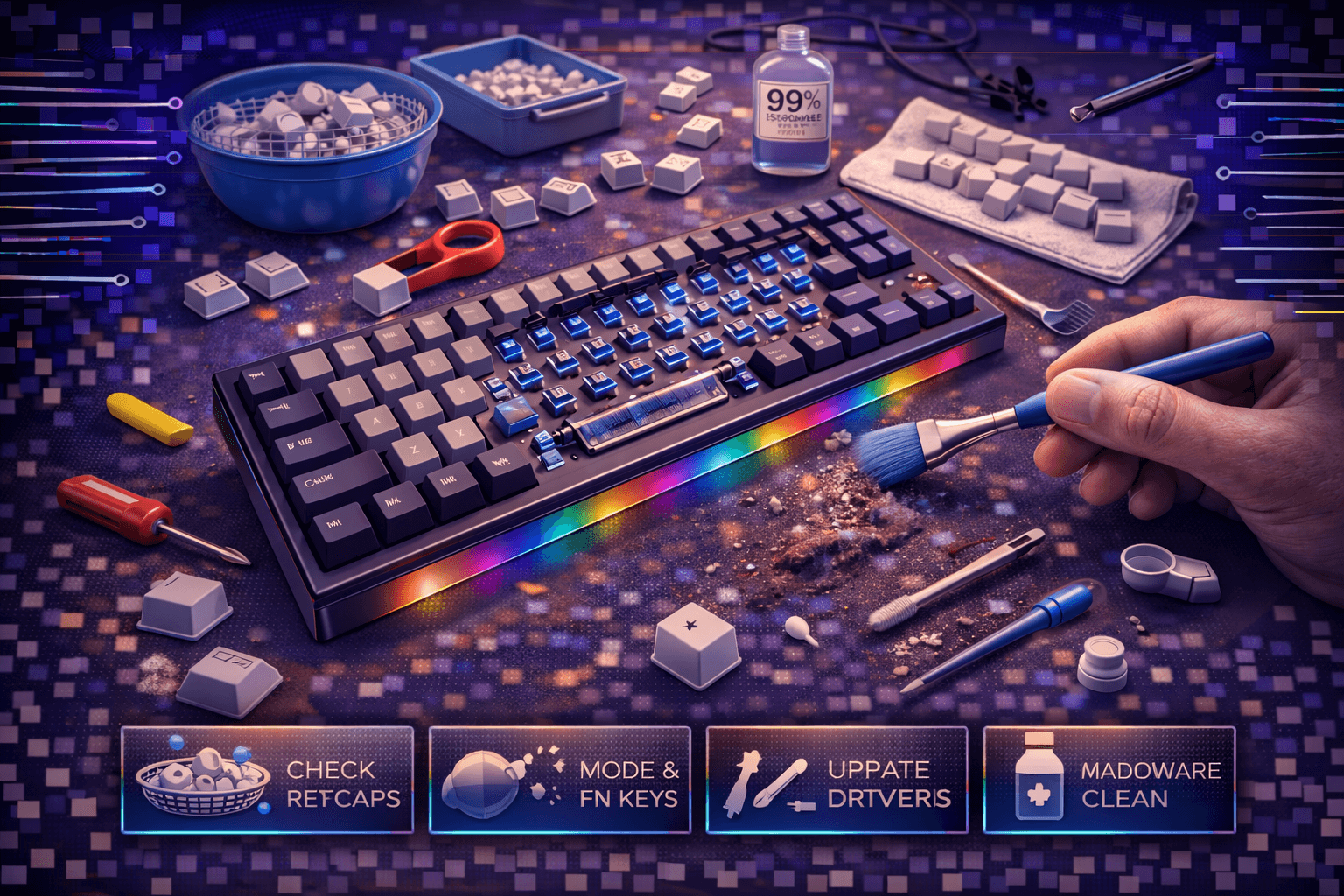
Keyboard cleaning maintains hygiene, prevents key failures, improves typing feel, and extends keyboard lifespan through regular maintenance removing dust, debris, oils, and contaminants accumulating during daily use. For a broader maintenance routine beyond deep cleaning, our keyboard maintenance guide covers daily habits, storage, and long-term care. Understanding proper cleaning techniques—from quick surface cleaning to complete disassembly deep cleaning—enables maintaining keyboards without damage.
Dirty keyboards harbor bacteria, dust, food particles, pet hair, and skin oils creating unhygienic typing surfaces, sticky keys, scratchy switches, and eventual component failures. Studies show keyboards often dirtier than toilet seats, making regular cleaning essential for health and functionality.
This comprehensive guide covers surface cleaning for regular maintenance, deep cleaning procedures for mechanical and membrane keyboards, keycap removal and washing, switch cleaning without damage, dealing with spills and sticky residue, cleaning laptop keyboards safely, and establishing effective cleaning schedules.
Whether performing quick weekly maintenance, quarterly deep clean, or emergency spill cleanup, proper techniques restore keyboards to like-new condition without damage.
Note: This guide contains affiliate links. If you purchase through our links, we may earn a commission at no extra cost to you. This helps support our testing and content creation.
Cleaning Supplies and Tools
Essential Cleaning Supplies
Compressed air: Removes loose debris from between keys. Short bursts prevent moisture buildup. ~$8-15 per can. Electric dusters ~$30-50 (reusable, better value long-term).
Microfiber cloths: Lint-free cleaning prevents streaks and residue. Multiple cloths for different cleaning tasks. ~$10 for multipacks.
Isopropyl alcohol 90%+: Disinfects and removes oils, residue, and sticky substances. Evaporates quickly without residue. Higher concentration (90-99%) more effective. ~$5-10 per bottle.
Cotton swabs: Detail cleaning around switches, stabilizers, and tight spaces. Budget-friendly option. ~$3 per pack.
Keycap puller: Essential for deep cleaning mechanical keyboards. Wire pullers best type. ~$5-10.
Soft brush: Makeup brush or soft paintbrush for dusting switches and tight areas. ~$3-5.
Bowl or container: Soak keycaps during washing. Large enough for full keycap set. ~$5.
Dish soap: Gentle cleaning agent for keycap soaking. Dawn or similar. ~$3 per bottle.
Optional Supplies (Enhance Cleaning)
Cleaning slime/putty: Reaches between keys absorbing dust and small debris. Reusable until full. ~$8-12.
Electric air duster: Powerful reusable alternative to compressed air cans. More cost-effective long-term. ~$30-80.
Denture cleaning tablets: Deep clean yellowed or heavily soiled keycaps. Soak alternative to soap. ~$5.
UV sanitizer: Disinfect keyboard without liquids. Effective for germophobic users. ~$30-50.
Key switch opener: Opens switches for deep internal cleaning (mechanical keyboards). ~$5-8.
Tweezers: Remove debris from very tight spaces. Precision handling of small components. ~$5.
What to Avoid
Paper towels: Leave lint and residue. Always use microfiber cloths instead.
Low-concentration alcohol (<70%): Less effective, takes longer to evaporate, leaves residue.
Harsh chemicals: Bleach, ammonia, acetone damage plastics and coatings. Stick to isopropyl alcohol.
Excessive liquid: Never pour liquids directly on keyboard. Spray cloth first, then wipe. Moisture invites corrosion.
Vacuum cleaners: Strong suction can pull off keycaps or damage delicate switches. Compressed air safer alternative.
Hot water: Can warp keycaps or damage internal components. Use lukewarm water only.
Surface Cleaning: Quick Weekly Maintenance
Quick surface cleaning prevents buildup requiring intensive deep cleaning. Takes 5-10 minutes.
Step-by-Step Surface Cleaning
Step 1: Power off and disconnect
Unplug keyboard or turn off wireless. Prevents accidental inputs during cleaning and electrical issues.
Step 2: Shake out loose debris
Turn keyboard upside down over trash can or sink. Gentle shaking dislodges loose crumbs, dust, hair, and particles. Don't be too forceful.
Step 3: Compressed air
- Hold can upright (prevents liquid propellant spray)
- Use short bursts (1-2 seconds)
- Work systematically row by row
- Angle keyboard allowing debris to fall out
- Pay special attention to corners, edges, and under keycaps
- Avoid prolonged blast on single area
Step 4: Wipe keycap surfaces
- Dampen microfiber cloth with isopropyl alcohol (don't soak)
- Wipe all keycap tops removing oils and smudges
- Wipe keyboard case and edges
- Use dry cloth for finishing buff
Step 5: Detail cleaning
- Cotton swab dampened with alcohol
- Clean around individual keys
- Clean indicator LEDs, logos, text areas
- Remove stubborn residue spots
- Work into corners and crevices
Step 6: Dry and reconnect
- Allow 5 minutes air drying (isopropyl alcohol evaporates quickly)
- Reconnect keyboard
- Test all keys functioning normally
Alternative: Cleaning Slime Method
Popular quick cleaning using reusable cleaning putty/slime.
Procedure:
- Press cleaning slime/putty firmly onto keyboard surface
- Work systematically across all keys
- Slime absorbs dust and debris
- Peel off carefully collecting debris
- Knead slime redistributing absorbed dirt
- Repeat until keyboard clean
Advantages: Reaches between keys, absorbs dust effectively, reusable
Disadvantages: Doesn't disinfect, less thorough than liquid cleaning
Best for: Quick dust removal, weekly maintenance
Recommended Cleaning Frequency
- Heavy office use (8+ hours daily): Weekly surface clean
- Moderate use (4-8 hours daily): Bi-weekly surface clean
- Light use (<4 hours daily): Monthly surface clean
- Gaming or intensive use: Weekly or bi-weekly
Regular surface cleaning prevents buildup requiring costly deep cleaning.
Deep Cleaning: Mechanical Keyboards
Quarterly or bi-annual deep cleaning restores mechanical keyboards to like-new condition. Requires 1-2 hours but comprehensive results.
Deep Cleaning Preparation
1. Take photos: Document keyboard layout before removing keycaps. Essential reference for accurate reassembly.
2. Prepare workspace: Clear flat surface, good lighting, small containers for organizing parts (minimize loss).
3. Test keyboard first: Ensure working before disassembly. Confirms cleaning resolves any issues afterward.
4. Gather supplies: Have all tools and cleaning materials nearby before starting.
Step-by-Step Deep Cleaning
Step 1: Remove all keycaps
Using proper keycap puller:
- Pull each keycap straight up with firm, even pressure
- Large stabilized keys (spacebar, Enter, Shift) require extra care
- Organize keycaps (photo reference, container, or layout arrangement)
- Takes 10-15 minutes for full keyboard
Step 2: Clean exposed keyboard
With keycaps removed:
- Compressed air: Blow out accumulated dust, debris from switches and PCB. Angle keyboard allowing debris to fall out.
- Soft brush: Remove stubborn dust around switches and tight areas.
- Damp cloth: Wipe keyboard plate and case between switches using isopropyl alcohol-dampened cloth.
- Cotton swabs: Detail clean around individual switches, stabilizer housings, tight spaces.
Takes 15-20 minutes.
Step 3: Wash keycaps thoroughly
Method 1: Dish Soap Bath
- Fill bowl or container with lukewarm water (not hot)
- Add 1-2 drops dish soap (Dawn or similar)
- Place all keycaps in soapy water
- Soak 30-60 minutes (longer for heavily soiled keycaps)
- Agitate gently (shake container or stir)
- Rinse thoroughly with clean water until no soap remains
- Lay keycaps on clean towel air drying (4-8 hours minimum)
Method 2: Denture Tablet Bath (aggressive cleaning for yellowed keycaps)
- Fill container with lukewarm water
- Add one denture cleaning tablet
- Soak keycaps 30-60 minutes
- Rinse thoroughly multiple times
- Air dry completely (4-8 hours)
Method 3: Individual Hand Washing (delicate keycaps)
- Rinse each keycap under warm running water
- Gentle scrubbing with soft cloth
- Rinse until clean
- Air dry on towel
Critical: Never use dishwasher (too hot, damages keycaps), never rush drying (moisture causes electrical issues).
Takes 45+ minutes including drying time.
Step 4: Clean stabilizers (if accessible)
Plate-mount stabilizers: Often removable without desoldering.
Cleaning process:
- Remove stabilizer from plate if possible
- Disassemble carefully (note orientation)
- Wipe housings with isopropyl alcohol
- Clean stabilizer wire of debris
- Remove old lubricant if present
- Apply fresh stabilizer lubricant
- Reassemble and reinstall
Screw-in stabilizers: Require desoldering for removal. Only remove if performing complete keyboard rebuild.
Step 5: Switch cleaning (if switches feel scratchy or sticky)
Without opening switches:
- Use compressed air into switch top
- Electrical contact cleaner spray
- Allow complete drying before use
Opening switches (advanced, requires switch opener tool):
- Insert switch opener tool
- Disassemble switch housing
- Clean housing, stem, spring with isopropyl alcohol and cotton swab
- Dry completely
- Optionally lubricate components
- Reassemble carefully in correct orientation
Only necessary if switches feel scratchy, sticky, or behave abnormally.
Step 6: Ensure complete drying
Critical step: Moisture causes corrosion and electrical failures.
Drying protocol:
- Keycaps: 4-8 hours minimum air drying, completely dry to touch
- Keyboard: If any liquid used, overnight drying minimum
- Verification: No water droplets visible, no dampness when touched, no liquid smell
Use towels to absorb excess moisture. Dry warm area with good air circulation. Patience essential.
Step 7: Reassemble keyboard
- Verify keyboard completely dry
- Use photo reference for keycap placement
- Reinstall keycaps pressing firmly until seated on stems
- Large stabilized keys (spacebar, Enter) may require multiple attempts
- Test each key after installation
Step 8: Final testing
- Connect keyboard
- Test every key (keyboard test websites available)
- Check RGB lighting if applicable
- Verify normal operation on all keys
Troubleshooting after cleaning:
- Key not responding: Moisture still present or switch damaged. Allow longer drying or check switch connections.
- Sticky key: Insufficient drying or residue remaining. Remove keycap, dry further.
- Rattly stabilizers: Stabilizer wire not seated properly. Remove keycap, reseat wire in stabilizer housings.
Cleaning Membrane Keyboards
Membrane keyboards require different approach—cannot easily remove keycaps or access internals on most models.
Membrane Keyboard Surface Cleaning
Step 1: Power off and disconnect
Unplug keyboard. Disconnect wireless.
Step 2: Turn upside down, shake gently
Dislodge loose debris. Don't be rough (can damage internal membrane).
Step 3: Compressed air (careful)
- Gentle short bursts only
- Don't over-pressurize delicate membrane layer
- Work between keys slowly
- Avoid blowing debris further into keyboard
Step 4: Damp cloth cleaning
- Microfiber cloth barely damp with isopropyl alcohol
- Wipe keycap surfaces
- Clean between keys carefully
- Wipe case and sides
- Minimize liquid exposure
Step 5: Cotton swab detailing
- Barely damp cotton swabs
- Clean around individual keys
- Remove oils and stubborn residue
- Work carefully avoiding liquid seeping under keys
Step 6: Complete drying
Air dry thoroughly before reconnecting (minimum 2 hours).
Deep Cleaning Membrane Keyboards (Advanced, Risky)
Some membrane keyboards allow keycap removal or full disassembly.
If keycap removal possible (laptop-style):
- See laptop keyboard section below for safe removal technique
- Clean exposed membrane carefully
- Reinstall keycaps carefully aligning scissor mechanisms
Full disassembly (not recommended unless comfortable with electronics):
- Unscrew case carefully (usually voids warranty)
- Separate plastic layers slowly
- Clean membrane sheet with isopropyl alcohol on cloth
- Clean plastic layers
- Dry completely before reassembly
- Reassemble carefully ensuring all connections aligned
Most membrane keyboards: Surface cleaning sufficient. Deep cleaning risky given limited access and potential for damage. Not worth risk for keyboard cost.
Cleaning Laptop Keyboards
Laptop keyboards extremely delicate requiring extra caution avoiding damage to fragile scissor mechanisms.
Safe Surface Cleaning Method
Step 1: Power off laptop completely
Full shutdown (not sleep mode). Unplug power adapter. Safety critical.
Step 2: Tilt and shake gently
Angle laptop various directions. Gentle shaking dislodges loose debris. Avoid rough handling.
Step 3: Compressed air (very careful)
- Extremely short, gentle bursts only
- Don't over-pressurize delicate scissor mechanisms
- Angle laptop allowing debris to escape
- Avoid blowing debris deeper into laptop
Step 4: Barely damp cloth surface wipe
- Microfiber cloth barely damp with isopropyl alcohol
- Wipe keycap surfaces gently
- Minimal moisture—laptops vulnerable to liquid damage
- Avoid liquid seeping under keys
Step 5: Cotton swab detailing
- Barely damp swab
- Clean around keys carefully
- Remove oils and residue
- Work slowly and gently
Step 6: Dry thoroughly
Leave laptop open, powered off 2-4 hours minimum ensuring complete drying before powering on.
Removing Laptop Keys (Risky, Only if Necessary)
Recommended only if absolutely necessary (stuck key, visible debris underneath, final resort).
Procedure:
- Use plastic spudger or guitar pick (never metal)
- Start from top edge of key (easier than side edges)
- Gently pry upward with steady, gentle pressure
- Work around entire perimeter slowly
- Hear/feel small clips releasing as you work
- Once clips released, key lifts off
- Scissor mechanism may stay attached to key or keyboard—both normal
Keys to avoid removing:
- Spacebar (most difficult, highest risk of breaking mechanism)
- Keys you're unfamiliar with
- Keys on expensive/irreplaceable laptops
Risks: Breaking scissor mechanism, losing small plastic pieces, keyboard becoming unresponsive.
Laptop Keyboard Professional Service
For valuable laptops or extensive cleaning:
- Professional keyboard cleaning services: $50-100
- Keyboard replacement: $100-300 parts + labor
- Often better option than risky DIY deep clean
Dealing with Spills: Emergency Response
Liquid spills require immediate action preventing permanent damage or corrosion.
Immediate Action (First 5 Minutes)
Step 1: Power off IMMEDIATELY
- Unplug or force shutdown
- Remove batteries if laptop
- Disconnect all cables and peripherals
- Every second critical
Step 2: Position for drainage
- Turn keyboard upside down
- Tilt toward spill entry point
- Let liquid drain out
- Shake gently encouraging drainage
Step 3: Disconnect everything
Remove cables, dongles, external devices connected.
Step 4: Remove keycaps (mechanical keyboards only)
If mechanical with removable keycaps:
- Remove all keycaps quickly
- Allows better drainage, drying, and cleaning access
- Takes 10 minutes
Step 5: Absorb remaining liquid
- Paper towels or clean cloth
- Blot (don't wipe) absorbing liquid
- Work quickly but controlled
- Get as much liquid out as possible
Step 6: Assess spill type
Different liquids require different treatment:
- Water: Least damaging, drying usually sufficient
- Soda, juice, coffee with sugar: Sticky residue requires thorough cleaning, sugar corrodes over time
- Coffee, tea (unsweetened): Moderate concern, clean and dry thoroughly
- Alcohol beverages: Moderate, sticky residue possible
- Milk, cream: High corrosion risk, thorough cleaning critical
Cleaning After Spill
For sugary/sticky spills:
- Disassemble keyboard as much as possible
- Clean all components with isopropyl alcohol 90%+
- Use cotton swabs reaching all contaminated areas
- Clean PCB carefully with isopropyl alcohol
- Clean switches, stabilizers, keycaps thoroughly
- Multiple alcohol washes removing all sticky residue
For water or non-sugary spills:
- Less intensive cleaning needed
- Focus on thorough drying
- Isopropyl alcohol rinse helps displace water, speeds drying
Drying After Spill
Critical: Minimum 24-48 hours drying required.
Optimal drying procedure:
- Disassemble completely (all components separated)
- Place all parts in dry warm area
- Good air circulation (fan helps)
- Silica gel packets if available
- Avoid heat sources (not oven or hair dryer)
- Patience essential—rushing causes failure
Avoid:
- Hair dryer (too hot, blows liquid into components)
- Oven (destroys plastic components)
- Rushing process (moisture causes corrosion developing later)
Success Rates
- Immediate action (within 5 minutes): 70-90% save rate for water
- Delayed action (30+ minutes): 20-40% save rate
- Sugary spills: Lower save rate (50-70%) even with immediate action
- Milk/cream spills: Highest corrosion risk, lowest recovery rate
Cleaning Schedule and Prevention
Recommended Cleaning Schedule
Weekly:
- 5-10 minute surface wipe
- Compressed air between keys
- Quick disinfection with isopropyl alcohol
Monthly:
- 15-minute thorough surface clean
- Compressed air all areas
- Disinfect with isopropyl alcohol and cloth
- Remove visible dust
Quarterly:
- 1-2 hour deep clean (mechanical keyboards)
- Remove keycaps, wash thoroughly
- Clean exposed switches and plate
- Clean stabilizers
- Keyboard looks and feels like new
Annually:
- Full disassembly clean if comfortable
- Replace worn components if necessary
- Deep maintenance
- Consider lubrication refresh
Prevention Tips
No food/drinks near keyboard: Primary prevention strategy. Eliminates spill risk entirely.
Wash hands before use: Reduces oil and dirt transfer to keycaps.
Keyboard cover when not using: Dust cover prevents accumulation during storage.
Keep desk area clean: Reduces dust and debris reaching keyboard.
Install air purifier: Reduces airborne dust in room affecting keyboard.
Pet management: Brush pets regularly, keep off desk reducing hair transfer.
Use wrist rest: Prevents hand oils from reaching keyboard directly.
Proper ventilation: Good airflow reduces humidity and dust accumulation.
Regular backup power-off: Allows keyboard to rest, reduces heat buildup.
Benefits of Regular Cleaning
- Extended lifespan: Clean keyboards function years longer
- Better hygiene: Significantly reduces bacteria, allergens, pathogens
- Improved performance: Prevents sticky keys, switch failures, contact issues
- Better feel: Clean switches feel smoother, more responsive
- Maintained appearance: Keyboard looks newer longer
- Higher resale value: Clean keyboards worth 30-50% more used
- Healthier typing: Cleaner environment prevents illness transmission
Small regular maintenance efforts prevent major cleaning projects and expensive keyboard replacements.
FAQ
Q: How often should I clean my keyboard?
A: Surface clean weekly, deep clean quarterly. Heavy office users need weekly surface cleaning. Light users can do monthly surface cleaning. Adjust frequency based on visible dirt accumulation and usage intensity. See schedule section above.
Q: Can I use alcohol wipes directly on my keyboard?
A: Yes, if 70%+ isopropyl alcohol concentration. Ensure wipes not too wet—wring out excess moisture. Gentle wipes safe for keycaps and plastic. Avoid harsh chemical wipes containing bleach. See cleaning supplies section above.
Q: How do I clean under laptop keyboard keys safely?
A: Compressed air safest method. Removing laptop keys risky—only if absolutely necessary. Use plastic spudger with gentle pressure, start from top edge. Professional service recommended for expensive laptops. See laptop section above.
Q: My keyboard got wet from a spill, can I save it?
A: Possibly. Power off immediately, drain liquid, disassemble, clean with isopropyl alcohol, dry 24-48 hours minimum. Success rate 70-90% for water if immediate action taken. Lower for sugary drinks. See spills section above.
Q: What's the best way to clean between keyboard keys?
A: Compressed air most effective for dust. Cleaning slime alternative for quick cleaning. Cotton swabs dampened with alcohol for stubborn residue. Combination approach often best. See surface cleaning section above.
Conclusion
Regular keyboard cleaning maintains hygiene, prevents component failures, and extends keyboard lifespan through systematic maintenance removing accumulated dust, debris, oils, and contaminants. Surface cleaning weekly with compressed air and damp cloth prevents heavy buildup requiring intensive deep cleaning.
Mechanical keyboards benefit most from quarterly deep cleaning—removing keycaps, washing thoroughly, cleaning exposed switches and stabilizers, refreshing lubricant. Membrane and laptop keyboards require gentler surface-only cleaning preventing damage to delicate internal mechanisms.
Spill response speed determines recovery success—immediate power-off, drainage, disassembly, thorough isopropyl alcohol cleaning, and patient 24-48 hour drying saves 70-90% of keyboards from water damage. Prevention through no-drinks policy near keyboards eliminates spill risk entirely.
Establishing cleaning schedules appropriate to usage intensity and environment—weekly surface, monthly thorough, quarterly deep—maintains keyboards in optimal condition year-round. Small regular maintenance efforts prevent major problems, extend keyboard lifespan significantly, and ensure pleasant, hygienic typing experiences.