Introduction
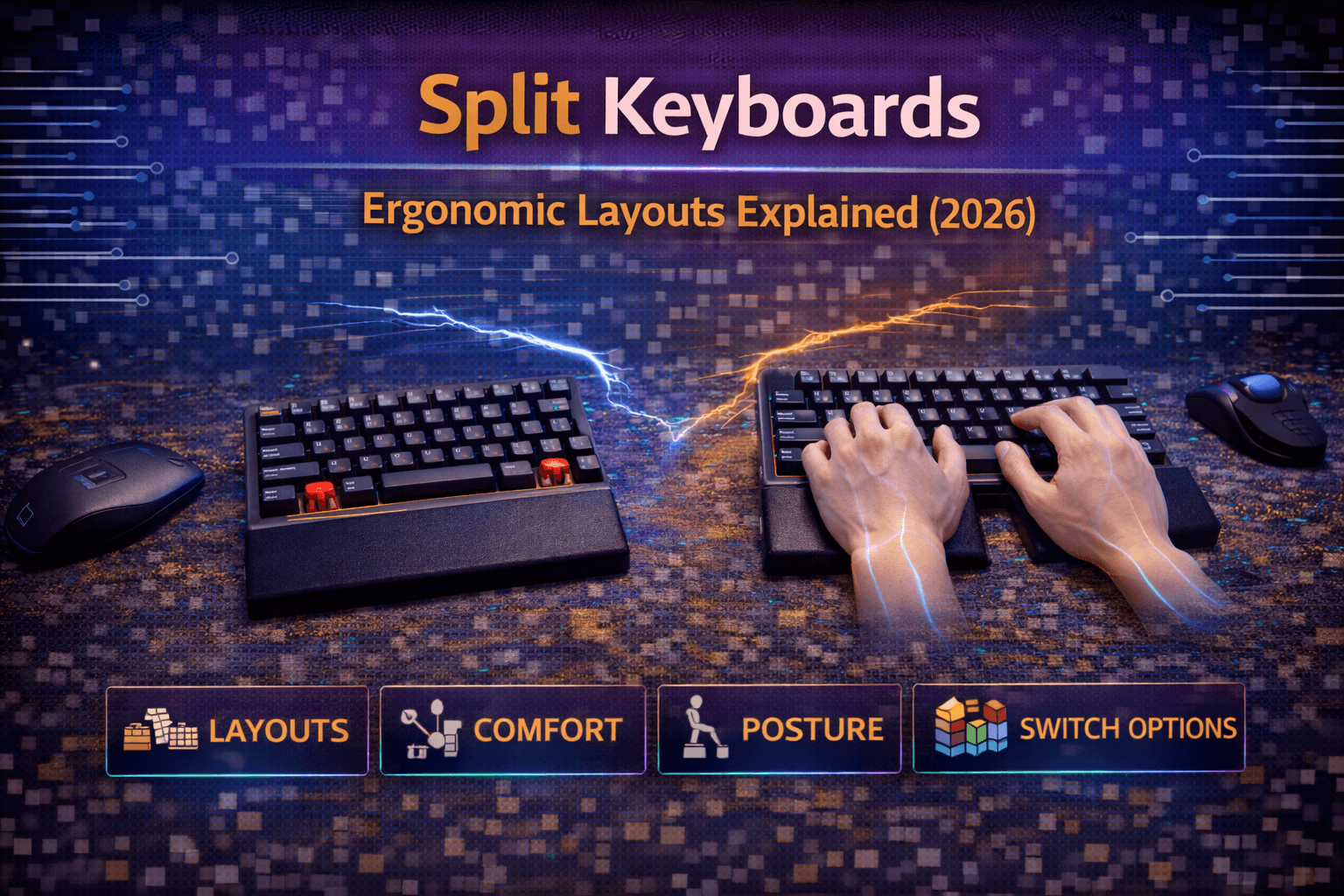
Split keyboards divide the traditional keyboard into two separate halves—one for each hand—allowing you to position them independently rather than keeping your hands squeezed together over a single keyboard slab. This fundamental design change addresses one of the primary ergonomic problems with standard keyboards: they force your wrists into unnatural ulnar deviation, bending outward from your body’s centerline to reach keys positioned close together.
The split keyboard concept isn’t new—ergonomic keyboards with split layouts have existed since the 1990s. But mechanical split keyboards with quality switches, programmable firmware, and enthusiast-grade build quality are relatively recent developments. Modern split keyboards range from simple two-piece designs that merely separate the halves to complex ergonomic boards with radical key arrangements, thumb clusters, and extreme customization.
The promise of split keyboards is compelling: better posture, reduced wrist strain, elimination of shoulder tension from narrow hand positioning, and potential reduction in repetitive strain injuries. These benefits are real for people whose pain or discomfort stems from standard keyboard positioning. But split keyboards aren’t magic solutions—they require adaptation, cost more than standard keyboards, and introduce complexity that some users find more frustrating than helpful.
Understanding what split keyboards are, how they differ from standard layouts, what ergonomic benefits they provide, and whether the adaptation period is worth the potential improvements helps you decide if split keyboards make sense for your situation. This guide explains split keyboard designs, benefits and limitations, the learning curve you’ll face, and which split keyboards represent the best options in 2026.
Note: This guide contains affiliate links. If you purchase through our links, we may earn a commission at no extra cost to you. This helps support our in-depth testing and content creation.
How Split Keyboards Work
Understanding split keyboard mechanics and the reasoning behind the design helps evaluate whether they address problems you actually experience.
Physical Separation
Split keyboards physically separate into two independent sections—typically one section per hand. The simplest splits maintain traditional QWERTY layout but allow you to position each half where your hands naturally rest rather than forcing both hands toward the keyboard center. If you're also curious about alternative typing systems beyond physical positioning, our QWERTY vs Dvorak vs Colemak guide breaks down the trade-offs. More advanced splits incorporate additional ergonomic features: angled or tented positioning that rotates your palms toward each other, curved key arrangements that follow finger arc, thumb clusters that move common functions from weak pinkies to strong thumbs, and ortholinear or column-staggered layouts that align keys in straight columns rather than offset rows.
Connection Methods
Split keyboard halves connect to each other and your computer in various ways. Simple splits use cables between halves with USB connection from one half to computer. Wireless splits use Bluetooth from each half independently or master-slave arrangement where one half connects to computer and communicates with the other half. The connection method affects portability, desk flexibility, and setup complexity. Wired connections are reliable and simple. Wireless connections eliminate cables but require battery management and can have latency or connection issues.
Adjustability Spectrum
Split keyboards exist on a spectrum from fixed to fully adjustable. Fixed splits have predetermined separation distance and angle—you get ergonomic benefits but can’t customize positioning. Adjustable splits let you control distance between halves, angle relative to each other, and sometimes tenting or tilt. Fully adjustable splits provide maximum ergonomic customization but require experimentation to find optimal positions. Fixed splits offer “good enough” ergonomics with zero setup complexity.
Tenting and Rotation
Beyond horizontal separation, many split keyboards support tenting—rotating the keyboard halves so thumbs are higher than pinkies. This positions your forearms more neutrally, reducing pronation strain. Tenting angles range from subtle 10-15 degrees to extreme 45+ degrees. Some splits also allow rotation, angling the halves so your hands point slightly inward rather than strictly forward. Combined with tenting, this creates highly natural hand and arm positioning.
Thumb Clusters
Traditional keyboards place commonly-used keys like Space, Enter, and Backspace under your weakest fingers—the pinkies. Ergonomic split keyboards often include thumb clusters—groups of keys positioned for thumb access. This redistributes typing load from overworked pinkies to underutilized thumbs. Thumb clusters vary from simple two-key designs to complex six-key arrangements. More thumb keys theoretically provide better ergonomics by further reducing pinky strain, but they also increase learning curve.
Alternative Layouts
Many split keyboards abandon the traditional row-staggered QWERTY layout in favor of ortholinear (straight grid) or column-staggered (columns aligned with finger positions) arrangements. These layouts reduce finger travel and create more natural movement patterns. The ergonomic benefits are real, but the learning curve is substantial. Retraining muscle memory for entirely different key positions takes weeks or months. Not all split keyboards use these layouts—some maintain traditional QWERTY stagger for easier transition. See our keyboard layouts guide for more on layout types.
Programmability
Most modern split keyboards feature programmable firmware, allowing you to customize every key, create layers for accessing additional functions, and implement macros. This programmability is crucial for splits with unconventional layouts where you’ll need to optimize key positions for your specific workflow.
Ergonomic Benefits of Split Keyboards
Split keyboards address several specific ergonomic problems that standard keyboards create. Understanding which benefits matter for your situation helps evaluate whether splits are worthwhile.
Eliminating Ulnar Deviation
The primary ergonomic benefit of split keyboards is eliminating ulnar deviation—the outward wrist bend required to reach keys on standard keyboards. When you type on regular keyboards, your wrists bend outward from your forearms’ natural alignment. Hold this position for hours daily and you strain tendons and ligaments. Split keyboards let you position each half shoulder-width apart, maintaining neutral wrist alignment. Your hands, wrists, and forearms form straight lines rather than bent positions. This neutral positioning reduces strain significantly for many people.
Reducing Shoulder Tension
Standard keyboards force your shoulders and upper back into narrow, hunched position to bring your hands together over the keyboard. This creates tension that accumulates over long typing sessions. Some people don’t notice this tension consciously but experience neck, shoulder, or upper back pain as a consequence. Splitting the keyboard and positioning halves wider allows your shoulders to relax into natural position. Your chest opens slightly, your shoulders drop, and upper back tension reduces. For people carrying stress in shoulders and neck, this relief can be substantial.
Minimizing Pronation
Pronation—rotating your forearms so palms face down—creates strain in some people’s forearms and wrists. Standard keyboards require full pronation. Tented split keyboards reduce or eliminate pronation by angling the keyboard halves so your palms face more toward each other, like a handshake position. The degree of benefit depends on tenting angle. Subtle tenting provides minor pronation reduction. Aggressive tenting at 30-45 degrees creates nearly vertical hand positioning that maximizes pronation reduction. Individual anatomy and pain patterns determine optimal tenting angle.
Redistributing Finger Load
Standard keyboards overwork your pinky fingers for important keys like Shift, Enter, Backspace, and Control. Split keyboards with thumb clusters redistribute this load to stronger thumbs. This reduces pinky strain and finger fatigue during extended typing sessions. The benefit is subtle but accumulates over time. Your pinkies fatigue less, your hands feel less tired at end of day, and risk of overuse injuries in weakest fingers decreases.
Complete Positioning Control
Perhaps the most valuable benefit is complete control over keyboard positioning. You can adjust split distance to your shoulder width, angle halves for natural hand orientation, tent for optimal pronation reduction, and position each half at comfortable height. This customization addresses the fundamental problem that one-size-fits-all keyboards don’t fit all bodies. Adjustable splits let you create keyboard positioning optimized for your specific anatomy and comfort.
Individual Results Vary
These benefits are real but not universal. Some people feel immediate relief from split keyboards. Others notice no difference or even experience new discomfort from unfamiliar positioning. Ergonomic benefits depend on what ergonomic problems you’re experiencing with standard keyboards. If you don’t have wrist pain, shoulder tension, or arm strain from typing, split keyboards might not provide noticeable benefits. If you do have these issues, splits might help significantly—but only if the issues stem from keyboard positioning rather than other factors like poor posture or overuse. See our ergonomic keyboards guide for more on addressing typing-related pain.
Learning Curve and Adaptation
Understanding what adapting to split keyboards involves helps set realistic expectations and decide if the transition is worthwhile.
Initial Awkwardness
The first few days on split keyboards feel awkward for almost everyone. Your hands don’t know where to rest, reaching for keys feels uncertain, and typing speed drops noticeably. This is normal and temporary, but it’s genuinely uncomfortable while it lasts. The awkwardness comes from several sources: unusual hand positioning, lack of tactile reference point where keyboard halves meet, potentially different key layouts if using ortholinear or column-staggered designs, and thumb cluster keys in unexpected positions.
Adaptation Timeline
For simple splits that maintain QWERTY layout and just separate the halves, most people regain basic comfort within 3-5 days and return to normal typing speed within 1-2 weeks. The adaptation is real but relatively quick. For splits with ortholinear or column-staggered layouts, adaptation takes longer—typically 2-4 weeks to feel comfortable and 4-8 weeks to return to full speed. Some people adapt faster, others slower. The timeline varies based on typing skill, practice amount, and keyboard specifics.
Active Practice Helps
Active practice accelerates adaptation. Typing practice websites, typing games, or deliberately practicing on the new keyboard for focused sessions help more than just hoping muscle memory develops through regular use. Many people find it helpful to keep their old keyboard available during transition period. Use the split keyboard for focused practice and less time-critical work, switching to old keyboard when speed and accuracy matter most. Gradually increase split keyboard time as comfort improves.
Finding Optimal Positioning
Part of adaptation is finding optimal split distance, angle, and tenting. This requires experimentation over days or weeks. What feels comfortable initially might not be optimal long-term. What feels awkward at first might become perfect after adjustment. Don’t assume your initial positioning is final. Adjust distance, angles, and tenting as you adapt. Many people find they gradually increase split width and tenting angle over time as they become comfortable with more aggressive ergonomic positioning.
Switching Between Keyboards
If you switch between split and standard keyboards regularly—using split at home and standard at office, for example—muscle memory conflicts can occur. Your brain gets confused about which key arrangement is active, leading to more errors than using either keyboard exclusively. Some people handle this fine, others find it frustrating. If possible, commit fully to split keyboard rather than alternating, at least during initial adaptation period.
Give It Time
Give split keyboards genuine chance—at least 2-3 weeks for simple splits, 4-6 weeks for complex layouts. But if after that period you’re still uncomfortable, experiencing new pain, or hating the keyboard, that’s legitimate feedback. Not everyone benefits from splits, and forcing yourself to use keyboards you dislike isn’t productive.
Types of Split Keyboards
Split keyboards come in various designs targeting different needs and preferences. Understanding the categories helps narrow down options.
Fixed Split Keyboards
The simplest split keyboards maintain fixed separation distance and angle between halves. Keyboards like Microsoft Sculpt and basic Kinesis Freestyle versions provide ergonomic benefits of split positioning without adjustment complexity. Fixed splits are good starting points for people new to split keyboards. You don’t face choice paralysis about positioning—the manufacturer chose reasonable settings and you use them. This simplifies adoption while still providing ergonomic benefits.
Adjustable Split Keyboards
Adjustable split keyboards let you control distance between halves and usually angle or tenting as well. Kinesis Freestyle Pro with tenting kit, many custom mechanical splits fall here. Adjustability provides optimal ergonomics for your specific body and preferences but requires experimentation to find best settings. Some people love the customization, others find it overwhelming.
Unibody Split Designs
Some “split” keyboards are actually unibody designs with separated key sections built into single case. Microsoft Ergonomic Keyboard and similar designs provide split layout benefits while maintaining single-piece construction. These keyboards are easier to position and transport than fully separated splits but offer less positioning flexibility. They’re good compromises for people wanting split benefits without split complexity.
Contoured Split Keyboards
Advanced ergonomic splits like Kinesis Advantage360 or certain custom keyboards combine split design with aggressive tenting and contoured keywells. For a head-to-head between the two most popular high-end ergonomic options, see our ZSA Moonlander vs Kinesis Advantage360 comparison. These maximize ergonomic benefits but also maximize complexity and learning curve. These keyboards appeal to people with significant pain or RSI who need maximum ergonomic optimization. They’re expensive, complex, and require substantial adaptation, but they provide the most natural hand positioning available.
Wired vs Wireless
Split keyboards come in wired and wireless versions. Wired splits are simpler and more reliable but cables between halves and to computer create desk clutter. Wireless splits eliminate cables but require battery management and can have connectivity hiccups. For portable splits, wireless is almost essential. For permanent desk setups, wired works fine and avoids battery concerns.
Layout Variations
Some splits maintain traditional QWERTY stagger, others use ortholinear or column-staggered layouts. Traditional stagger has easier learning curve. Ortholinear and column-stagger provide better ergonomics but require relearning key positions. The choice between these represents trade-off between adaptation difficulty and ergonomic optimization. Most beginners should start with traditional stagger splits before exploring more radical layouts.
Custom Split Keyboards
The mechanical keyboard enthusiast community has created numerous custom split keyboard designs—ErgoDox, Corne, Lily58, Sofle, and many others. These typically require assembly from kits or group buy participation. Custom splits provide maximum customization and unique layouts but require technical knowledge, soldering skills (for some), and research investment. They appeal to enthusiasts who want perfect personalized keyboards. See our hot-swappable keyboards guide for builds that don’t require soldering.
Best Split Keyboards Ranked
Based on ergonomics, usability, build quality, and value, here are the best split keyboards in 2026.
Kinesis Freestyle Pro — $179+ — 💰 Best Entry-Level Split
The Kinesis Freestyle Pro represents accessible entry to split keyboards. It maintains standard QWERTY layout, provides adjustable split width (12-20 inches), and includes optional tenting kits for additional ergonomics. The split is straightforward—two keyboard halves connected by 20-inch link cable. Cherry MX switches (Brown or Quiet Red) provide quality mechanical feel. Low-force activation (45g) reduces typing effort.
Build quality is excellent. The learning curve is minimal because the layout is completely standard except for separation. Most people adapt within days. Tenting accessories add $50-80 but substantially improve ergonomics by reducing forearm pronation. The keyboard includes fully programmable functions with 9 customizable layouts and SmartSet programming software. At $179 base plus optional tenting, it’s expensive but delivers genuine ergonomic benefits without extreme adaptation requirements. Excellent choice for people unsure if splits will help.
ZSA Moonlander — $365 — ⭐ Best Overall Ergonomic Split
The ZSA Moonlander combines split design with columnar-staggered layout, thumb clusters, aggressive tenting options, and complete programmability. It’s the comprehensive ergonomic solution—addressing multiple issues simultaneously. Build quality is exceptional. Hot-swappable switches, RGB lighting, and the Oryx configuration software make customization straightforward. The thumb clusters are well-positioned and the included tenting hardware is solid.
The keyboard comes with high-quality PBT doubleshot keycaps and includes a carrying case for portability. You can choose blank keycaps (sculpted, designed for custom layouts) or printed keycaps. Rotating incline feet allow nearly infinite tenting angle configurations. At $365, it’s expensive. The learning curve is substantial—expect 4-6 weeks to full comfort due to columnar-staggered layout. But for people committed to optimal ergonomics and willing to invest time and money, the Moonlander delivers excellent results. The left side can operate solo for gaming.
Kinesis Advantage360 Pro — $430+ — 🏆 Best for Severe RSI
The Kinesis Advantage360 Pro is the wireless version of Kinesis’s legendary contoured split keyboard. It combines split design with aggressive tenting and contoured keywells that position keys in concave bowls matching hand shape. This is maximum ergonomics—the keyboard people turn to when pain is severe enough to threaten their ability to work. The contoured wells create the most natural hand positioning available in production keyboards.
The keyboard features mechanical switches (Gateron browns standard), integrated palm supports, and thumb clusters for key redistribution. It connects wirelessly via Bluetooth to up to 5 devices. The pro version uses open-source ZMK firmware for complete customization. Build quality is exceptional with full separation between halves (no cables). The learning curve is steep—4-8 weeks to comfort, and you might never match your flat keyboard speed. The keyboard is also very expensive at $430+. But for people with serious ergonomic needs, the Advantage360 often provides relief nothing else can.
ErgoDox EZ — $270-369 — 🛠️ Best Customization
The ErgoDox EZ provides complete customization—fully programmable firmware, hot-swap switches, adjustable tenting with rotating feet (16 notches per foot for infinite angles), and ortholinear columnar layout. It’s platform for creating exactly the keyboard you want. The 76-key layout includes thumb clusters and significant customization potential.
Build quality is very good and the community support is excellent. The configurator software is powerful and the keyboard benefits from years of ErgoDox community development. Comes with blank keycaps (can program any layout) and includes wrist rests. At $270-369 depending on extras, you’re paying for flexibility and the ability to dial in perfect ergonomic setup through firmware customization and hardware adjustability. Wired-only connectivity. The ortholinear layout requires significant adaptation (4-8 weeks). Best for people willing to deep-customize their setup.
Dygma Raise 2 — $379-429 base — 🎮 Best for Gaming
Most split keyboards sacrifice gaming performance for ergonomics. The Dygma Raise 2 maintains gaming viability while providing split ergonomic benefits. The keyboard uses a staggered split (not centered) which maintains better muscle memory compared to perfectly centered splits. 60% layout, familiar to gamers. Fast switches available, gaming-friendly layout, and split design create unique combination.
The split is moderate rather than extreme and the layout maintains good gaming key access. 8 programmable thumb keys use low-profile switches for extra ergonomics. Per-key RGBW backlighting is extensive. Hot-swappable switches, programmable via Bazecor software. Wireless Bluetooth or low-latency RF mode for gaming. Magnetic palm pads included. Integrated tenting up to 60 degrees. Build quality is exceptional with aluminum construction.
At $379-429 base price (wireless and tenting add-ons increase cost), it’s expensive, and the ergonomic benefits are less extreme than more aggressive splits like Advantage360 or Moonlander. But if you need split keyboard that doesn’t compromise gaming, the Raise 2 succeeds. Good middle ground for users splitting time between work and gaming.
Microsoft Sculpt Ergonomic — $60-80 — 🎯 Best Budget Split
For budget-conscious users wanting to try split keyboards, the Microsoft Sculpt Ergonomic provides basic split ergonomics at accessible price. It’s not mechanical (uses membrane switches), provides no adjustability, and is discontinued. But it costs $60-80 and gives you genuine split layout experience. Build quality matches the price—plastic, acceptable feel, nothing special. But it works and provides genuine ergonomic benefit despite limitations.
The split design eliminates ulnar deviation. The cushioned palm rest provides wrist support. The keyboard is wireless (USB receiver) and includes dedicated media keys. Good for testing whether split keyboards help before investing in expensive mechanical options. Once you determine splits help you, upgrade to mechanical options like Freestyle Pro. The Sculpt is ideal entry point for skeptical users.
Who Should Use Split Keyboards
Split keyboards aren’t for everyone. Understanding who benefits most helps identify whether they’re worth considering.
People Experiencing Pain
If you experience wrist pain, forearm strain, or repetitive strain symptoms from typing, split keyboards might provide relief. The neutral wrist positioning and reduced ulnar deviation help many people significantly. Split keyboards work best when pain stems from positioning issues. If pain comes from overuse or poor posture, splits help less.
Shoulder and Neck Tension
People who carry stress in shoulders and upper back from hunched typing posture often find relief from split keyboards. The wider hand positioning allows shoulders to relax and upper back to decompress. If your shoulder and neck tension correlates with keyboard work, splits are worth trying.
Heavy Typists
People who type extensively benefit from ergonomic improvements that reduce fatigue. If you type 6-8+ hours daily, the cumulative ergonomic benefits of split keyboards justify adaptation investment. Writers, developers, and data entry workers particularly benefit. I code eight-plus hours most days. Haven’t gone full split yet — a tented standard board with wrist rest handles my setup fine for now. But I’ve tried a friend’s Moonlander for a week and the shoulder relief was noticeable by day three. If my wrist issues ever come back, a split is the first thing I’d reach for.
Proactive Ergonomics
Some people optimize their workspace ergonomics proactively rather than waiting for pain. If you care about long-term health and preventing RSI before it develops, split keyboards make sense as preventive investment.
Who Shouldn’t Bother
Not everyone benefits equally. Casual typists who use keyboards occasionally don’t benefit enough to justify cost and adaptation. Gamers who need standard layouts for muscle memory and performance rarely find splits worthwhile (exceptions exist like Dygma Raise 2). People satisfied with standard keyboards who don’t experience discomfort don’t need splits. Budget-conscious users should consider carefully—good splits cost $200-430. If you’re uncertain, start with budget options to test whether split design helps before investing in premium mechanical splits.
Frequently Asked Questions
Are split keyboards better for typing?
Not objectively better, but better for people experiencing pain or discomfort from standard keyboards. Split keyboards improve ergonomics which can reduce strain and fatigue. If you’re comfortable on standard keyboards, splits won’t make you type faster or better. The benefit depends entirely on whether split positioning addresses your specific ergonomic issues.
How long does it take to learn split keyboards?
It depends on layout. Simple splits maintaining QWERTY layout: 3-5 days for comfort, 1-2 weeks to full speed. Ortholinear or column-staggered splits: 2-4 weeks for comfort, 4-8 weeks to full speed. Contoured splits: 4-8 weeks minimum. Individual adaptation times vary significantly based on typing skill and practice intensity.
Can you game on split keyboards?
Possible but not optimal for most games. Split keyboards change key positions and muscle memory. Some games adapt fine, competitive gaming usually suffers. The Dygma Raise 2 is specifically designed for gaming on split layout. Most gamers prefer standard keyboards for competitive gaming. Casual gaming on split keyboards works fine once adapted.
Are split keyboards worth the money?
Worth it if you have wrist pain or ergonomic issues that splits address, and you’re willing to invest adaptation time. Not worth it if you’re comfortable on standard keyboards, on tight budget, or unwilling to learn new layout. The benefits are real but specific to people with ergonomic needs. Start with budget options ($60-80) to test concept before investing $200-400.
What’s the best split keyboard for beginners?
Kinesis Freestyle Pro ($179) for easiest transition—maintains standard QWERTY with just split separation. Microsoft Sculpt ($60-80) for budget testing. ZSA Moonlander ($365) if committed to serious ergonomics despite learning curve. Start simple, upgrade later if needed. Don’t jump to extreme ergonomic keyboards like Advantage360 without first trying simpler splits.
Conclusion
Split keyboards address real ergonomic problems by eliminating ulnar deviation, reducing shoulder tension, and allowing customized positioning. For people experiencing wrist pain, arm strain, or upper body tension from typing, split keyboards can provide significant relief and prevent long-term injury. The benefits come with costs—financial investment of $60-430 for quality splits, adaptation period of weeks to months, and complexity of positioning and customization. Not everyone needs these ergonomic improvements, and not everyone willing to invest the adaptation time will find them helpful.
The key is honest self-assessment. If you type extensively and experience discomfort from standard keyboards, split keyboards deserve serious consideration. If you’re satisfied with standard keyboards, there’s no compelling reason to switch. If you’re curious but uncertain, start with affordable options like Microsoft Sculpt to test whether split design helps before investing in premium mechanical splits.
Split keyboards are valuable tools for specific users with specific needs. They’re not universal improvements, but for people they help, the ergonomic benefits can be genuinely life-changing.
Ready to explore more ergonomic options? Check our ergonomic keyboards guide for comprehensive solutions, or see our keyboard layouts guide to understand different layout options.