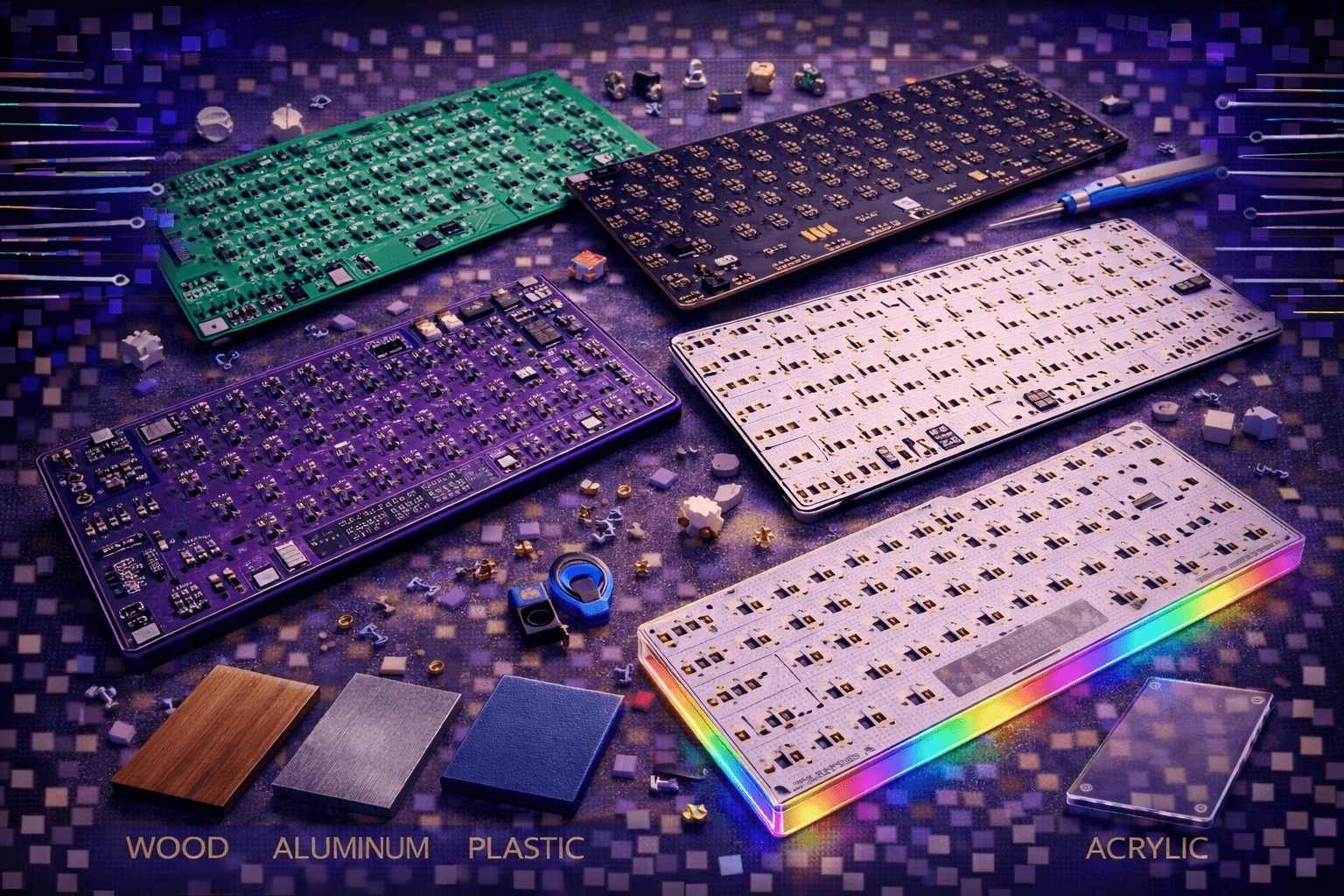
Keyboard PCBs (Printed Circuit Boards) form electronic foundation of mechanical keyboards, translating physical keypresses into digital signals while enabling features like hot-swap sockets, RGB lighting, programmability, and wireless connectivity. Understanding PCB characteristics—from simple soldered designs to sophisticated hot-swap QMK/VIA boards—enables informed keyboard selection and upgrade decisions matching technical preferences and customization needs.
PCBs serve multiple critical functions: electrical connectivity routing signals from switches to controller, switch mounting providing sockets or solder points, feature implementation including RGB LEDs and wireless modules, firmware hosting defining keyboard behavior and programmability, and layout support determining physical key arrangements and sizes.
This comprehensive guide explores PCB types (soldered vs hot-swap), explains firmware options (QMK, VIA, proprietary), covers connectivity features (wired, wireless, Bluetooth), discusses RGB implementation and control, examines layout support and compatibility, and helps match PCB selection to customization priorities and technical comfort levels.
Whether building custom keyboard, evaluating pre-built flexibility, or planning PCB upgrades, understanding PCB fundamentals enables optimization of mechanical keyboard functionality and future-proofing through informed technical choices.
Note: This guide contains affiliate links. If you purchase through our links, we may earn a commission at no extra cost to you. This helps support our testing and content creation.
PCB Types: Soldered vs Hot-Swap
Soldered PCBs (Traditional)
Design and Construction:
Switches permanently soldered to PCB. Metal switch pins inserted through PCB holes, solder joint creates both electrical and mechanical connection. Traditional keyboard manufacturing method predating hot-swap technology.
Advantages:
- Reliability: More reliable permanent connection. Solder joints extremely durable lasting decades without failure.
- Cost: Lower PCB manufacturing cost (no socket installation). Cheaper pre-builts possible.
- Slimmer Profile: No socket height. Case can be thinner overall.
- Universal Compatibility: All MX-style switches compatible. No socket compatibility concerns.
- Proven Technology: Time-tested reliable method used industry-wide for decades.
Disadvantages:
- Soldering Skill Required: Assembly and repairs require soldering expertise. Steep learning curve for beginners.
- Switch Replacement Difficult: Changing switches requires desoldering. Time-consuming tedious process. Risk of damage during desoldering.
- Cannot Test Switches: Cannot easily swap switches to test preferences before committing.
- Permanent Commitment: Switch choice becomes binding decision. Changing mind costly in time/effort.
- Higher Repair Barrier: Any switch failure requires soldering skills. Professional repair service needed if lacking skills.
Best Applications:
- Budget builds (lower total cost)
- Users confident in switch choice (no experimentation needed)
- Experienced builders comfortable soldering
- Maximum reliability priority
- Slim profile keyboard designs
- Professional/industrial keyboards
Skill Requirements: Moderate soldering skill needed for assembly. Beginners need learning curve or pre-soldered keyboards.
Hot-Swap PCBs (Modern Standard)
Design and Construction:
Special mechanical sockets mounted on PCB. Switches insert into sockets without soldering. Metal socket contacts grip switch pins creating reliable electrical connection through mechanical pressure.
Hot-Swap Socket Types:
Kailh Hot-Swap Sockets (Most Common):
- Purple plastic sockets standard
- Reliable proven design
- Good tolerances
- Most custom keyboards use Kailh
- Wide switch compatibility
Outemu Hot-Swap Sockets:
- Tighter tolerances than Kailh
- Some switches fit more snugly
- Good reliability
- Alternative option in many keyboards
Gateron Hot-Swap Sockets:
- Similar characteristics to Kailh
- Good compatibility and reliability
- Growing popularity
Mill-Max Sockets (Premium):
- Low-profile through-hole design
- Allow soldered PCB to become hot-swap (through socket installation)
- Premium expensive option
- Enable hot-swap conversion of soldered keyboards
Advantages:
- Beginner Friendly: No soldering required. Mechanical insertion simple. Perfect entry point for beginners.
- Easy Switch Replacement: Pull out switch, insert new one. Takes seconds. No tools needed.
- Experimentation Encouraged: Test different switches effortlessly. Find preferences through hands-on experience.
- Simple Repairs: Failed switch easy replacement. Pull out, install new. Minutes instead of hours.
- Flexibility: Change switches anytime without commitment. Adapt to preferences evolution.
- Switch Lubing Workflow: Hot-swap enables lubing switches outside keyboard. Remove, lube, install. Much easier than in-keyboard lubing.
Disadvantages:
- Higher PCB Cost: Socket manufacturing adds cost. More expensive than soldered PCBs.
- Socket Failure Possible: Mechanical wear over time. Sockets can loosen or fail. Quality sockets minimize this risk.
- Thicker Profile: Sockets add ~2mm height. Keyboard slightly thicker than soldered equivalent.
- Compatibility Concerns: Some switches fit loosely or tightly. Tight sockets increase pin bending risk. Loose sockets reduce stability.
- Pin Damage Risk: Improper insertion can bend switch pins. Damaged pins make switch unusable.
- Socket Quality Variation: Budget hot-swap keyboards sometimes use cheap unreliable sockets. Premium keyboards use quality sockets lasting years.
Best Applications:
- Beginners avoiding soldering
- Enthusiasts wanting maximum switch flexibility
- Users testing and experimenting with preferences
- Frequent keyboard modders
- Most custom keyboards 2024+ (industry standard)
- Users unable or unwilling to solder
Skill Requirements: Zero soldering skill needed. Mechanical insertion intuitive for anyone.
Soldered vs Hot-Swap Reliability Comparison
Soldered Reliability: More reliable long-term. Solder joints extremely durable. Failure very rare occurring at component level not connection. Expected lifespan decades without issues.
Hot-Swap Reliability: Generally reliable but mechanical sockets represent wear points. Quality sockets (Kailh, Gateron) last years of regular use. Cheap budget sockets may fail sooner (months to years). Proper insertion critical—bent pins damage sockets permanently.
Reality: Both extremely reliable in normal use. Soldered has edge for maximum longevity. Hot-swap more practical for most users accepting slightly reduced long-term reliability for convenience gains.
Market Trends
Hot-swap increasingly market standard. Most custom keyboards 2024+ default to hot-swap. Soldered PCBs still available for budget builds, slim designs, or maximum reliability preference but declining market share.
Recommendation: Hot-swap for most users. Flexibility and ease gains outweigh minor cost increase and slightly reduced long-term potential. Soldered only if specific reason (budget priority, reliability paramount, slim design requirement).
Firmware Options and Customization
QMK (Quantum Mechanical Keyboard)
Description: Open-source keyboard firmware. Most popular enthusiast-grade firmware globally. Extremely powerful customization enabling virtually any keyboard behavior.
Core Features:
- Full Key Remapping: Reassign any key to any function. Complete control over key behavior.
- Multiple Layers: Defined layers using FN keys or other triggers. Switch between completely different layouts per layer.
- Macros and Sequences: Record and playback key sequences. Single keypress executes complex commands.
- RGB Lighting Control: Program LED colors, effects, animations. Per-key lighting customization.
- Mouse Keys: Control mouse pointer from keyboard. Useful alternative input method.
- Advanced Features: Auto-shift, combos, leader keys, permissive hold, and dozens more specialized functions.
- Active Development: Constantly updated. Growing feature set. Excellent community development.
Programming Approach: Requires compiling firmware from source code. Config files define keyboard behavior. Technical but well-documented. QMK Toolbox simplifies flashing process.
Compatibility: Hundreds of keyboards supported. DIY builds commonly use QMK. Popular pre-builts support QMK (Keychron Q series, GMMK Pro, Epomaker, etc.).
Learning Curve: Moderate. Config file format approachable. Comprehensive documentation. Large supportive community. Many example configurations available.
Best Applications: Enthusiasts wanting maximum control. Advanced customization. Open-source philosophy. Complex macros and key behavior. Professional applications requiring custom keyboard control.
VIA (Visual Interface for Assistants)
Description: Graphical configurator designed for QMK-compatible keyboards. Enables real-time remapping without firmware compilation. User-friendly alternative to QMK config files.
Core Features:
- Real-Time Key Remapping: Instantly remap keys through GUI. Changes visible immediately. No compilation required.
- Layer Management: Configure multiple layers visually. Drag-and-drop interface. Instant changes.
- Macro Recording: Record key sequences through UI. Simple playback definition.
- Lighting Control: RGB adjustment through interface. Real-time preview.
- No Compilation Required: Changes written directly to keyboard EEPROM. Persists across computers.
- Cross-Platform: Windows, Mac, Linux support. Hardware independent.
How It Works: Requires VIA-compatible QMK firmware loaded. VIA application communicates with keyboard. Changes stored on keyboard itself.
Compatibility: Requires VIA-enabled QMK firmware. Many modern keyboards support VIA. Growing ecosystem of VIA-compatible keyboards.
Learning Curve: Low. Drag-and-drop interface intuitive. Visual feedback immediate. Beginner friendly. Instant learning.
Best Applications: Users wanting easy customization. Beginners avoiding technical complexity. Quick changes without firmware recompilation. Cross-device usage (keyboard saves settings).
VIA Advantage: Bridges gap between simplicity (proprietary software) and power (QMK raw firmware). Best balance for most enthusiasts.
ZMK (Zymosis Mechanical Keyboard)
Description: Modern open-source firmware focused on wireless keyboard optimization. Built from ground up for power efficiency and wireless functionality.
Core Features:
- Wireless Optimization: Designed for Bluetooth and 2.4GHz wireless. Lower power consumption than QMK.
- Split Keyboard Support: Native support for split keyboard communication. Two halves synchronize seamlessly.
- Low Power Consumption: Extended battery life through efficient design. Critical for wireless keyboards.
- Modern Codebase: Newer approach than QMK. Better code organization for specific use cases.
- Growing Feature Set: Actively developed. Increasing capability parity with QMK.
Compatibility: Smaller ecosystem than QMK. Popular for wireless DIY builds and split keyboards. Growing support.
Learning Curve: Moderate. Similar learning curve to QMK. Yaml configuration format.
Best Applications: Wireless keyboard builds. Split keyboard designs. Power efficiency priority. Modern minimalist design preference.
Proprietary Firmware
Description: Manufacturer-specific firmware. Pre-built keyboards often use proprietary solutions instead of open-source alternatives.
Common Examples:
- Razer Synapse: Razer keyboard software. Windows focus.
- Corsair iCUE: Corsair ecosystem integration.
- Logitech G Hub: Logitech gaming peripherals control.
- Das Keyboard Q Software: Das Keyboard customization.
- Keychron Cloud: Keychron cloud-based configuration.
Features (Varies):
- Usually GUI-based configuration
- Macro recording
- Lighting customization
- Layer definitions (sometimes)
- Limited compared to QMK/VIA capability
Limitations:
- Closed Source: No community development. Limited to vendor features.
- Platform Specific: Often Windows-only. Mac/Linux support inconsistent.
- Limited Advanced Features: Cannot match open-source flexibility.
- Vendor Lock-in: Tied to manufacturer ecosystem. Limited portability.
- Update Dependency: Features depend on manufacturer development. Community cannot extend.
Best Applications: Users prioritizing simplicity over flexibility. Manufacturer ecosystem integration important. Limited customization needs.
Reality: Proprietary firmware adequate for basic remapping and lighting. Advanced users find limitations frustrating compared to QMK/VIA freedom.
Firmware Comparison Matrix
| Feature | QMK | VIA | ZMK | Proprietary |
|---|---|---|---|---|
| Flexibility | Maximum | Excellent | Very Good | Limited |
| Ease of Use | Moderate | Easy | Moderate | Easy |
| Wireless Optimization | No | No | Yes | Varies |
| Community Support | Excellent | Excellent | Growing | Limited |
| Learning Curve | Steep | Low | Moderate | Low |
| Advanced Features | Unlimited | Many | Growing | Few |
Recommendation: QMK with VIA interface for most users. Maximum flexibility with reasonable ease of use. ZMK if wireless priority. Proprietary adequate for basic needs only.
Connectivity Features
Wired (USB)
Standard USB Connectors:
USB-C (Modern Standard): Reversible connector. Durable. Hot-plug safe. Most 2024+ keyboards use USB-C.
Micro-USB (Legacy): Older standard. Fragile connector prone to wear. Avoid if possible.
Mini-USB (Rare): Outdated. Avoid completely.
Wired Advantages:
- No Battery: No charging required. Unlimited operational time.
- Lowest Latency: Direct wired connection. ~1ms latency. Fastest possible response.
- Most Reliable: Proven stable connection. No wireless interference.
- No Pairing Required: Plug and play. Works immediately.
- Cheaper PCBs: No wireless components. Lower manufacturing cost.
- Gaming Preferred: Competitive gaming requires lowest latency. Wired essential for esports.
Wired Disadvantages:
- Cable Required: Cable management necessary. Desk clutter possible.
- Less Portable: Cable tethers keyboard. Limits mobility.
- Cable Failure: Cable can fail. Though detachable cables common now.
- Single Device: Cannot switch between computers without unplugging.
Best Applications: Desktop setups. Competitive gaming. Maximum reliability. Budget builds. Professional environments.
Detachable Cables: Many quality keyboards include USB-C detachable cables. Enables cable replacement and equipment reuse.
Wireless - Bluetooth
Technology: Standard Bluetooth 5.0/5.1 protocol. Computer's built-in Bluetooth chip connects to keyboard.
Advantages:
- No Dongle: Uses existing computer Bluetooth. No USB port consumed.
- Multi-Device Pairing: Connect to 3+ devices simultaneously. Switch between computers seamlessly.
- Universal Compatibility: All computers/tablets/phones support Bluetooth. Works anywhere.
- Mobile Support: Connect to phones and tablets. Keyboard becomes multi-platform input.
- Clean Setup: Wireless without external dongle. Minimal desk clutter.
Disadvantages:
- Higher Latency: ~10-15ms typical latency. Noticeable to sensitive typists. Not ideal for competitive gaming.
- Battery Required: Rechargeable battery necessity. Keyboard requires charging regularly.
- Pairing Finicky: Sometimes requires manual re-pairing. Connection drops occasionally. Frustrating troubleshooting.
- Connection Stability: Occasional interference or dropouts. Less stable than 2.4GHz.
- Power Management: Must manage charging. Battery depletion possible during use.
Battery Life: Typically 1-4 weeks depending on RGB usage. RGB dramatically reduces battery life.
Best Applications: Multi-device users. Mobile device connectivity important. Clean wireless desk aesthetic. Users accepting higher latency.
Connection Management: Most Bluetooth keyboards support 3-5 device slots. Switch via keyboard shortcut or button. Practical multi-device workflow.
Wireless - 2.4GHz (USB Dongle)
Technology: USB dongle with proprietary wireless protocol. Dedicated wireless connection separate from Bluetooth.
Advantages:
- Lower Latency: 2-5ms typical latency. Near-wired experience. Competitive for gaming.
- More Stable: Dedicated connection reduces interference. More reliable than Bluetooth.
- Better Range: Often longer range than Bluetooth. Works across room easily.
- Faster Response: Optimized for keyboard communication. No competing device traffic.
Disadvantages:
- USB Dongle Required: Takes up USB port. Dongle can be lost or damaged. Additional hardware.
- Single Device Only: Cannot pair multiple devices simultaneously. Must re-pair to switch computers.
- Shorter Battery Life: Proprietary protocol sometimes consumes more power than Bluetooth. Faster battery depletion.
- Proprietary Protocol: Not universal. Dongle required always.
- Adapter Needed: If using USB-C only computers, USB-A adapter required.
Battery Life: Typically 1-3 weeks. Less efficient than Bluetooth often.
Best Applications: Wireless gaming. Single-computer setups. Low latency priority. Professional environments requiring reliable connection.
Tri-Mode (Wired + Bluetooth + 2.4GHz)
Modern Premium Option: Single keyboard supporting all three connection methods. Switch between modes via keyboard shortcut.
Examples: Keychron Q series Pro models, many premium 2024+ custom keyboards.
Advantages:
- Maximum Flexibility: Use wired for gaming, Bluetooth for convenience, 2.4GHz for backup.
- Redundancy: If one connection fails, alternatives available.
- Use Case Optimization: Choose connection matching current need.
Disadvantages:
- Higher Cost: Tri-mode PCBs more expensive. Reflects functionality cost.
- More Complex: Additional electronics and logic.
Best Applications: Users wanting all options. Premium builds where cost not constraining. Multi-use keyboards.
Battery and Power Considerations
Rechargeable Batteries
Standard Option: Built-in lithium-ion battery. USB-C charging. Modern standard.
Battery Life: 1-4 weeks typical depending on usage and RGB:
- No RGB: 2-4 weeks
- RGB enabled: 1-2 weeks
- Full brightness RGB: 5-10 days
RGB Impact: RGB LEDs dramatically reduce battery life. Turning off RGB extends battery significantly.
Wireless Keyboards: Rechargeable batteries standard. Quick charging (1-2 hours typical).
Replaceable Batteries
Option: AA or AAA replaceable batteries. Less common in enthusiast keyboards.
Advantages: Don't need charging. Replace batteries when depleted. Longer replacement cycles (weeks between changes).
Disadvantages: Ongoing battery cost. Worse environmental impact. Less compact design.
Common in: Budget wireless keyboards, gaming mice, older keyboard designs.
Power Consumption Factors
Battery Impact Factors:
- RGB Intensity: Brightest RGB consumes most power. Single color LEDs efficient.
- Polling Rate: Higher polling rates (1000Hz+) consume slightly more power.
- Wireless Protocol: 2.4GHz typically uses more power than Bluetooth.
- Key Actuation: Mechanical switches use minimal power. Mostly LED power.
- Keyboard Size: Larger keyboards more LEDs. More power consumption.
Power Management: Many wireless keyboards disable RGB on battery to extend battery life. Enable RGB when wired for maximum effect.
RGB Lighting Implementation
RGB Types
Per-Key RGB (Individually Addressable):
Individual LED per switch. Full color control for each key independently. Maximum flexibility.
Features:
- Complex lighting effects (wave, reactive, breathing, custom patterns)
- Key-specific colors and effects
- Visual indicators possible (caps lock, layers, etc.)
- Maximum customization potential
Implementation: WS2812B LED standard. Chainable RGB LEDs. Controlled via firmware.
Cost: Most expensive RGB implementation.
Best for: Visual enthusiasts. Competitive gamers wanting reactive effects. Extreme customization.
Single-Color Backlight:
One fixed color per key (white, red, blue, etc.). LEDs hardwired single color.
Features:
- Simple on/off or brightness control
- Breathing effects possible (simple firmware control)
- Reliable minimal electronics
- Cheap reliable option
Cost: Cheapest lighting option.
Best for: Budget keyboards. Professional environments. Simplicity priority.
Underglow RGB:
RGB LEDs mounted on PCB bottom shining downward beneath keyboard. Creates ambient glow effect.
Features:
- Illuminates desk underneath keyboard
- Aesthetic glow effect
- Often combined with per-key RGB
- Side glow creates visible light show
Cost: Mid-range lighting addition.
Best for: Aesthetic enthusiasts. Desk showcase effect. Gaming setups.
RGB Control Methods
Hardware Control: Keyboard shortcuts (Fn + arrow keys or similar) cycle preset lighting effects. No software required. Simple reliable. Limited customization.
Software Control: Via firmware (QMK, VIA) or manufacturer software. Advanced per-key customization. Complex animations. Requires computer connection for changes.
Best Approach: Hardware control for simplicity. VIA/QMK for advanced customization. Many keyboards support both.
RGB Standards and Components
WS2812B LEDs (Addressable RGB): Most common RGB LEDs in custom keyboards. Chainable. Individually programmable. Supported by QMK.
Single-Color LEDs: Simple 2-pin LEDs. Basic brightness control only. No color variation.
SMD RGB LEDs: Surface-mount component LEDs. Modern standard. Integrated into switches or direct PCB mount.
RGB Practical Considerations
Power Consumption: RGB significantly increases power draw. Critical for wireless keyboards. Full brightness RGB can require more USB current (adequate for 5V USB).
Heat Generation: RGB generates heat. Usually minimal consideration but relevant in compact builds.
Aesthetics: Subjective. Some users love RGB showcase. Others find distracting or unprofessional. Personal workplace/preference determines value.
Functionality: RGB can provide useful feedback beyond aesthetics:
- Layer indicators (different color per layer)
- Caps Lock/Num Lock/Scroll Lock indicators
- Typing heatmap visualization
- Game/application-specific effects
Gaming Applications: Reactive RGB effects provide visual feedback. Per-key lighting matches game events. Enhanced immersion.
Professional Environments: Plain single-color or no RGB often preferred. Distracting effects inappropriate for office.
Layout Support and Compatibility
Layout Types
ANSI (American):
- Standard US keyboard layout
- Most common globally
- Rectangular Enter key
- Wide left Shift key
- ~87-104 keys depending on size
ISO (International):
- European keyboard standard
- Tall L-shaped Enter key
- Split left Shift
- Extra key left of Z
- Slightly different bottom row often
PCB Must Support Chosen Layout: Not all PCBs support both. Purchase PCB matching intended layout. Mismatched layout/keycaps creates incompatibility.
Size Variants
Full-Size (100%):
- Complete keyboard layout
- Includes numpad
- 104-108 keys
- Desk space: 18-20 inches wide
TKL (Tenkeyless - 80%):
- No numpad
- Function row included
- 87-88 keys
- Desk space: ~14 inches wide
- Popular compromise
75%:
- Compact size
- Function row included
- No gap between main section and arrow keys
- 84 keys
- Good middle ground
65%:
- No function row or numpad
- Arrows present
- 68 keys
- Very compact
- Growing popular
60%:
- Minimal design
- No arrows, function row, or numpad
- 61 keys
- Heavy layer usage required
- Portable
40%:
- Extreme minimal
- Only letters mostly
- Requires extensive layer usage
- 40-48 keys
- Niche enthusiast
PCBs Designed for Specific Sizes: Cannot convert 60% PCB to TKL size. Keyboard size fixed by PCB design. Consult our keyboard size guide for detailed comparisons.
Layout Flexibility in PCBs
Hot-Swap Layout: Usually single fixed layout. Key positions locked. Cannot change bottom row config or spacebar arrangement typically.
Soldered Layout Flexibility: Many soldered PCBs support multiple configurations through alternative solder points. Can choose:
- Split vs standard backspace
- Different bottom row arrangements
- ISO vs ANSI at assembly time
- Some support split spacebar variations
More Flexible Overall: Soldered PCBs generally offer more layout options than hot-swap through design strategy.
Multi-Layout PCBs: Some premium hot-swap PCBs support multiple arrangements. Extra solder pads/sockets at alternate positions. More complex design. Higher cost.
Layout Planning
Before Purchasing PCB:
- Verify layout support: Matches personal preference
- Check ANSI vs ISO: If relevant to preference
- Confirm size correct: 60%, 75%, TKL, etc.
- Review bottom row configs: Split spacebar support, mod key options
- Consider future flexibility: Might want to change later? Choose flexible PCB.
Common Mistakes to Avoid:
- Buying ISO keycaps with ANSI PCB (incompatible)
- Assuming all hot-swap supports all layouts (usually fixed)
- Not checking split spacebar support before keycap purchase
- Forgetting ANSI vs ISO difference
Recommendation: Verify layout compatibility before purchasing any components. Incompatibility is frustrating and expensive mistake.
Special PCB Features
Rotary Encoders
Function: Knob control on keyboard. Rotate for volume control, scrolling, layer switching, or custom functions.
PCB Requirements:
- Dedicated encoder support
- Solder points or hot-swap sockets for encoder
- Firmware support for encoder functions
Common Positions:
- Top-right corner (most common)
- Some PCBs support multiple encoder positions
Firmware: QMK supports encoder programming. Customize encoder behavior completely. VIA enables easy encoder remapping.
Use Cases: Volume control, scroll wheel, layer switching, custom macros, media control.
Growing Trend: Encoders increasingly common in premium keyboards. Adds cost but useful functionality.
Split Keyboard Support
TRS/TRRS Jacks: Connect two keyboard halves together. Wired communication between left and right sides.
Wireless Split: Each half communicates wirelessly. More complex design. Often ZMK firmware for optimization.
PCB Requirements: Specialized split PCB design. Standard monolithic PCBs cannot become split designs. Requires dual PCB setup.
Use Cases: Ergonomic typing. Adjustable width. Portable split designs.
Not Standard: Most keyboards traditional single PCB. Split keyboards niche enthusiast product.
USB Connector Implementation
Daughterboard Design: Separate small PCB with USB-C connector. Cable connects to main PCB. Protects main PCB from cable stress. Easier replacement if damaged.
Direct Mount: USB-C soldered directly to main PCB. Cheaper but less repairable. Damage difficult to fix.
Removable Daughterboard: Premium design. Easy replacement if connector damaged. Excellent repairability.
Quality Preference: Premium keyboards prefer daughterboards. Shows durability and repairability focus.
ESD Protection
Electrostatic discharge protection circuits. Prevents static electricity damage to components. More robust PCBs include ESD protection circuits.
Budget PCBs: May lack protection making them vulnerable to static damage. Careful handling required.
Premium PCBs: Typically include ESD protection as standard. More resilient to accidental static exposure.
Indicator LEDs
Caps Lock, Num Lock, Scroll Lock indicators. Position varies:
- Under keycaps (hidden until caps lock activated)
- Case edges (always visible)
- Separate indicator area
Functionality: Provides visual feedback of lock states. Especially useful for Caps Lock in office environments.
Firmware-Level Features
Key Rollover (NKRO): N-key rollover. Unlimited simultaneous key registrations. Standard in modern PCBs. Essential for gaming.
Polling Rate: How often keyboard reports to computer. 1000Hz (1ms) standard. Higher rates emerging (2000Hz, 4000Hz, 8000Hz). Minimal benefit beyond 1000Hz for most users. Gaming slight advantage.
Debouncing: Prevents key chatter (multiple registrations from single press). Firmware-controlled timing. Adjustable in QMK. Different switches require different debouncing.
Quality Indicators
Good PCB Signs
Thick PCB: 1.6mm standard. Budget keyboards sometimes use 1.2mm (weaker). Thicker indicates quality.
Quality Sockets (Hot-Swap): Kailh or Gateron brand sockets. Securely soldered. Even alignment indicates quality manufacturing.
ESD Protection: Indicated in specifications. Protects against static damage. Shows quality consideration.
Gold-Plated Contacts: Better conductivity and corrosion resistance than tin. Premium sign.
Good Solder Quality: (Soldered PCBs) Clean joints, no cold solder, no bridges between pads. Indicates quality manufacturing.
Daughterboard USB: Separate USB connector PCB. Indicates quality and repairability focus.
PCB Color: Green standard. Black, white, purple aesthetic. Color no performance difference but indicates custom design.
Quality Markings: Manufacturer marks, revision numbers, batch codes. Unmarked PCBs suggest low quality or counterfeits.
Poor PCB Signs
Thin PCB: <1.6mm flexes excessively. Structural weakness. Avoid.
Cheap Sockets: Off-brand sockets. Poor retention. Inconsistent fit. Avoid.
No ESD Protection: Vulnerable to static damage. Risky.
Cold Solder Joints: Gray dull appearance. Indicate poor manufacturing. Reliability concerns.
Loose Hot-Swap Sockets: Sockets not firmly attached. Will fail prematurely.
No Markings: Unmarked PCBs suggest low quality, counterfeits, or undocumented products.
Visible Damage: Burnt components, cracked traces, missing components. Definite avoid.
PCB Testing Before Assembly
Before Full Assembly:
- Test all switch positions: Use tweezers to short socket contacts. Verify keyboard registers each position.
- USB Connection: Verify stable connection. No intermittent issues.
- RGB Testing: If applicable, test LED functionality. All LEDs light.
- Shorts Check: Visually inspect for solder bridges or damaged traces.
- Key Matrix: Use keyboard tester to verify all positions register.
Quality PCBs: Very low failure rates in normal circumstances. Testing before full assembly saves frustration of debugging after complete build.
FAQ
Q: Is hot-swap or soldered PCB better?
A: Hot-swap better for most users. No soldering required, easy switch experimentation, beginner friendly. Soldered preferred only for maximum reliability, slim design, or budget constraints. Hot-swap now industry standard. See PCB types section above.
Q: What is QMK and VIA exactly?
A: QMK: open-source keyboard firmware, powerful but technical requiring config file editing. VIA: user-friendly graphical interface for QMK keyboards, real-time remapping without compilation. VIA easier for beginners, QMK more powerful for advanced users. Many keyboards support both. See firmware section above.
Q: Can I add hot-swap sockets to my soldered keyboard?
A: Yes, using Mill-Max sockets. Requires soldering socket installation. DIY hot-swap conversion. Moderate soldering skill required. More accessible than desoldering every switch. See hot-swap section above.
Q: Does PCB choice affect keyboard sound?
A: Yes, somewhat. PCB material (FR4), thickness, mounting style affect sound. Case and plate materials have greater impact. Flexible PCBs (gasket mount) create softer sound. Rigid mounting creates firmer sound. See connectivity section above.
Q: What's the difference between 2.4GHz and Bluetooth wireless?
A: 2.4GHz: lower latency (2-5ms), needs USB dongle, single device connection. Bluetooth: higher latency (10-15ms), multi-device pairing, no dongle needed. Gaming: 2.4GHz better. Multi-device: Bluetooth better. Trade-offs differ. See connectivity section above.
Conclusion
Keyboard PCBs determine fundamental functionality and future flexibility through hot-swap socket implementation, firmware capabilities, connectivity options, and feature support. Hot-swap PCBs enable beginner-friendly switch experimentation while QMK/VIA firmware provides maximum customization for enthusiasts valuing control.
Understanding connectivity trade-offs guides selection—wired for lowest latency competitive gaming, Bluetooth for convenient multi-device connectivity, 2.4GHz for wireless gaming compromise. RGB implementation ranges from simple single-color to sophisticated per-key addressable effects requiring firmware expertise.
Layout support verification prevents compatibility issues. ANSI vs ISO, size variants (60%, 75%, TKL, full), and split spacebar options require careful PCB matching to keycap and case selections. Premium PCBs indicate quality through thick substrate, gold-plated contacts, ESD protection, and daughterboard USB connections.
PCB selection balances technical comfort (hot-swap vs soldered), customization desires (QMK/VIA vs proprietary), connectivity needs (wired vs wireless), RGB preferences, and budget constraints creating electronic foundation for functional satisfying mechanical keyboard matching usage requirements and future aspirations.