Introduction
Sixty-one keys. That's it. No arrows, no F-row, no navigation cluster. Just the essentials—and it's perfect for some, a dealbreaker for others.
The 60% keyboard is the most extreme mainstream keyboard layout — for a broader overview of all sizes, see our keyboard size guide. It strips away everything except the core alphanumeric keys, modifiers, and spacebar. No dedicated arrow keys. No function row. No navigation cluster. Everything else—arrows, F-keys, delete, page up/down—lives on Fn layers accessible through key combinations.
This level of minimalism became popular in the 2010s through boards like the Poker series and Anne Pro. Today in 2026, 60% keyboards remain hugely popular with competitive gamers, minimalists, and keyboard enthusiasts who value efficiency and desk space above all else.
But 60% isn't for everyone. The learning curve is real. The workflow adjustments are significant. And about 30% of people who try 60% end up preferring 65% or 75% for the dedicated arrow keys.
This guide helps you honestly assess whether you're the 70% who adapts successfully or the 30% who'd be happier with a larger layout. It's about finding YOUR perfect keyboard, not forcing yourself into a too-small layout.
Note: This guide contains affiliate links. If you purchase through our links, we may earn a commission at no extra cost to you. This helps support our testing and content creation.
What Is a 60% Keyboard?
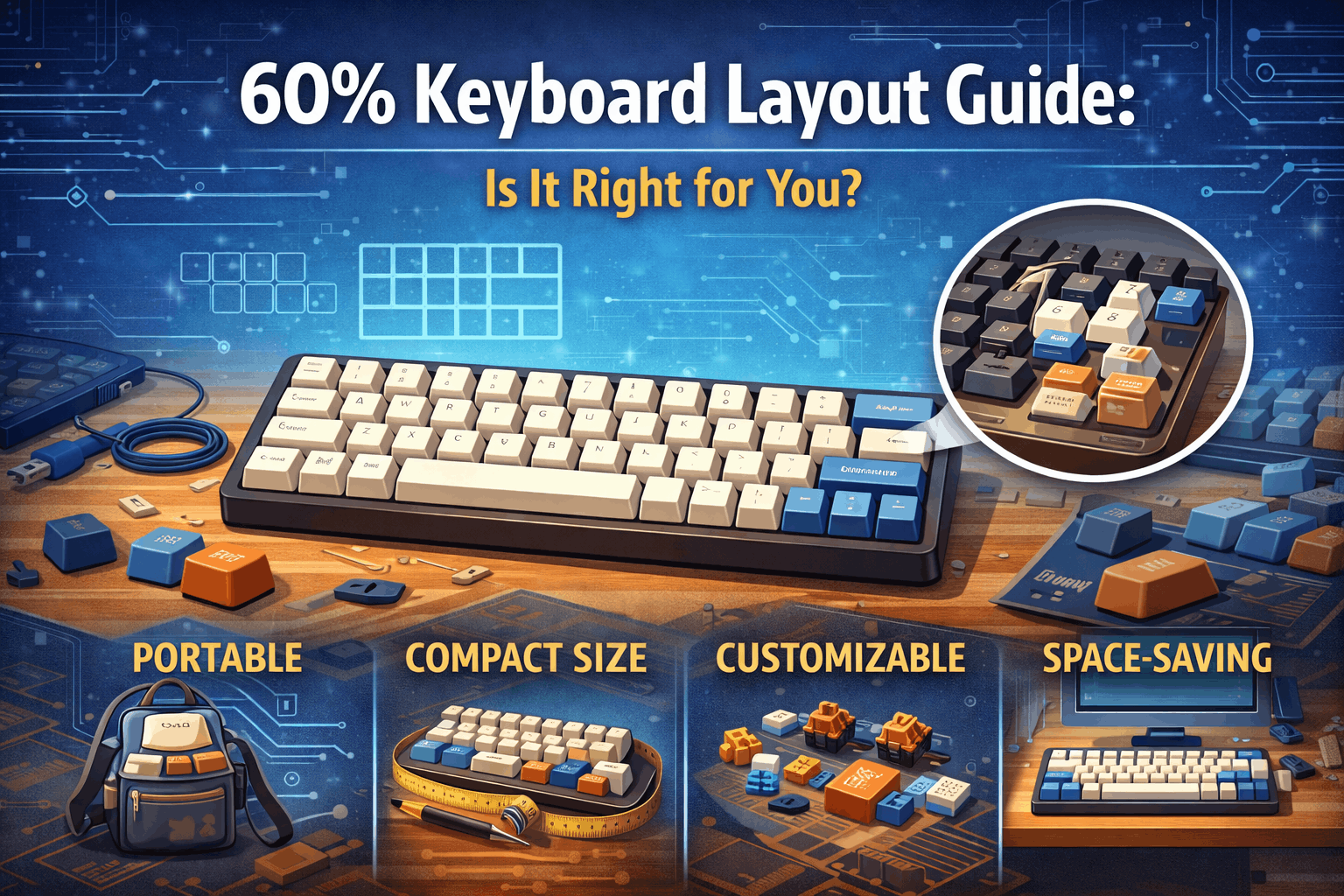
A 60% keyboard contains exactly 61 keys—standard QWERTY alphanumerics plus essential modifiers. Everything else gets accessed via Fn layer combinations. You're looking at roughly 47 alphanumeric keys, 13 number row keys (including backspace), and about 5 modifiers like Shift, Ctrl, Alt, Fn, and spacebar. What's missing? Around 40 keys compared to a full-size board—arrows, F-keys, numpad, and the entire navigation cluster.
The layout keeps all keys within one key-width of the home row. Your main alphanumeric block stays standard QWERTY, number row stays 1-0, and all symbol keys remain in familiar positions. The modifier row typically includes left Shift, Ctrl, and Alt, with the Fn key usually positioned left or right of the spacebar. Right modifiers vary depending on the specific board layout.
Function layers handle everything else. Press Fn+numbers to get F1-F12. Press Fn+WASD or Fn+IJKL for arrow keys. Press Fn+various key combinations for Delete, Home, End, Page Up, and Page Down. It sounds complicated at first, but your muscle memory adapts faster than you'd expect.
The 60% layout gained traction through the Poker series starting in 2011, then exploded in popularity when Anne Pro launched in 2016. Competitive gamers embraced it immediately for the mouse space advantage. By 2026, it's become the gaming standard, with hot-swap options abundant and programmable firmware like QMK and VIA fully accessible to everyone.
If you're considering a 60% board, you'll find options at every price point. Budget picks like the Royal Kludge RK61 and Keychron K12 run $60-80—and if you're torn between the most popular options at that price point, our Anne Pro 2 vs RK61 vs GK61 comparison is a good starting point. Mid-range boards like Anne Pro 3 and Ducky One 3 Mini sit around $100-130. Premium options like the ASUS ROG Falchion go for $150-200. Custom builds with DZ60, Tofu60, or Rama U80 cases start at $200 and climb from there.
What You Lose with 60%
No Dedicated Arrow Keys
The biggest adjustment? Losing dedicated arrow keys. Instead, you'll access them through an Fn layer—typically Fn+WASD for gamers (intuitive if you're used to movement keys) or Fn+IJKL for vim users. Some boards map arrows to Fn+right modifiers for right-hand operation. It feels awkward at first, especially if you navigate documents or spreadsheets frequently. That muscle memory of reaching to the right for arrows? Gone.
Document navigation slows down initially. Spreadsheet work requires constant layer switching. Google Sheets and Excel power users struggle the most here. The learning curve typically runs 2-3 weeks before Fn+arrows becomes second nature.
Who struggles most? Heavy document editors, spreadsheet power users, anyone with navigation-heavy workflows, and people with 10+ years of muscle memory on full-size keyboards. If you're editing documents all day or living in Excel, the constant Fn layer switching gets old fast. That's why about 30% of people who try 60% ultimately prefer 65% or larger for those dedicated arrow keys.
No Function Row (F1-F12)
Function keys live on the Fn+number row. Press Fn+1 for F1, Fn+2 for F2, and so on. It's slower than dedicated F-keys and requires memorization. IDE debugging becomes more cumbersome—hitting F5 to run or F9 for a breakpoint now requires two hands and deliberate thought. Adobe software shortcuts get harder to execute quickly. Some game hotkeys become awkward to access.
Programmers with heavy debugging workflows feel this pain acutely. Video and photo editors who rely on F-key shortcuts struggle. MMO gamers using F-keys for ability bars find themselves constantly switching between layers. If F-keys represent more than 10% of your keypresses, 60% might frustrate you long-term.
No Navigation Cluster
Home, End, Page Up, Page Down, Insert, and Delete all disappear from dedicated positions. Instead, they live on Fn layer combinations that vary by board—usually with logical placement, but not standardized. Delete often maps to Fn+Backspace or lives on a right modifier. Home and End might be Fn+Q and Fn+E, or they might be somewhere else entirely depending on your keyboard's firmware.
Writers and coders feel this impact immediately. Text editing takes more thought. Line and block selection becomes a two-hand operation. But here's the paradox: this constraint forces you to learn better shortcuts. You start using Ctrl+Arrow for word selection, Ctrl+Home for document start, Ctrl+End for document end. Many long-term 60% users end up FASTER because the limitation forced them to optimize their workflow.
The Arrow Key Reality
Here's what matters: arrows represent about 30% of all keypresses for some users. Making them harder to access means a bigger adjustment period. But forcing yourself to adapt creates unexpected benefits. You learn keyboard shortcuts you never bothered with before. Hand movement decreases dramatically. Efficiency increases once the adaptation completes.
The constraint becomes the advantage—but only if you successfully push through the initial frustration phase.
What You Gain with 60%
Maximum Desk Space
A 60% keyboard is the smallest practical layout (40% exists but remains extremely niche). You're looking at roughly 30% smaller than TKL, 50% smaller than full-size, 15% smaller than 65%, and 8% smaller than 75%. That translates to dramatically increased mouse space—critical for low-sensitivity gamers who need room for full swipes. The clean, minimal aesthetic fits perfectly in battlestation setups, and the compact size makes it laptop bag compatible.
For gamers, this isn't just about looks. Low-sensitivity aiming in competitive FPS games requires enormous mouse pad space. A 60% board creates that space without requiring a massive desk. If you're playing CS2, Valorant, Apex Legends, or Fortnite competitively, the extra mouse room becomes non-negotiable.
Reduced Hand Movement
Everything sits within 1-key reach from home row. No stretching to arrow keys or the navigation cluster. The compact layout reduces fatigue over long sessions. Once adapted, you'll notice you're typing faster than on larger boards because your hands move less.
The physics work in your favor here. On a full-size board, your right hand travels roughly 15cm to reach arrow keys. On a 60%, you move less than 3cm to hit the Fn layer plus arrows—an 80% reduction in hand movement. Over thousands of keypresses per day, that reduction compounds into noticeably less fatigue and faster overall speed.
Portability Champion
The 60% form factor fits in laptop bags, makes travel effortless, and works perfectly in coffee shops or coworking spaces. If you're a digital nomad or frequently work from different locations, a 60% board transforms from luxury to necessity. The minimalist setup aesthetic looks clean on any desk, whether at home or traveling.
Aesthetic Purity
There's something visually satisfying about a perfectly symmetrical 60% board. No "wasted space" visually. Battlestation minimalism at its finest. Premium enthusiast vibe. If you photograph your setup for social media or stream on Twitch, a well-built 60% board photographs better than larger layouts. It's the keyboard equivalent of a perfectly minimal website—every element serves a purpose.
Customization Freedom
Most 60% boards use QMK or VIA firmware, giving you fully programmable Fn layers. You can create YOUR perfect layout, not adapt to someone else's decisions. Hot-swap options are abundant, letting you test different switches without desoldering. Per-key customization becomes possible with proper firmware.
The real customization power comes from layers. Layer 1 for gaming, Layer 2 for typing, Layer 3 for media controls. Remap any key to any function. Create macros for common tasks. Build profiles for different applications. This level of control doesn't exist on most pre-built larger keyboards.
Forced Efficiency
Here's the uncomfortable truth: constraints breed creativity. Losing easy access to arrows and nav keys forces you to learn keyboard shortcuts instead of mousing everywhere. You become intentional about key usage. Vim-style navigation starts feeling natural. You optimize YOUR workflow instead of relying on default behaviors.
Many long-term 60% users report they're faster typists than before—not despite the limitations, but because of them. The reduced hand movement, combined with learned efficiency from working within constraints, creates measurable speed improvements once adaptation completes.
The 60% Adaptation Curve
Week 1: Frustration Phase
The first week hurts. You'll constantly reach for phantom arrows that don't exist. Fn combos feel unnatural and painfully slow. Your typing speed drops 20-30%. The common thought running through your head: "Maybe I made a mistake buying this thing."
What's actually happening? Your muscle memory expects a full-size keyboard. Your brain hasn't formed the new neural pathways for Fn layer combinations yet. Everything feels unfamiliar because it IS unfamiliar. This is the natural frustration point that causes about 30% of people to give up and return to larger layouts.
How do you push through? Stick with it—you're only one week in. Don't revert to your old keyboard, even when frustrated. Use VIA or QMK to customize the layout to YOUR habits (this step is critical). Practice in low-stakes situations like casual gaming or personal writing, not during work presentations or competitive matches.
Week 2-3: Learning Phase
Progress starts showing up in week two. Muscle memory begins forming around common Fn combinations. The Fn layer starts becoming second nature rather than a conscious effort. Your typing speed returns to baseline. You start appreciating the compactness instead of fighting it.
Neural pathways are forming. Finger positioning becomes automatic. Your brain adapts to layer logic, and hand movement patterns change fundamentally. This is when most people either fully commit or decide 60% isn't for them.
To accelerate through this phase, deliberately practice arrow key combos for 5 minutes daily. Continue customizing the Fn layer if something still feels awkward. Keep a cheat sheet visible initially—print it out or use transparent keyboard stickers with arrow indicators on WASD. Start using the board in actual workflows instead of just practice sessions.
Week 4+: Mastery Phase
By week four, Fn combos feel effortless. Your typing speed meets or exceeds baseline. Hand movement becomes noticeably reduced compared to your old keyboard. You can't imagine going back to a larger layout—it would feel like typing with oven mitts on.
Full neural integration completes. Muscle memory has been completely reprogrammed. New efficiency patterns establish themselves permanently. Long-term comfort gets achieved, and the keyboard truly disappears from conscious thought.
Timeline reality varies by person. Most people hit mastery in 2-4 weeks. Vim users often master it in 1 week because they're already familiar with layered navigation (HJKL). Gamers typically take 1-2 weeks because WASD muscle memory transfers directly. Office workers often need 3-4 weeks because arrow keys are used constantly in document work.
What Accelerates Adaptation
Gaming background helps enormously because WASD muscle memory translates directly. Vim users adapt almost instantly since layers and HJKL navigation already feel natural. Touch typers adapt faster because they don't look at the keyboard anyway. Programmable keyboards accelerate adaptation by letting you optimize to your exact habits. Being willing to invest deliberate practice time makes the difference between 2-week and 4-week mastery.
What slows adaptation? Heavy arrow key usage (like constant document work) extends the learning curve. Ten-plus years on full-size keyboards creates deep muscle memory that resists change. Constant F-key usage in IDEs or Adobe applications makes the transition painful. Resistance to learning new patterns—some people want the board to adapt to them, not the other way around. Non-touch typists who rely on visual confirmation of keys struggle more than touch typers.
Warning Signs You Might Not Adapt
If arrows represent 30% or more of your keypresses, 60% will frustrate you long-term. If you're an F-key power user—IDE debugging, Adobe shortcuts, MMO abilities—the Fn layer becomes exhausting. If you have 15+ years of extreme muscle memory on full-size keyboards, retraining might not be worth the effort. If you're rage-quitting by week 2 instead of just frustrated, that's a signal. If your workflow requires frequent navigation—document navigation, spreadsheet work, heavy editing—the constant layer switching never becomes comfortable.
About 70% of people adapt successfully within 4 weeks. The other 30% ultimately prefer 65% or larger for dedicated arrows. This isn't failure—it's preference. The honest assessment matters more than forcing yourself into a layout that fights your natural workflow.
Who Should Use 60% Keyboards?
Competitive FPS Gamers
This is the primary audience. If you're playing CS2, Valorant, Apex Legends, or Fortnite competitively, 60% keyboards are designed for you. Maximum mouse space becomes critical when using low-sensitivity aiming. WASD plus numbers cover all standard gaming controls. F-keys rarely get used in-game. The clean desk aesthetic works perfectly for streaming. The compact form factor means easy portability to tournaments.
Gamers typically master 60% in 1-2 weeks because WASD muscle memory transfers directly to Fn+WASD arrow navigation. Many pro players use 60% keyboards in official competitions—not just for show, but because the mouse space advantage provides measurable performance benefits.
Minimalists & Aesthetic Enthusiasts
If you value clean desk space, appreciate symmetry and simplicity, and consider design a priority, 60% keyboards deliver. You're willing to adapt your workflow for aesthetics, and you see the constraint as part of the appeal rather than a limitation. The requirement here: you must accept workflow changes gracefully instead of fighting them.
Vim / Terminal Power Users
Vim users love 60% keyboards because they already use HJKL navigation—essentially the same concept as Fn+IJKL arrow access. You're comfortable with layers and modes because that's how vim works. Your workflow is keyboard-centric with no mouse reliance, so the Fn layer feels natural, not forced. Adaptation typically happens within one week because the mental model already exists.
Travel Warriors and Small Desk Owners
If you need a portable setup that fits in laptop bags, works perfectly in coffee shops, and requires minimal desk space, 60% becomes the obvious choice. For desks smaller than 40 inches wide where space is at a premium, a 60% board saves 30-40% desk space versus TKL and multiplies available mouse space.
Who Should NOT Use 60% Keyboards
Heavy Excel/Spreadsheet Users
If arrow navigation is critical to your workflow and represents 30-50% of your keypresses, 60% keyboards will slow you down permanently. Home and End for row jumping, Ctrl+Arrow for block selection—these actions happen constantly in spreadsheet work. The Fn layer never becomes faster than dedicated keys for this use case. Better choice: full-size or TKL.
IDE-Dependent Programmers
If you use F5/F9/F10/F11 for debugging frequently, the Fn+number row becomes exhausting over long coding sessions. Ten-plus years of muscle memory in IDEs resists retraining. Home and End navigation for jumping through code becomes a two-hand operation. Better choice: 75% or full-size with dedicated F-row.
Document Editors & Writers
Constant arrow key navigation, Home and End for line jumping, Page Up/Down for scrolling—if these actions represent your primary workflow, 60% slows you down. Heavy text navigation never becomes comfortable through Fn layers. Better choice: 65% minimum for dedicated arrows.
MMO / RTS Gamers
F-keys control ability bars frequently in MMOs. Many RTS games expect standard layouts with programmed hotkeys on the numpad area. The Fn layer adds cognitive load during fast-paced gameplay. Better choice: full-size or programmable 75%.
First Mechanical Keyboard Buyers
If this is your first mechanical keyboard, 60% represents too much adjustment at once. You're learning mechanical switches AND a new layout simultaneously—the learning curves compound. Better to start with proven layouts like 65% or 75%, experience mechanical keyboards first, then move to 60% later if you discover you don't use arrows much.
60% vs 65% vs 75%: Quick Decision Guide
Choose 60% if gaming is your primary focus (especially FPS/MOBA), absolute minimum size is your priority, you're willing to invest 4 weeks of adaptation time, you're already a vim or terminal user, aesthetics matter most, and you're already experienced with mechanical keyboards.
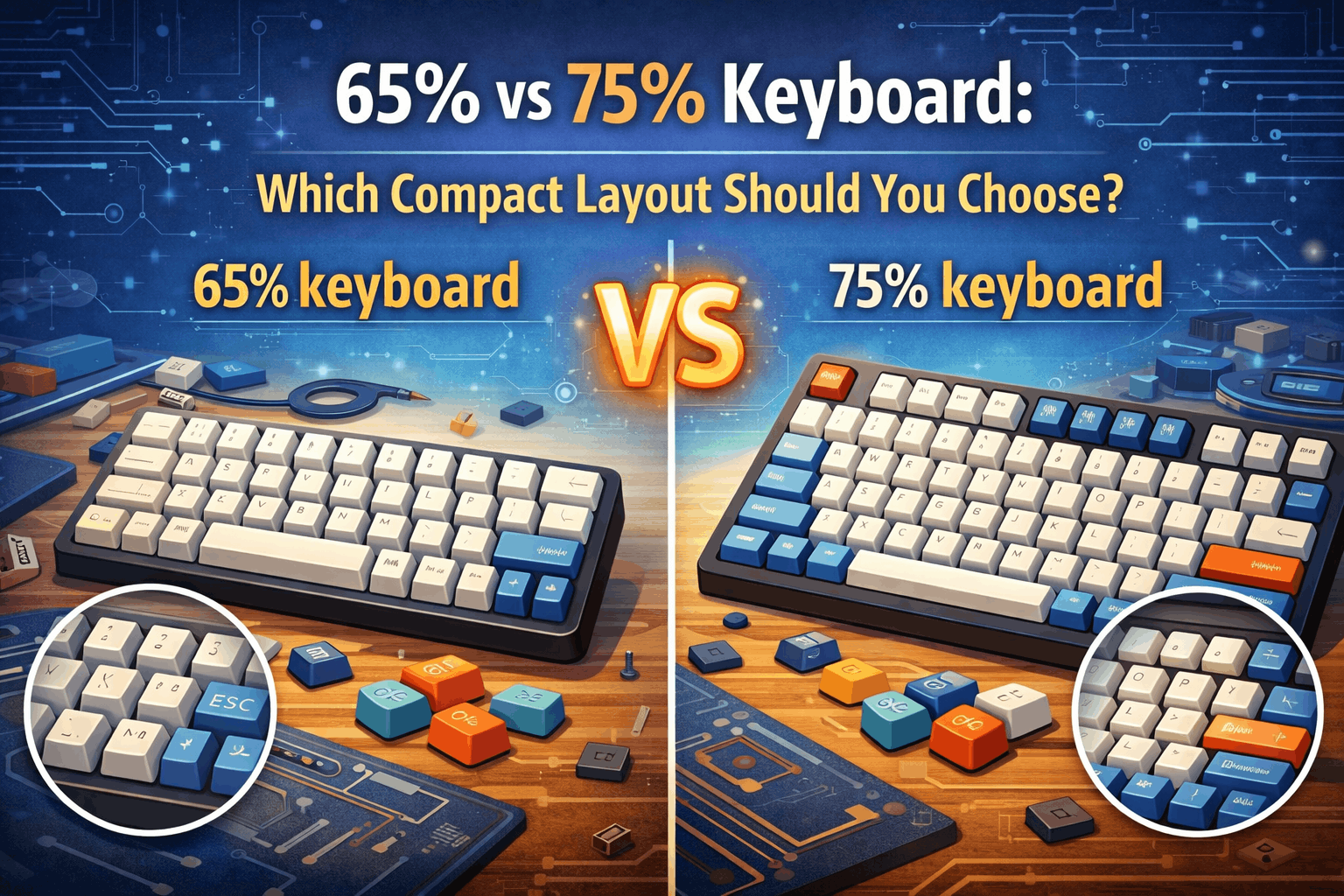
Choose 65% instead if you need dedicated arrow keys (non-negotiable), this is your first compact keyboard, you want the ideal balance of functionality and size, you appreciate that it's only 0.5 inches wider than 60% (minimal difference), or you want minimal learning curve. Check our 65% vs 75% comparison for more details on that decision.
Choose 75% instead if you use F-keys regularly, programming and IDE work is your focus, you're coming from full-size or TKL, or you want minimal learning curve with maximum functionality.
Honest truth: start with 65%, then work down to 60% only if you confirm you don't use arrows or F-keys much. It's easier to go smaller than to force yourself into a too-small layout that fights your natural workflow.
60% Layout Variations
Standard ANSI 60%
The most common layout keeps backspace in standard position, Enter in standard position, and Shift in standard position. This layout offers the best compatibility with keycap sets since it uses standard key sizes throughout.
HHKB Layout (Happy Hacking Keyboard)
The HHKB layout moves things around significantly. Control key lives where Caps Lock normally sits. Backspace moves to the Tilde position. Delete sits where Backspace was. The Fn key lives on the right, and right Shift gets split to accommodate. This layout is best for programmers, minimalists, and UNIX users who appreciate the Control key placement for shortcuts. The challenge: keycap set compatibility suffers due to the non-standard bottom row. The learning curve is steep at first but becomes powerful once mastered.
Arrow Key Variations
Some "60%" boards technically include arrow keys, pushing them to 61+ keys (not pure 60% anymore). Right Shift gets split to fit an arrow cluster. Examples include Ducky Miya Pro and Vortex Race 3. This represents a compromise between 60% minimalism and 65% functionality—you get the compact size with slightly more convenience.
Tsangan Bottom Row
The Tsangan layout uses 1.5u Ctrl and 1.5u Alt keys (versus standard 1.25u) plus a 7u spacebar (versus standard 6.25u). This creates a more symmetric appearance but affects keycap compatibility—7u spacebars are significantly harder to find in custom keycap sets.
Programming Your 60% Layout
Why Programmability Is Essential
Default Fn layers often don't match YOUR habits. Customization becomes critical for successful 60% adoption—this isn't optional. Popular firmware options include QMK (most flexible but complex with steepest learning curve), VIA (QMK with a GUI, beginner-friendly with real-time testing), and brand-specific options like Anne Pro app or Ducky macro editor (less flexible but easier to use).
Common Customizations
Layer 1 (Fn + keys) handles essentials. Arrows typically map to Fn+WASD (gamer intuitive) or Fn+IJKL (vim-style). F-keys map to Fn+1 through Fn+12. Navigation keys like Home, End, Page Up, Page Down vary by board but usually follow logical placement. Delete commonly maps to Fn+Backspace.
Layer 2 (Fn+Fn or Fn2) handles useful extras. Media controls for play, pause, volume, and skip. RGB lighting controls for brightness and color cycling. Macros for common shortcuts or frequently-typed phrases.
Key remapping offers game-changing improvements for adaptation. Remapping Caps Lock to Fn frees up the Fn key and feels more natural since Caps Lock is rarely used. Remapping Caps Lock to Esc helps vim users. Remapping Caps Lock to Ctrl follows HHKB philosophy and improves ergonomics for shortcut-heavy workflows.
Testing & Iteration
Expect to revise your layout 3-5 times. Your first version is rarely perfect. Real-world usage reveals needed changes that aren't obvious when planning layouts theoretically. VIA's advantage shines here—real-time testing without re-flashing firmware means you can test changes immediately.
Use a cheat sheet strategy initially. Print your layout and keep it visible, or use transparent keyboard stickers (like arrows on WASD keys). Remove stickers once muscle memory forms—usually within a week for frequently-used combos.
Best 60% Keyboards in 2026
Budget Option: Royal Kludge RK61 (~$60-80)
The RK61 offers hot-swappable switches (try different switch types without soldering), wireless plus wired connectivity, Gateron switches, and ABS keycaps. This board is best for budget builders, experimenters, and first-time 60% buyers. Why choose it? Lowest cost plus hot-swap equals low-risk experimentation—if you hate 60%, you're only out $60-80.
👉 Check Current Price on Amazon
Best Value: Anne Pro 2 (~$80-110)
The Anne Pro 2 combines Bluetooth wireless plus wired USB-C connectivity, per-key RGB lighting, good software (ObinsLab Starter), and Gateron or Kailh switches depending on version. It includes a clever "Tap" arrows feature via the function layer. This board is best for your first serious 60% purchase when you want a balance of features and price. Wireless freedom plus good software plus reasonable price makes it hard to beat.
👉 Check Current Price on Amazon
Premium Stock: Ducky One 3 Mini (~$150-180)
The Ducky One 3 Mini delivers top-tier build quality, Cherry MX switches, included PBT keycaps (double-shot, extremely durable), wired-only but rock-solid connectivity, and gasket mount construction. This board is best for premium first-time buyers who value quality over customization. Why choose it? Best stock typing experience, needs no modifications, works perfectly out of the box.
👉 Check Current Price on Amazon
Enthusiast/Custom Route ($200+)
Barebones kits like Tofu60 (aluminum case, very popular), DZ60 (PCB plus stabilizers, customize everything), or Rama U80 (premium enthusiast level) offer advantages: full control over switches, keycaps, and stabilizers, gasket mount available for better acoustics, rewarding assembly process (you build it yourself), and future-proof upgradable design. The disadvantage: requires technical skills and costs more. This route is for enthusiasts who want complete control and enjoy the building process.
FAQ: Common Questions
Can you game on a 60% keyboard?
Absolutely. Most competitive FPS gamers use 60% for the mouse space advantage. WASD plus numbers cover standard gaming controls perfectly. MMOs and strategy games needing F-keys are challenging but manageable via the Fn layer. Pro gamers worldwide use 60% keyboards in official tournaments—it's a competitive advantage, not a handicap.
How long does it take to adapt to 60%?
Expect 2-3 weeks for basic proficiency, 4-6 weeks for full comfort. Gamers adapt faster (1-2 weeks) because WASD muscle memory transfers. Heavy arrow and F-key users take longer (4-6 weeks). Some people never fully adapt—roughly 30% ultimately prefer 65% or larger. This is normal and doesn't mean you failed.
Is 60% good for programming?
It depends on your coding style. Vim users love it because HJKL navigation feels natural. IDE-heavy workflows struggle because F-keys for debugging are frequent. Many programmers prefer 75% for dedicated arrows and navigation keys. If you're considering programming focus, test with 65% first to see how much you actually use arrows and nav keys.
Can you use 60% for office work?
Yes, but assess your workflow first. General office work adapts fine. Spreadsheet-heavy work struggles because arrow navigation is critical. Document editing is manageable but slower initially. If heavy navigation represents your daily workflow, consider 65% or larger.
Are 60% keyboards more expensive?
Not necessarily. Budget 60% boards exist around $60. Premium 60% can exceed $200. Fewer keys doesn't guarantee cheaper—build quality matters more than key count. Pre-built 60% boards ($80-150) often offer better value than custom builds ($200+) unless you specifically want the customization freedom.
Should I start with 60% or 65%?
Start with 65% unless you're certain about 60%. The 65% layout has dedicated arrows with zero learning curve. If you find you never use those arrows after a few months, try 60% next time. It's easier to go smaller than force yourself into a too-small layout that fights your workflow.
Conclusion: Is 60% Right for You?
The 60% keyboard represents maximum minimalism, forced efficiency, and ultimate portability. It's the most extreme mainstream layout—loved by gamers, minimalists, and vim users, challenging for F-key users, arrow-heavy workflows, and first-time compact buyers.
The honest reality: about 70% of people adapt successfully within 4 weeks. The other 30% prefer 65% or larger for dedicated arrows. This isn't about right or wrong—it's about finding what works for YOUR workflow.
Adaptation is real. The 2-4 week learning curve is normal and expected. But it's not for everyone, and preferring 65% or 75% doesn't mean you're doing it wrong. Test before committing—hot-swap boards let you experiment without full commitment. Customization matters enormously—programmable firmware is crucial for successful adaptation. Give yourself the full 4 weeks before deciding.
Try 60% if gaming is your focus (especially FPS), you're willing to invest 4 weeks of adaptation time, you're a vim or terminal user (layers already feel comfortable), aesthetics matter most, or you're already experienced with mechanical keyboards.
Skip 60% and try 65% instead if you use arrows or F-keys 30% or more of the time, this is your first compact keyboard, your work involves heavy office or spreadsheet usage, programming and IDE work is your focus, or you want minimal learning curve.
Final thought: 60% isn't for everyone, and that's okay. It's about finding YOUR perfect layout, not forcing yourself into a too-small keyboard. The right keyboard is the one that disappears from your consciousness—you type without thinking about layout, keys, or limitations. For some people, that's 60%. For others, it's 65% or 75%. Both are excellent choices.
Start with what makes sense for your workflow. Experiment. Adapt. Discover what works for you.
Still weighing your options? Our keyboard size guide compares every layout side by side, our 65% vs 75% comparison covers the next sizes up, and the 65% keyboard guide is worth reading if you want arrow keys without going bigger, and our best 60% gaming keyboards roundup covers the top picks if you've already settled on this layout.