The internet makes buying a mechanical keyboard way harder than it needs to be. Spend 30 minutes on Reddit or YouTube and you'll be drowning in terms like "gasket mount," "south-facing LEDs," "5-pin PCB," and opinions so strong you'd think people were arguing about religion. It's a lot. If you're starting from zero, our ultimate beginner's guide to mechanical keyboards covers the foundations — switches, sizes, materials, terminology — without the Reddit drama.
Here's what nobody tells beginners: your first mechanical keyboard doesn't need to be perfect. It's a learning tool. You're going to use it, form opinions about what you like and don't like, and either keep it or make a more informed choice next time. That's normal. Most keyboard enthusiasts went through 3-4 boards before finding their sweet spot. Trying to nail the "perfect" first keyboard is like trying to find your dream car before you've ever driven.
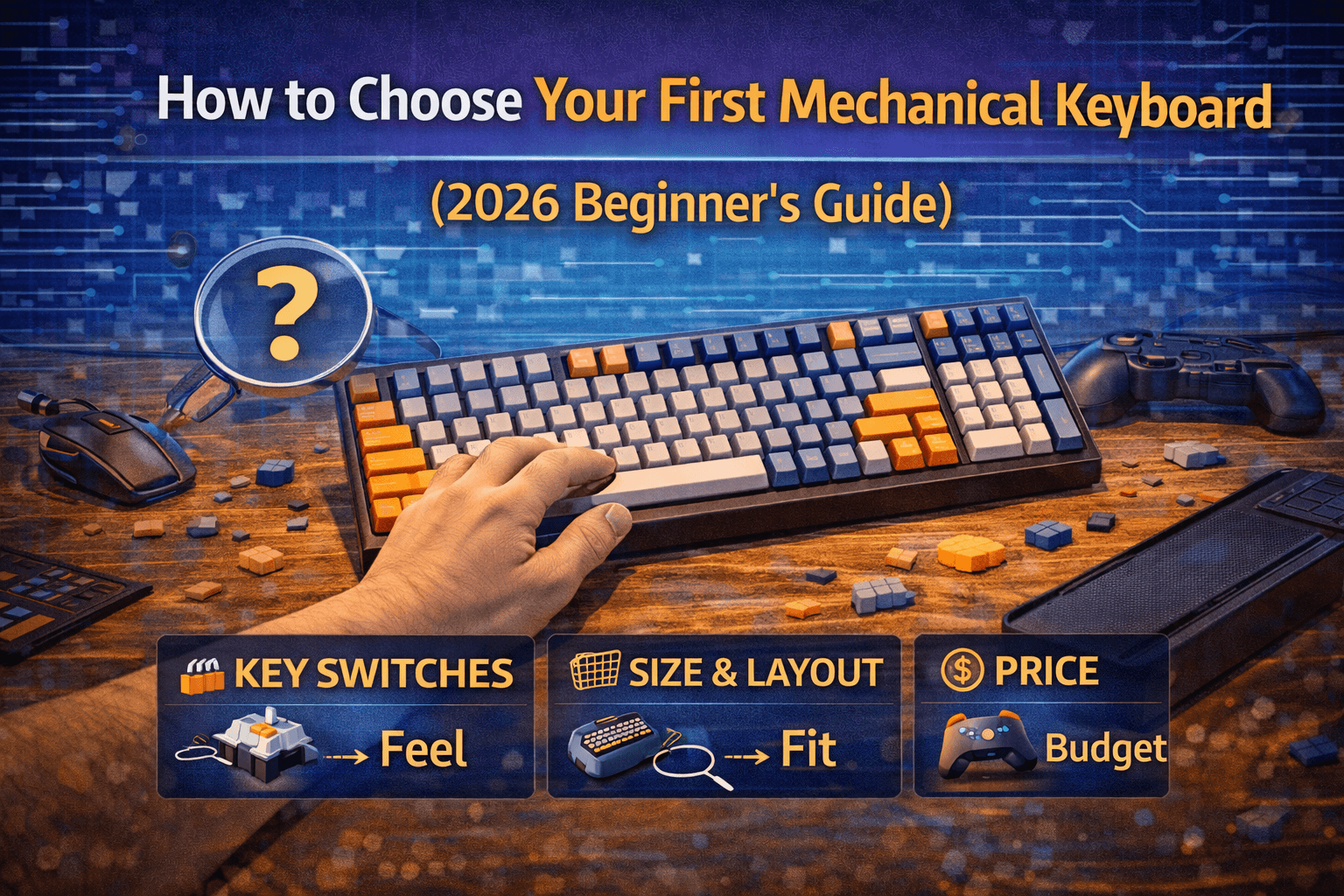
This guide strips it down to what actually matters. Three decisions will determine 90% of whether you love or hate your first mech: switch type, keyboard size, and whether it's hot-swappable. Everything else — RGB, polling rates, brand debates — is noise you can safely ignore for now. The good news? In 2026, even the cheapest mechanical keyboards are dramatically better than they were a few years ago. Hot-swap is standard at basically every price point, solid options exist under €50, and the days of needing to spend €150+ for a good experience are over.
Let's figure out what you need.
Note: This guide contains affiliate links. Purchases through these links support the site at no extra cost to you.
The Three Decisions That Actually Matter
Forget specs for a second. When you're choosing your first mechanical keyboard, three things determine whether you'll be happy. Everything else is secondary.
#1: Switch Type — How Pressing a Key Feels
This is the most important choice and — here's the frustrating part — it's the one you can't fully make from reading articles. You need to feel switches to know. That said, understanding the three categories narrows it down fast.
Linear switches go straight down, smooth, no bump, no click. Press and release. Simple. Gamers gravitate toward these because there's nothing interrupting the keystroke — just pure speed. The downside is that some people find them "empty" for typing. There's no feedback telling your fingers "yep, that key registered." It's like typing into a void. If that sounds fine to you, linears might be your thing. Gateron Yellows are the go-to budget linear — cheap, smooth, and honestly hard to beat at any price.
Tactile switches have a small bump you feel partway through the keystroke. That bump is your confirmation that the key activated. It makes typing more satisfying and helps with accuracy because your fingers get physical feedback. Most people — gamers included — find tactiles more enjoyable for daily use than linears. They're the versatile choice: good for gaming, great for typing, annoying to nobody.
Clicky switches give you the bump AND a loud "click" sound on every keypress. They're the typewriter experience. Incredibly satisfying if you work alone in a room with the door closed. Absolutely insufferable for everyone within earshot if you don't. I'm serious — clicky switches in a shared office will make people hate you. In a Discord call, your friends will ask you to mute. At home, your partner will comment. Know your environment before going clicky.
My honest recommendation for a first keyboard: go tactile. Cherry MX Brown is the safe, reliable, nobody-hates-it choice. The tactile bump is subtle — some enthusiasts call it boring, which is actually a feature when you don't know what you like yet. Gateron Browns have a slightly more noticeable bump and feel smoother, for less money. Either works. You can't really go wrong with tactile as a starting point.
Here's what's worth understanding about the switch market in general: the difference between a €0.30 Gateron switch and a €0.80 premium switch is way smaller than the internet would have you believe. In daily typing, your experience is roughly 90% the same. Premium switches might feel marginally smoother or have tighter tolerances, but the jump from membrane to any mechanical switch is 10x more dramatic than the jump from budget mechanical to premium mechanical. If you're still on the fence about whether mechanical is even right for you, our what are mechanical keyboards primer breaks down the basics first. Don't fall into the trap of thinking you need expensive switches to have a good experience. You don't.
If you get a hot-swap board (spoiler: you should), you can always experiment later. Buy a switch tester for €15, try a bunch of different types, and swap to whatever your fingers prefer after a few weeks of actual use. That trial-and-error process is how everyone in this hobby finds their ideal switch — hot-swap just makes it painless instead of expensive.
For a deeper dive into specific switches, check our keyboard switches guide, best tactile switches, and best linear switches.
#2: Keyboard Size — How Much Real Estate You Need
This trips up a lot of first-timers. Mechanical keyboards range from full-size (104 keys, number pad included) down to tiny 40% boards where half the alphabet is behind function layers. For a first keyboard, only three sizes make sense.
Full-size (100%) — everything you're used to. Number pad, function row, arrow keys, the whole thing. Zero learning curve. The trade-off is desk space: a full-size keyboard pushes your mouse further right, which is surprisingly annoying for gaming and not great for ergonomics. Most people realize after a few months that they almost never touch the number pad. If you do data entry or accounting daily, full-size makes sense. Otherwise, you're giving up a lot of desk space for keys you rarely press. Check our full-size keyboard guide if this is your direction.
TKL / tenkeyless (80%) — a full-size board minus the number pad. You keep every key you actually use regularly (function row, arrows, navigation cluster) and gain about 4 inches of desk space. There's literally no learning curve. If you later discover you need a number pad, a separate wireless one costs €20 and solves it. TKL is the safest first-timer choice, period. See our TKL keyboard guide for specific recommendations.
65% — compact. Keeps arrow keys (critical) but drops the function row and navigation cluster. You access F-keys through a function layer (hold Fn + number row). Takes about two weeks to get used to, and then you stop thinking about it. The desk space savings are significant and the aesthetic is clean. Our 65% layout guide covers this in detail, and our 65% vs 75% comparison helps if you're torn between keeping or dropping the function row.
Skip 60% and smaller for your first board. No dedicated arrow keys means relying entirely on function layers, which is a steeper adjustment than most beginners expect. It's fine once you're used to it, but frustrating while you're also adjusting to mechanical switches for the first time. Save the ultra-compact layouts for board number two. If you're curious anyway, our 60% layout guide explains what you'd be getting into.
My recommendation: TKL if you want zero friction. 65% if you want compact and modern. Either way, you'll be happy.
#3: Hot-Swap — Non-Negotiable for Beginners
I'll keep this short because the answer is simple: always buy hot-swap.
Hot-swappable keyboards let you pull switches out and snap new ones in without soldering. No tools beyond a cheap plastic puller (usually included in the box). Takes less than a minute per switch.
Why this matters for you specifically: you don't know what switches you'll prefer yet. What sounds good in a review might feel wrong under your fingers after a week. With hot-swap, that's a €15-30 switch set and 20 minutes of swapping. Without hot-swap, it's a whole new keyboard.
In 2026, hot-swap is available at basically every price point — even under €50. There's no good reason to buy a soldered keyboard as your first board anymore. It's your insurance policy against buyer's remorse, and it costs almost nothing extra.
Features Worth Caring About vs. Marketing Noise
Once you've nailed the three big decisions, you'll encounter a wall of other specs and features. Here's what matters and what doesn't.
Actually Matters
Build quality. Vague term, but you feel the difference instantly. A keyboard with a solid case and metal plate feels stable when you type. A thin plastic shell flexes and sounds hollow. You don't need full aluminum for a first keyboard, but you want something that doesn't feel like a toy. Weight is a decent shortcut — heavier generally means better materials.
Stabilizers. These are the mechanisms under your larger keys (spacebar, shift, enter, backspace). Good stabilizers feel smooth and sound clean. Bad ones rattle, tick, and make your spacebar sound like a maraca. Most budget keyboards ship with mediocre stabilizers — that's the reality of the price point. It's fixable though: a tube of dielectric grease and 15 minutes of your time solving the rattle problem is a rite of passage in this hobby. The Band-Aid mod (small fabric pieces under stabilizer mounts) and basic lubing can transform rattly stabilizers into something that sounds and feels dramatically better for under €15 total. Our switch lubing guide covers stabilizer modding too. Don't let bad stock stabilizers turn you off an otherwise good keyboard — it's the most easily fixed problem in mechanical keyboards.
Keycap material. PBT keycaps feel textured, resist shine, and last longer. ABS keycaps get smooth and greasy-looking after a few months of regular use — you'll see the shine develop on your most-used keys first (spacebar, WASD, Enter). PBT is better in every practical way. If your first keyboard comes with ABS, that's fine — keycaps are the easiest upgrade in mechanical keyboards. A decent PBT set runs €30-50 and takes 10 minutes to swap. Our keycap profiles guide covers the different shapes available if you want to go deeper.
Connectivity. Wired (USB-C) is reliable and cheap. Wireless (Bluetooth / 2.4GHz) adds convenience for laptop users and clean desk setups. Tri-mode (USB + Bluetooth + 2.4GHz) gives maximum flexibility. Our wireless vs wired keyboard guide breaks down the full trade-offs if you're unsure. For a first keyboard, wired is perfectly fine unless you specifically need wireless.
Doesn't Really Matter
RGB lighting. Looks incredible in product photos and YouTube reviews. Most people turn it off after a week because it's distracting, or set it to static white and forget about it. Don't choose a keyboard for its light show. Research actually shows dynamic RGB increases task-switching latency during focused work. It's a nice bonus, not a buying criterion.
Polling rate above 1000Hz. Gaming keyboards love advertising 4000Hz or 8000Hz polling rates like it's revolutionary. The real-world difference between 125Hz and 1000Hz is about 7ms — noticeable in competitive gaming. The difference between 1000Hz and 8000Hz? Virtually imperceptible to humans. 1000Hz is the practical sweet spot and it's standard on anything decent in 2026.
Dedicated media keys and macro buttons. Sound useful, rarely get used. Most people set them up once and forget they exist. Function layer shortcuts do the same thing without taking up physical space on your board.
Brand-specific software. Ranges from tolerable to awful. You'll configure it once and never open it again. Some keyboards support QMK/VIA for deep customization, which is genuinely powerful — but that's an advanced feature you'll appreciate later, not something to prioritize for your first board.
What You Get at Each Price Point
Setting realistic expectations prevents disappointment.
€35–50: Entry level, but genuinely usable. Plastic case, basic stabilizers, thin keycaps. But real mechanical switches and — in 2026 — often hot-swap and even wireless. Brands like Royal Kludge and Redragon live here. The RK61 (€49) and Keychron C3 Pro (€46) are the proven picks. They won't blow your mind, but they won't disappoint either. Good enough to learn what you like without any financial anxiety. The plastic construction is obviously plastic, but it's functional and sturdy enough for daily use.
€60–100: The sweet spot for first-timers. This is where the experience meaningfully improves. Better build quality — less flex, more weight, better sound dampening. Nicer keycaps (often PBT instead of ABS). More reliable brands like Keychron that have support communities and firmware updates. The Keychron V3 (~€99) is the standout here — TKL layout, hot-swap, tri-mode wireless (USB-C, Bluetooth, 2.4GHz), gasket mounting for genuinely improved typing feel, a volume knob, and pre-lubed switches that feel good out of the box. The difference between a €45 keyboard and a €99 keyboard is immediately obvious the moment you start typing. If your budget allows it, this is the tier to target.
€100–200: Premium territory. Aluminum cases, gasket mounting, high-quality stock switches, often with premium PBT keycaps. Keyboards at this level feel substantially different from budget boards — heavier, more solid, better sound profile, more satisfying to type on. The Keychron Q2 and Q3 (~€170) are excellent. The Q-series aluminum construction has real heft, the finish is clean, and the gasket mounting produces a typing sound that's genuinely pleasant. The jump from €50 to €100 is dramatic. The jump from €100 to €200 is noticeable but less dramatic — you're paying for refinement rather than fundamental improvement.
€200+: Diminishing returns. Excellent keyboards, but you're paying for boutique brands, exotic materials, and features most beginners won't fully appreciate without context and experience. Custom group buys, premium brass plates, designer keycap sets — this is enthusiast territory. Save this tier for board number two or three, when you know exactly what you value and what you're willing to pay for.
Aim for €60-100 if you can. It's the range where quality meaningfully improves without overspending on preferences you haven't formed yet.
Specific Switch Picks for First-Timers
Quick, opinionated recommendations. No "it depends" hedging.
Best tactile for beginners: Gateron Brown. More pronounced bump than Cherry MX Brown, smoother, cheaper. If your keyboard comes with Cherry MX Browns, that's fine too — they're the "reliable sedan" of switches. Not exciting, never disappointing.
Best linear for beginners: Gateron Yellow. Budget king. Smooth, light spring weight, costs almost nothing. Enthusiasts often prefer these to switches that cost 3x more. Cherry MX Red is the traditional alternative — slightly heavier, equally proven.
Clicky if you must: Cherry MX Blue is the standard. Kailh Box White is crisper. But honestly, think twice about clicky for your first keyboard. If you discover you hate the noise (or your household does), a hot-swap board lets you fix the problem. A soldered one doesn't.
If you want to go quiet: Silent switches exist for both linear and tactile types. They dampen the sound on both the downstroke and the upstroke. Worth considering if you work in a quiet environment or take calls while typing.
One thing to internalize: the difference between a €0.30 Gateron switch and a €0.80 premium switch is way smaller than marketing suggests. Your daily experience is like 90% the same. Don't agonize over switch choice — especially with hot-swap, it's a reversible decision.
For deeper comparisons, see Cherry MX vs Gateron and our guides on best clicky switches.
Mistakes First-Timers Keep Making
Learn from other people's regrets. It's cheaper.
Skipping hot-swap to save €20. The single most common regret. That €20 savings disappears the moment you realize you hate your switches and need a whole new keyboard instead of a €15 switch set. I've seen this happen dozens of times in keyboard communities — someone buys a soldered board, discovers after two weeks that they want different switches, and realizes they're stuck. Just get hot-swap. It's the cheapest insurance in the hobby.
Going too small. 60% boards look incredible on a clean desk. Living without arrow keys is more annoying in practice than it sounds in theory. Every time you need to navigate a spreadsheet, edit text, or browse the web, you're reaching for a function layer instead of a dedicated key. Start with TKL or 65%, go smaller later if you actually want to. Downsizing is easy. Upsizing means buying a new keyboard.
Choosing a keyboard for RGB. The rainbow wave looks amazing in the unboxing video. You'll turn it off within two weeks because it's distracting when you're actually trying to work or game. I've watched this cycle play out with nearly every person I've introduced to mechanical keyboards. Don't let lights drive a hardware decision.
Buying gaming brands at budget prices. A €50 Razer or Corsair keyboard uses cheaper switches, thinner keycaps, and flimsier construction than a €50 Keychron or Royal Kludge. At budget prices, gaming brands spend money on the logo and the box, not the components. At €100+, gaming brands make genuinely good stuff — their premium models are competitive. But below that threshold, the value proposition falls apart. Our best gaming keyboards under €100 guide covers which ones are actually worth it at various price points.
Overthinking it. I've seen people spend literally months in analysis paralysis, comparing every switch spring weight and debating plate materials before they've ever typed on a mechanical keyboard. Your first keyboard is a learning purchase, not a marriage. Get something decent with hot-swap, use it for a few months, and you'll know exactly what you want next time. The worst decision is no decision — meanwhile you're still typing on a mushy membrane board.
Not verifying actual mechanical switches. Some budget keyboards marketed as "mechanical feel" or "mechanical gaming keyboard" are membrane keyboards in disguise. They use rubber domes with mechanical-style keycaps. Always check for actual switch brand names (Gateron, Cherry, Kailh, Outemu) in the product specs. If the listing doesn't mention a specific switch brand, walk away.
The Simple Decision Framework
Put it all together in five minutes:
Budget? €40-50 gets you started. €60-100 gets you quality. €100+ is premium. Aim for the middle range.
Size? TKL for safe and familiar. 65% for compact and modern. Skip full-size unless you use the numpad daily.
Switches? Tactile (Gateron Brown) if unsure. Linear (Gateron Yellow) if you prioritize gaming smoothness. Clicky (Cherry Blue) only if you work alone and want the sound.
Hot-swap? Yes. Always. No exceptions for beginners.
Brand? Keychron is the safest bet at any price. Royal Kludge and Redragon are solid at budget. Ducky and Leopold are premium. Be cautious with no-name Amazon brands.
That's it. Five questions, five answers, you're done.
Specific Keyboard Recommendations
Budget (~€50): Royal Kludge RK61 — hot-swap, Bluetooth + 2.4GHz wireless + wired, 60% layout, comes with switch puller and extra switches. Absurd value for the price. Or RK68 if you want arrow keys in a 65% format — same quality, slightly larger. For TKL, the Keychron C1 Pro (~€60) is the move — wired USB-C, Gateron switches, hot-swap, solid plastic build. No wireless at this price from Keychron, but the build quality and switch quality are a step above the Royal Kludge options.
Mid-range (~€100): Keychron V3 — this is the keyboard I'd tell most first-timers to buy if they asked me to pick one thing. TKL layout means zero learning curve, hot-swap for future experimentation, tri-mode wireless for flexibility, gasket mounting that you'll notice the moment you start typing, a volume knob that's more useful than it sounds, and pre-lubed switches that feel genuinely good out of the box. It does everything well and nothing badly. If you prefer 65% layout, the Keychron V2 at similar price is the same quality in a smaller package. Both come with PBT keycaps and include all the tools you need.
Premium (~€170): Keychron Q2 (65%) or Q3 (TKL) — full CNC aluminum case, gasket mount, hot-swap, wireless, premium pre-lubed switches, PBT keycaps. The "buy once, don't upgrade for years" option. The aluminum construction feels premium in a way that's hard to describe until you've held one. Is it overkill for a first keyboard? Maybe. But nobody who buys a Q-series regrets it, and the resale value holds up well if you ever want to change direction.
All of these share the non-negotiables: hot-swap sockets, proven brands with active communities, and broad availability. You can't go terribly wrong with any of them. If you're looking for gaming-specific picks, check our best wireless gaming keyboards guide, or best keyboards for typing if productivity is your main use case.
FAQ
How much should I spend on my first mechanical keyboard?
€60-100 is the sweet spot for most people. Below €50 works fine as a learning tool — you'll get real mechanical switches and hot-swap, which is enough to form opinions. Above €100 is great quality but potentially overkill before you know your preferences. The biggest quality jump happens between €40 and €80; above that, improvements are more incremental.
Tactile, linear, or clicky?
Tactile. It's the safest starting point because it works for everything — gaming, typing, programming. The bump gives your fingers useful feedback without being intrusive. If you get hot-swap (which you should), you can experiment with linear or clicky later with zero risk. Most people who start with tactile are happy staying there. Most people who start with clicky wish they'd gone tactile.
What size keyboard should I choose?
TKL if you want zero learning curve — everything's where you expect it, you just lose the number pad. 65% if you want compact and modern — keeps arrow keys, drops function row (accessible via Fn layer). Avoid 60% and smaller for your first board; the adjustment to function layers for everything is steeper than it sounds and you'll be frustrated while simultaneously adjusting to mechanical switches.
Do I really need hot-swap?
Yes. Full stop. You don't know what switches you'll prefer until you've lived with them for a few weeks. Hot-swap lets you change your mind for €15-30 instead of buying a new keyboard. Since it's available at every price point in 2026, there's no reason to go without it as a beginner.
Are gaming brand keyboards worth it for beginners?
At €100+, some are excellent. Below that, you're paying for the brand name. A €50 keyboard from Keychron or Royal Kludge will have better switches, better build quality, and more features than a €50 keyboard from Razer or Corsair. The gaming brands spend at that price point on marketing and packaging rather than components.
Will I need to upgrade later?
Probably, and that's completely normal. Your first board teaches you what you want in your second. Hot-swap extends the first board's useful life significantly because you can upgrade switches, keycaps, and stabilizers without replacing the keyboard itself. Many people end up keeping their first hot-swap board for years by gradually improving it piece by piece.
Wired or wireless?
Wired is simpler, cheaper, zero latency. Wireless adds convenience for laptop use, clean desk setups, and switching between devices. Either is fine. If budget is tight, wired saves €10-20 that could go toward better switches or keycaps. See our wired vs wireless comparison for the full breakdown.
What about Hall effect keyboards?
Hall effect switches and rapid trigger technology are interesting innovations primarily relevant to competitive gaming. They offer adjustable actuation points and instant reset, which can provide advantages in fast-paced games. But they're a niche upgrade, not a starting point. Learn on standard mechanical switches first, then decide if the Hall effect vs mechanical differences matter for your use case.
Can I use a mechanical keyboard with Mac?
Yes. Most modern mechanical keyboards work with Mac, Windows, and Linux. Keychron specifically designs their boards with Mac compatibility in mind — they include Mac-specific keycaps and have a physical Mac/Windows toggle switch. Other brands generally work too, you'll just need to mentally swap the Windows key for Command.
Your Step-by-Step Action Plan
To make this concrete, here's exactly what to do this week:
Day 1: Decide your budget. €50, €100, or €170. Pick a number you're comfortable with.
Day 2: Pick your size. TKL if you want safe and familiar. 65% if you want compact. Don't overthink it — both are good choices.
Day 3: Choose your switches. Tactile (Gateron Brown or Cherry MX Brown) unless you have a strong reason to go linear or clicky. Remember, with hot-swap this is a temporary decision.
Day 4: Check the recommendations above, pick one, and order it. Read 2-3 user reviews to confirm there aren't dealbreaker issues. Don't read 47 reviews and second-guess yourself into paralysis.
Week 1-2: Use the keyboard. Your fingers will need adjustment time, especially if you're coming from membrane. Mechanical keys have more travel and different resistance. Give yourself at least two weeks before forming strong opinions.
Week 3-4: Now you have real data. Do you like the switch feel, or do you wish it was lighter/heavier/bumpier/smoother? Does the layout work, or do you miss certain keys? This information is gold — it's what guides your next decision, whether that's swapping switches on this board or knowing exactly what to look for if you upgrade.
Month 2+: If you're happy, you're done. Enjoy your keyboard. If you want to experiment, buy a switch tester, try different switches, and swap to whatever feels best. Consider upgrading keycaps to PBT if your board came with ABS. Maybe lube your stabilizers if the spacebar rattles. These small improvements extend the life of your first keyboard dramatically.
Bottom Line
Three decisions matter: switches (go tactile), size (go TKL or 65%), and hot-swap (always yes). Everything else is details you can figure out later.
Your first mechanical keyboard is a learning experience, not a lifetime commitment. The community is full of people who agonized over their first purchase for months when they could have been enjoying mechanical switches the whole time. Get something solid with hot-swap, use it for a couple months, and you'll know more about what you want than any guide could teach you.
The worst choice is the one you spend six months researching and never make. Meanwhile you're still typing on that mushy membrane board wondering what you're missing.
Start typing. You'll figure the rest out.
Not sure which components work together? Our keyboard configurator helps you build a compatible setup step by step.
College student on a budget? Our best keyboards for students guide has picks that balance quality and affordability. Work in creative fields? Check our best keyboards for video editors or music production keyboards guides.